
Entra ID EAM Integration
Entra ID EAM Integration
Introduction
This guide provides step-by-step instructions for integrating IBM Verify with Microsoft Entra ID's External Authentication Method (EAM) feature. This integration enables organizations to leverage IBM Verify as an external multi-factor authentication (MFA) provider within their Microsoft Entra ID environment.
You can configure the following by using this guide:
- Custom Token Types in IBM Verify to validate Entra ID tokens
- IBM Verify EAM Application to handle authentication requests from Entra ID
- Application Registration in Microsoft Entra ID to establish the connection
- External Authentication Method in Entra ID to enable IBM Verify as an MFA option
This integration allows users to authenticate to Microsoft services using IBM Verify's authentication methods (such as FIDO2, biometrics, OTP, and more) while maintaining centralized identity management in Microsoft Entra ID.
Prerequisites:
- Administrative access to IBM Verify tenant
- Administrative access to Microsoft Entra ID tenant
Custom Token Type
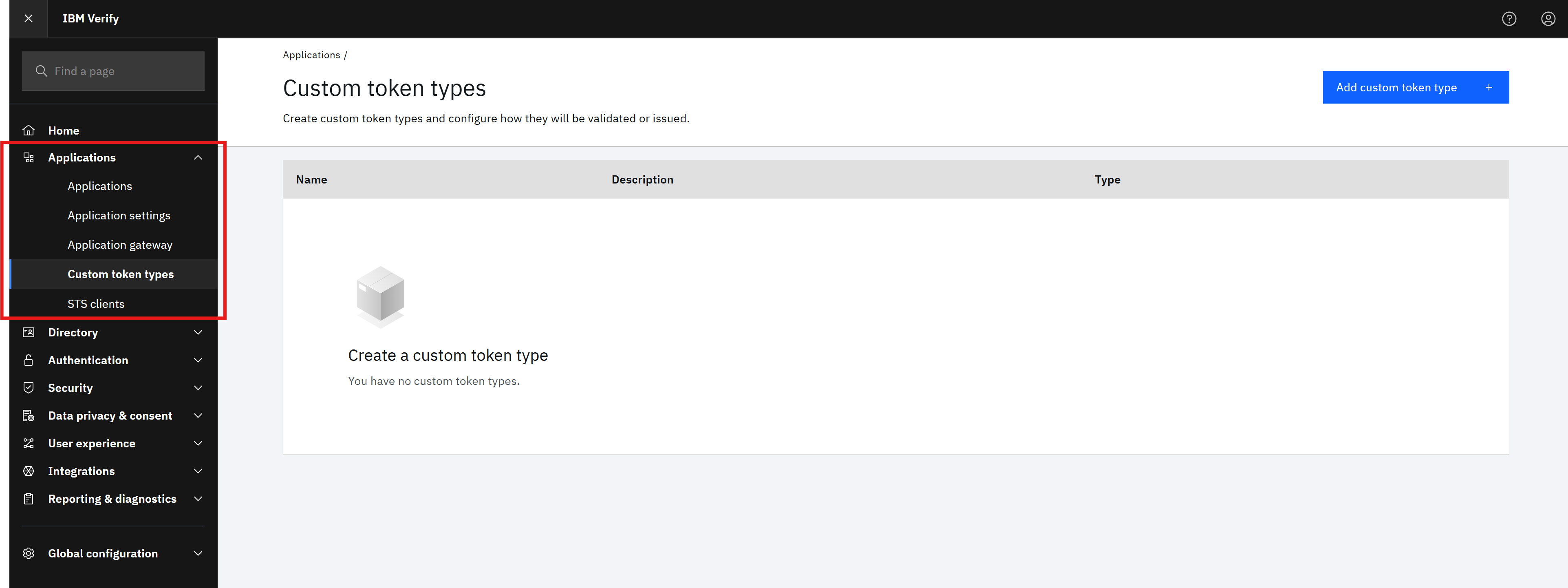
In the IBM Verify tenant admin portal, create a new custom token type for Entra ID EAM id_token_hint through Applications -> Custom token types.
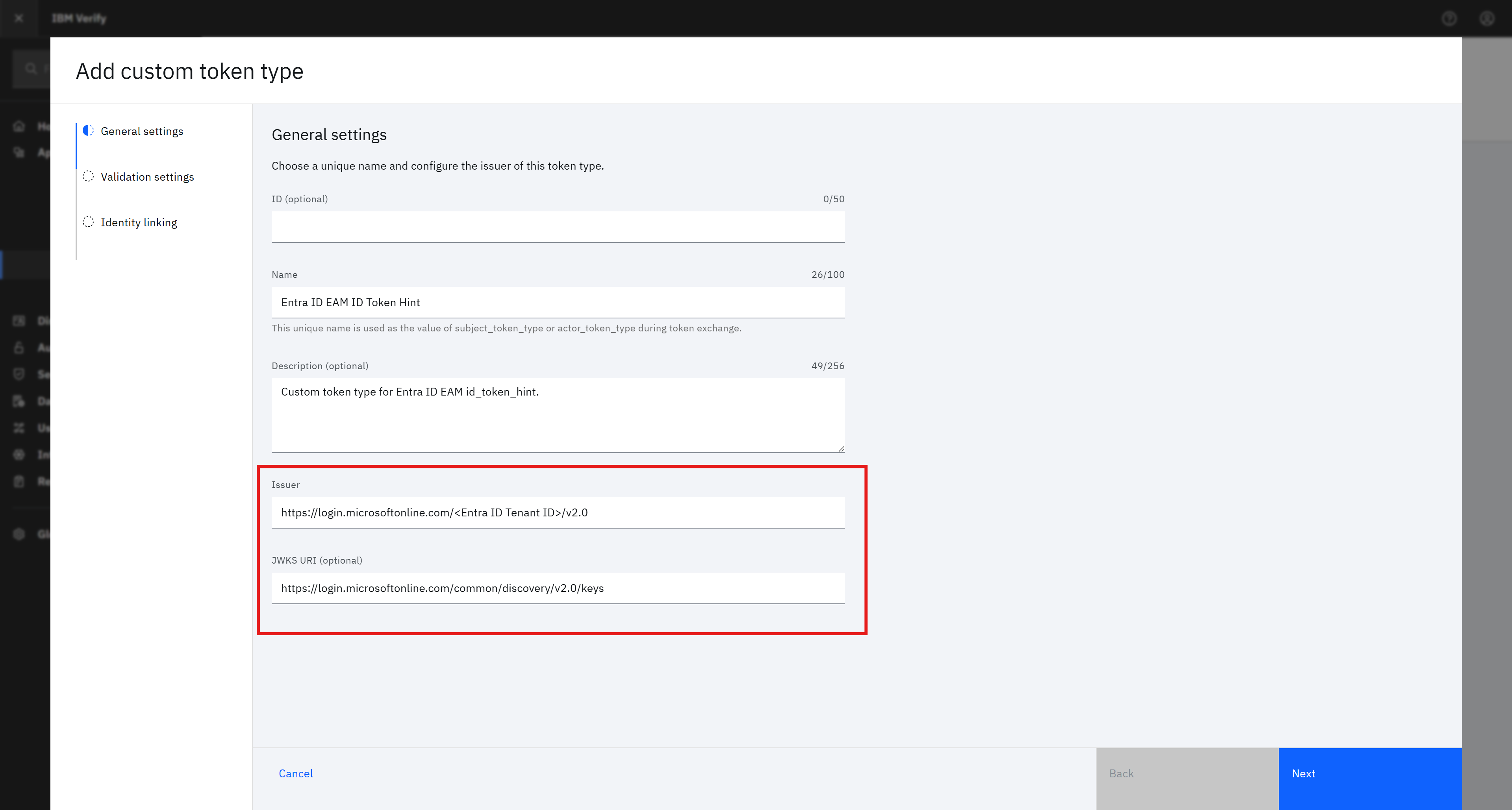
1. Complete the General settings
Use these values for the following fields:
| Field | Value |
|---|---|
| Issuer | https://login.microsoftonline.com/<Entra ID Tenant ID>/v2.0 |
| JWKS URI | https://login.microsoftonline.com/common/discovery/v2.0/keys |
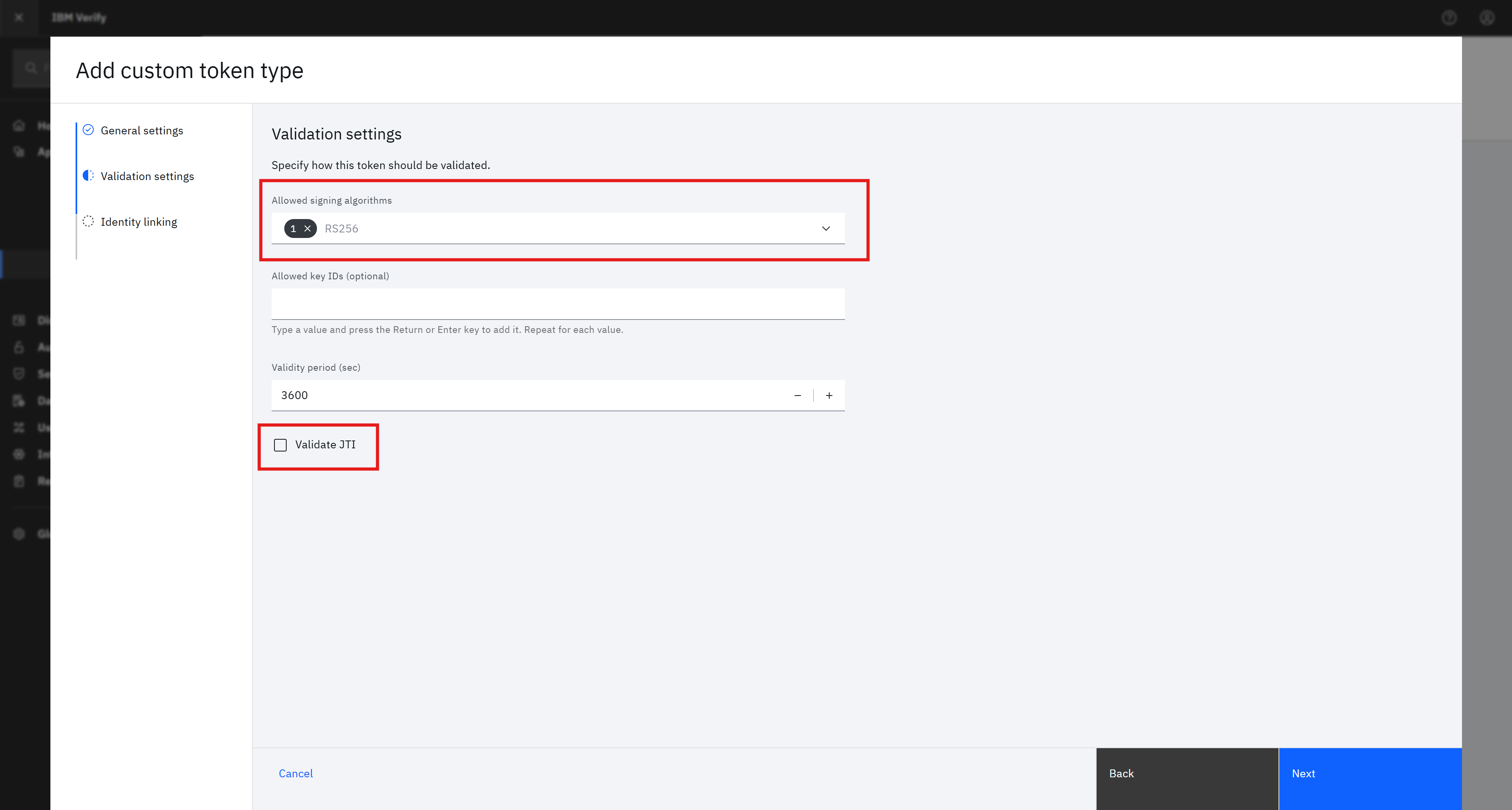
2. Complete the Validation settings
Use these values for the following fields:
| Field | Value |
|---|---|
| Allowed signing algorithms | RS256 |
| Validate JTI | Unselect the checkbox (Entra ID does not support JTI) |
3. Complete the Identity linking
Map the appropriate identity attributes based on requirements. Verify uses the attribute from id_token_hint to search for the corresponding user in the identity source.
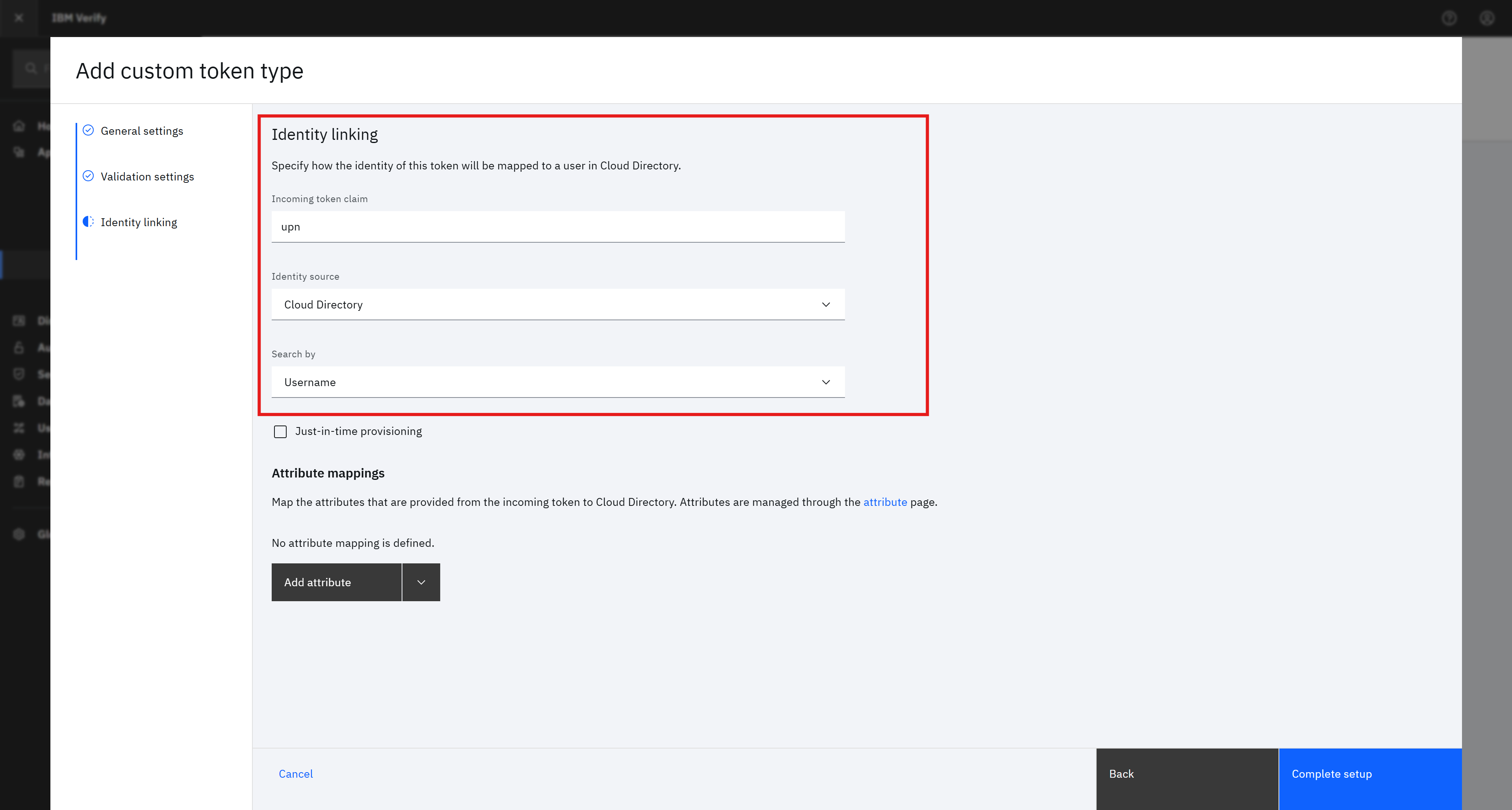
Example mapping:
| Field | Value |
|---|---|
| Incoming token claim | upn |
| Identity source | Cloud Directory |
| Search by | Username |
Note: The above example uses the upn (User Principal Name) from Microsoft Entra ID to map to the username of the user in Cloud Directory.
If a user does not exist in the Cloud Directory, Just-in-Time provisioning can be used to automatically create the user account. To enable the use of multi-factor authentication (MFA) in Verify, it is essential to include either a phone number or an email address in the Attribute mappings. These attributes are incorporated into the newly provisioned user record to ensure MFA functionality.
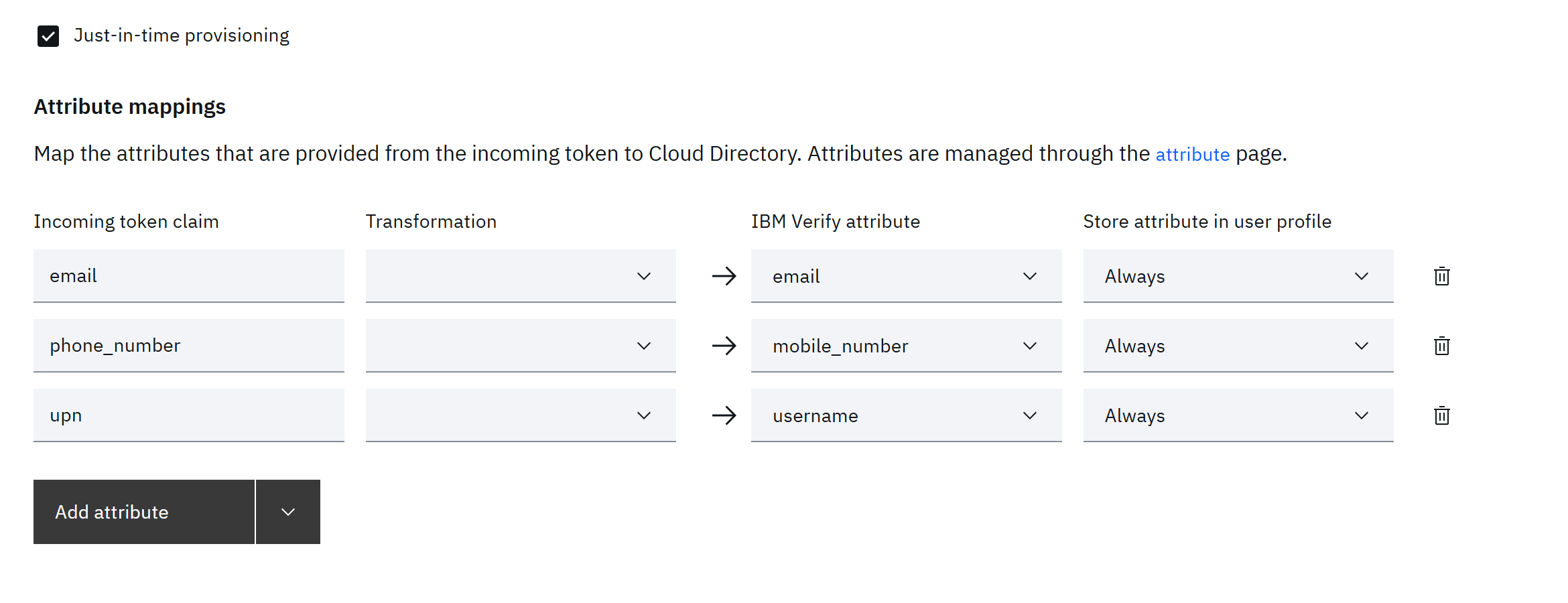
For more information, see Managing custom token types.
IBM Verify EAM Application
In the IBM Verify tenant admin portal, create a new Microsoft Entra ID EAM application from Applications -> Applications->Add application.
1. Provide required information in General tab
2. Enter details in the Sign-on tab
Use these values for the following fields under EAM Provider Settings:
| Field | Value |
|---|---|
| Redirect URIs | https://login.microsoftonline.com/common/federation/externalauthprovider |
| ID token hint custom token type | The name of the Custom Token Type created in the previous section. |
| Use default session lifetime | Set as needed. (When generating a session when Verify is not the IdP, apply either the default session lifetime or the defined session lifetime). |
| Perform first-factor authentication when no valid session is present | Checked – When Verify is configured as the Identity Provider (IdP) for Entra ID, single-factor authentication (1FA) login is required if no active login session is detected during two-factor authentication (2FA). Unchecked – An error is returned if no login session is found, or the user is provisioned through Just-In-Time Provisioning (JITP) when not available in Cloud Directory. |
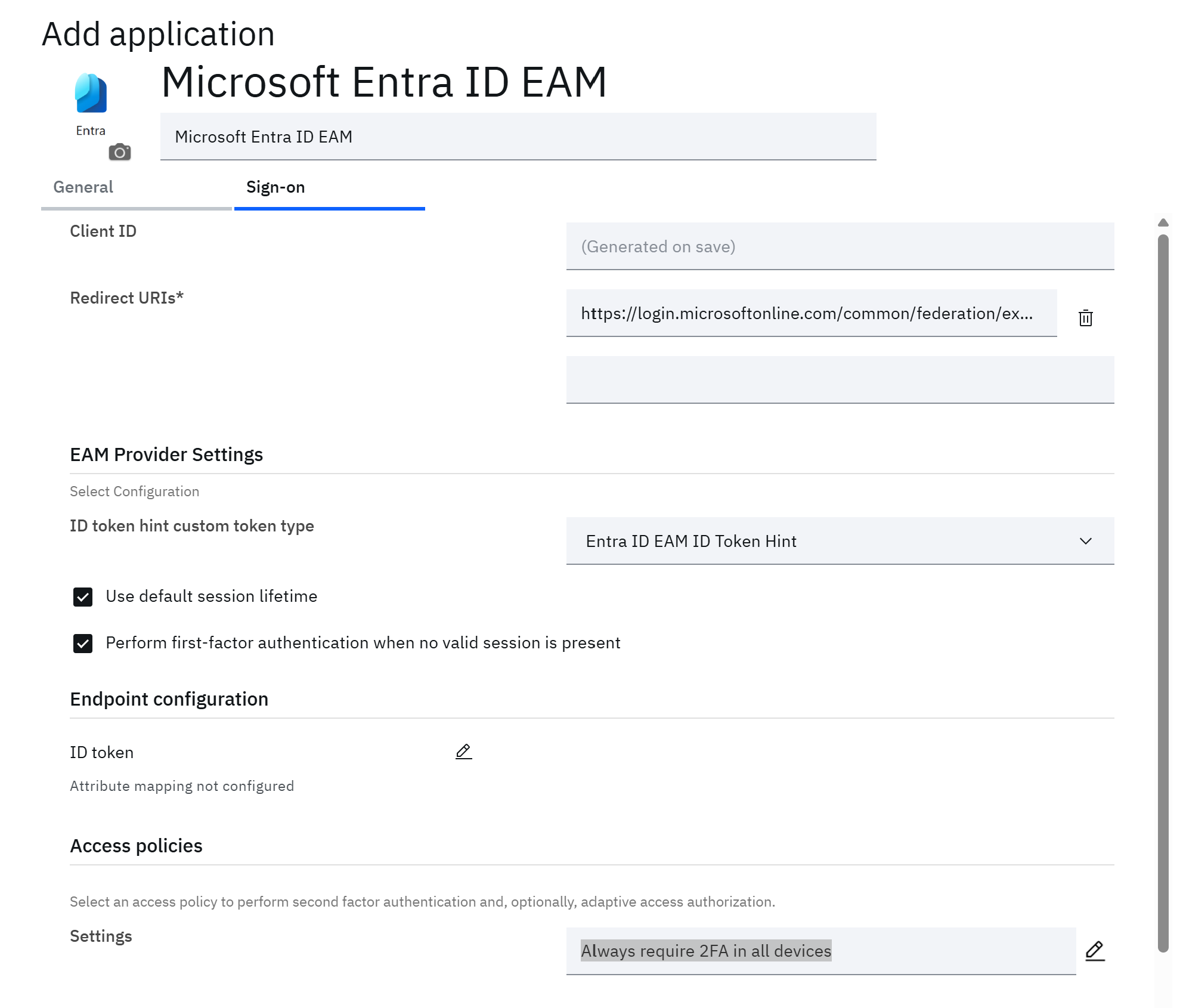
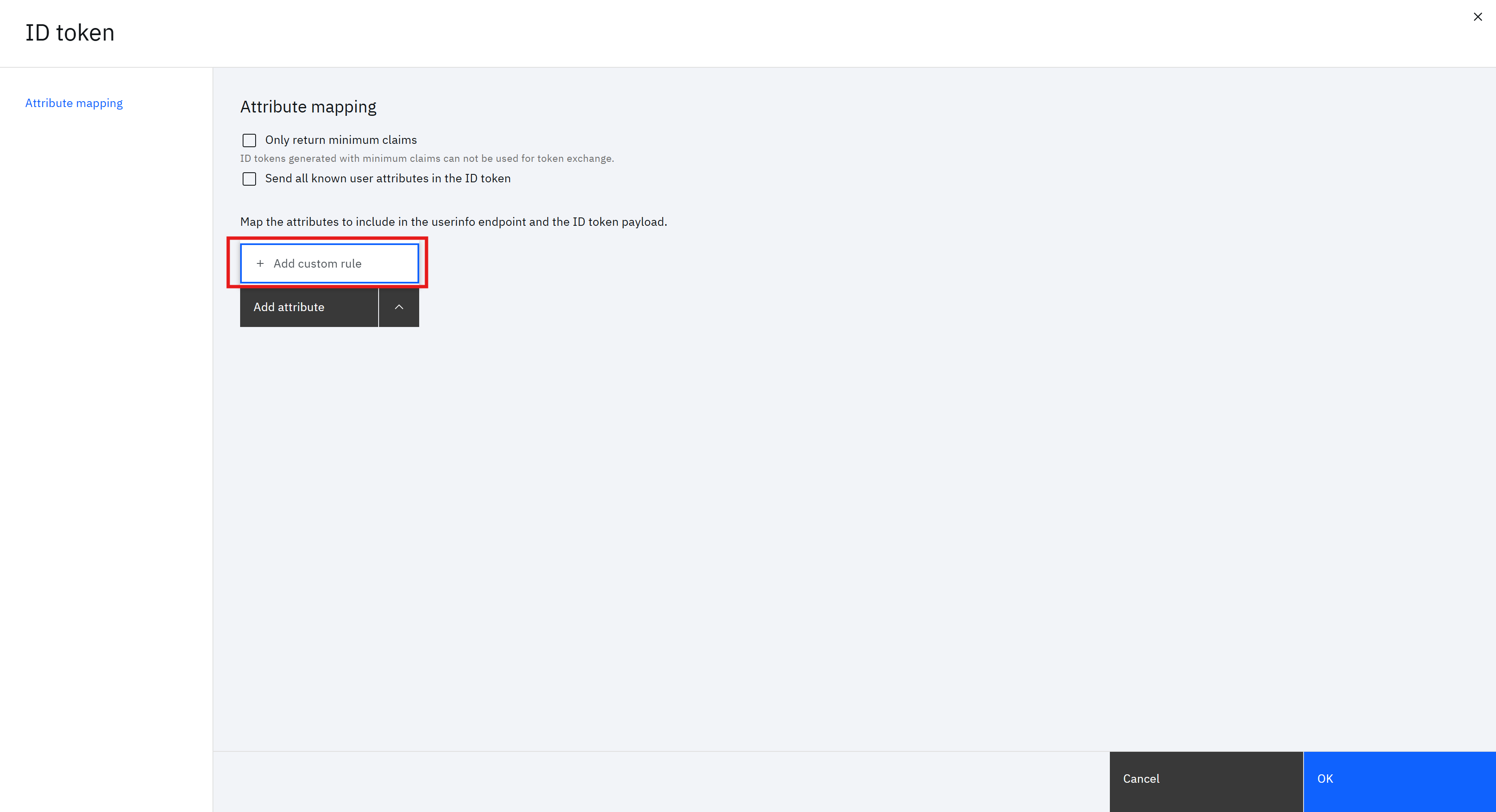
3. Use these values for the following attributes under Endpoint Configuration:
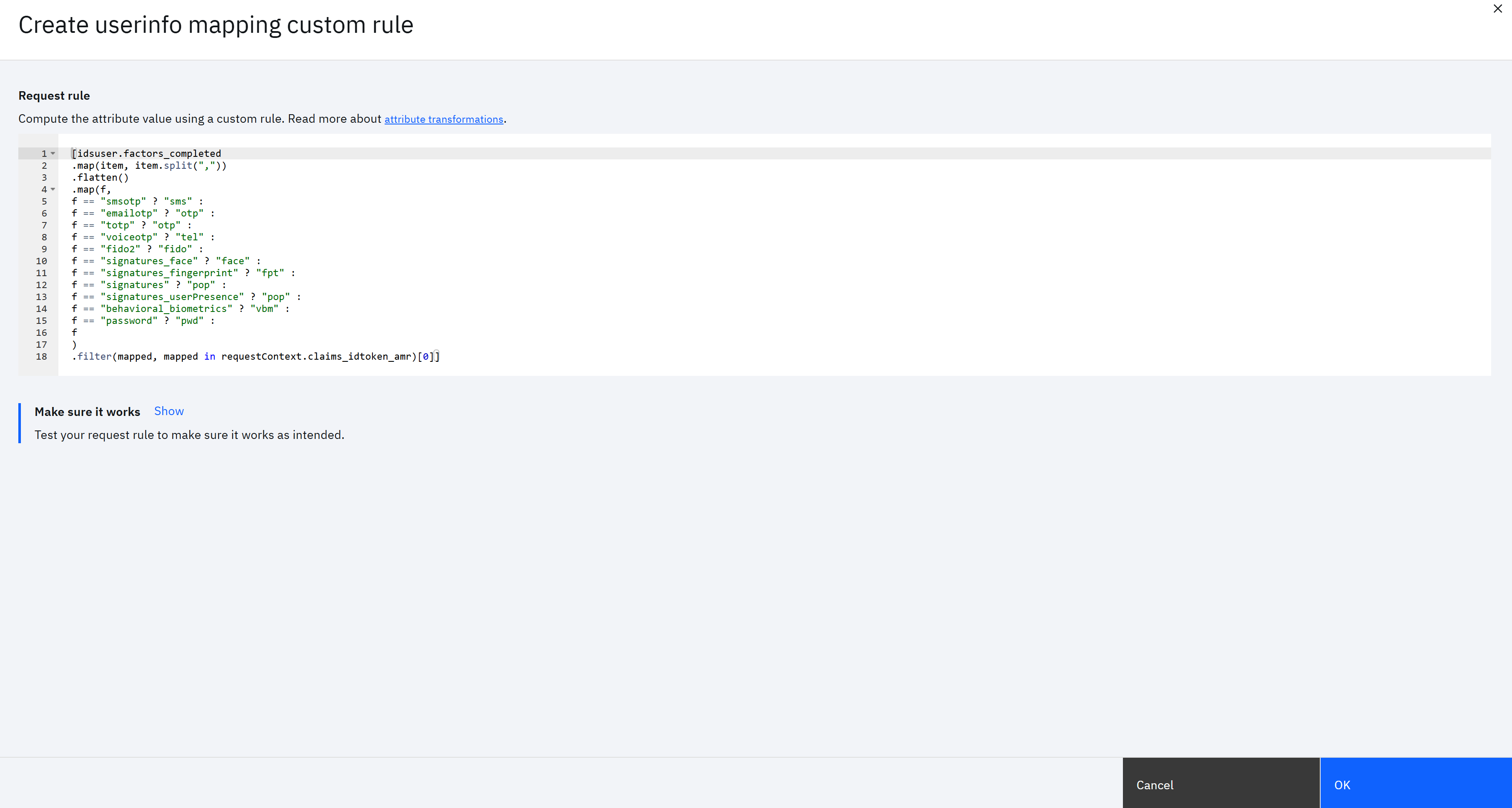
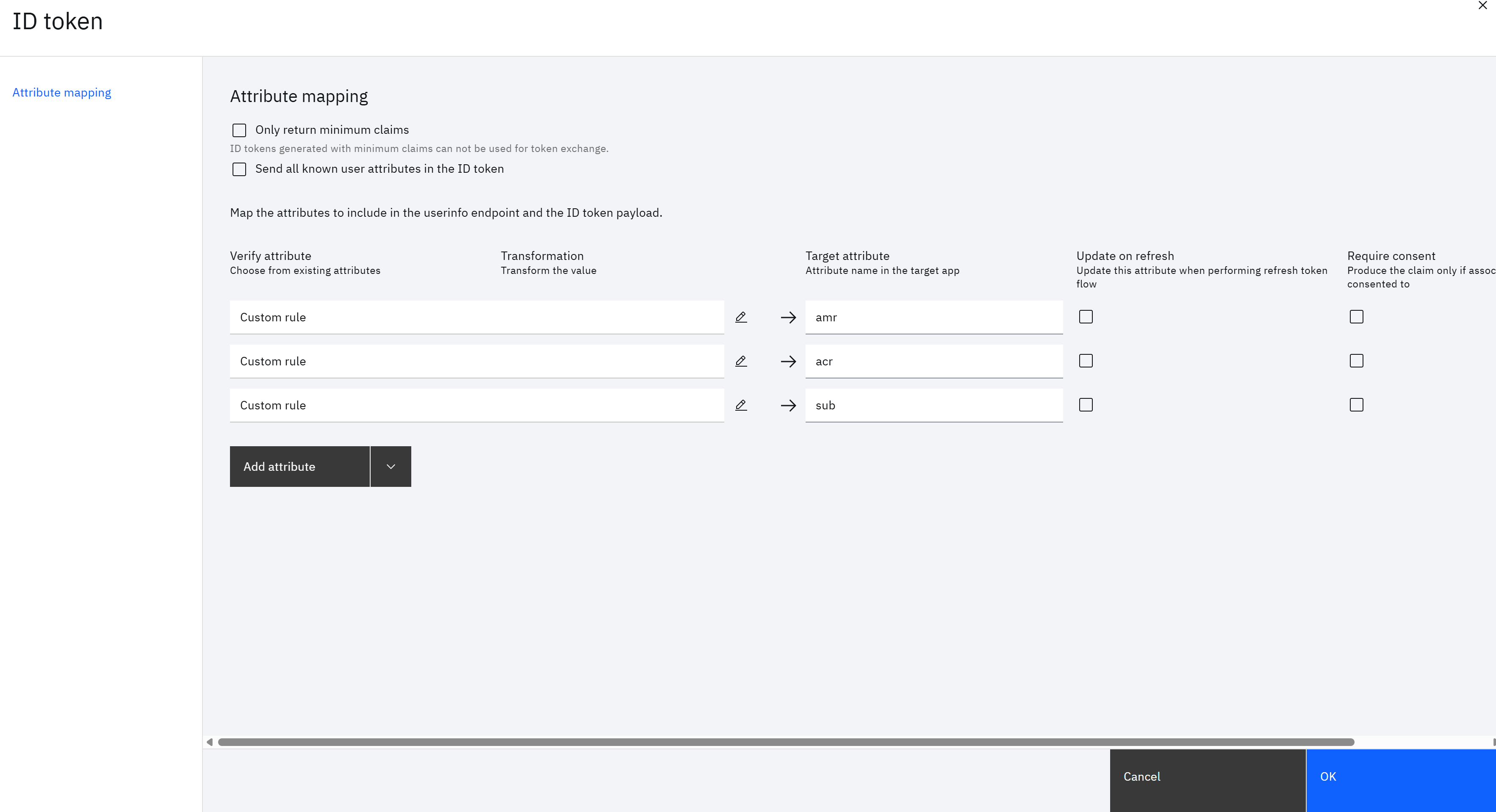
Edit the ID token and add the following custom mapping rules:
| Target Attribute | Value |
|---|---|
| amr | [idsuser.factors_completed.map(item, item.split(",")).flatten().map(f,f == "smsotp" ? "sms" :f == "emailotp" ? "otp" :f == "totp" ? "otp" :f == "voiceotp" ? "tel" :f == "fido2" ? "fido" :f == "signatures_face" ? "face" :f == "signatures_fingerprint" ? "fpt" :f == "signatures" ? "pop" :f == "signatures_userPresence" ? "pop" :f == "behavioral_biometrics" ? "vbm" :f == "password" ? "pwd" :f).filter(mapped, mapped in requestContext.claims_idtoken_amr)[0]] |
| acr | requestContext.claims_idtoken_acr |
| sub | requestContext["id_token_hint_claims"]["sub"] |
4. Select the following value for the following field under Access policies:
| Field | Value |
|---|---|
| Access policies | Select Always require 2FA on all devices or configure any other policy that enforces two-factor authentication. |
Application in Microsoft Entra ID
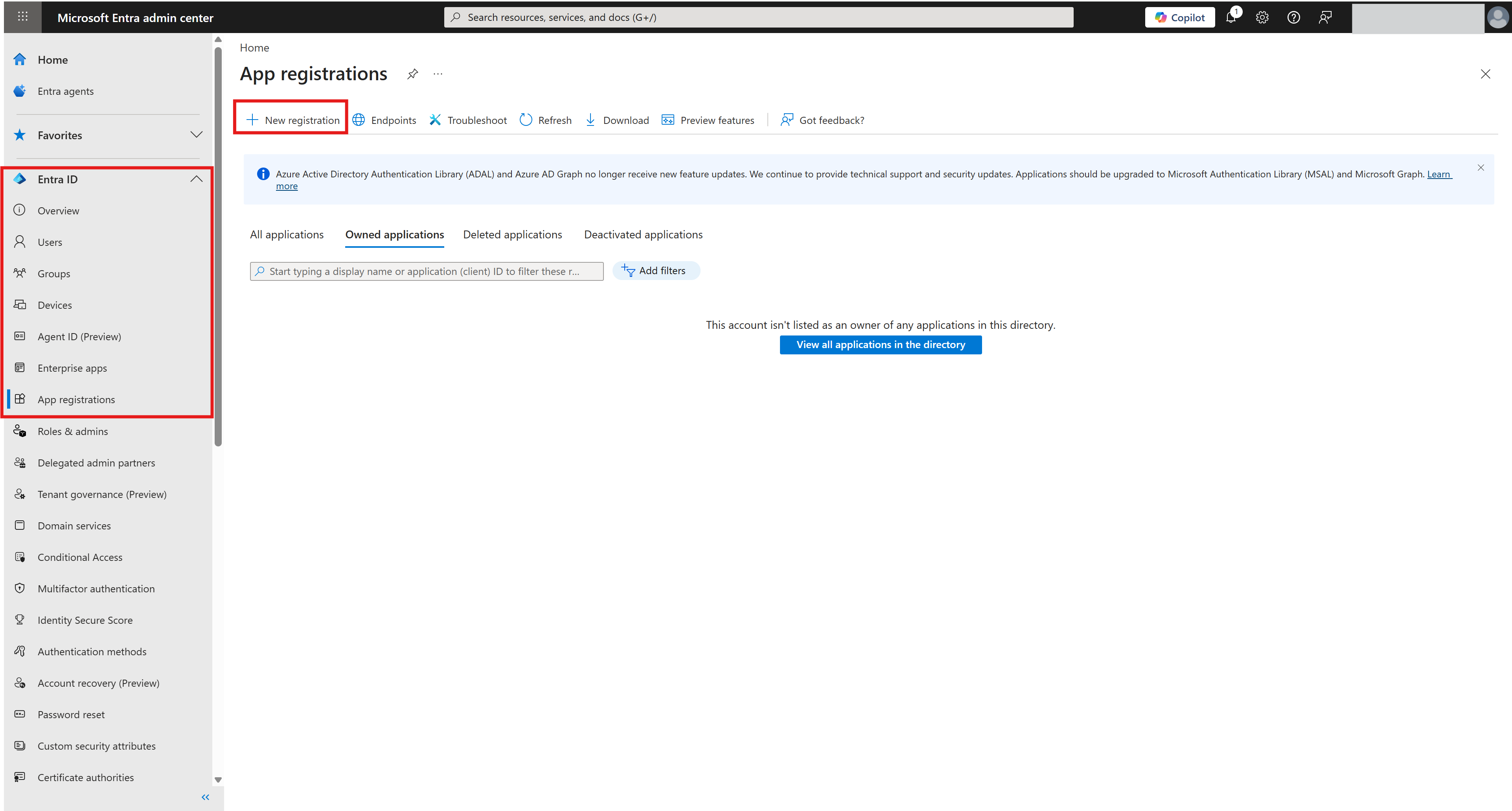
1. Create New Application
Navigate to the Microsoft Entra admin center and add a new application from Entra ID -> App registrations.
2. Application Configuration
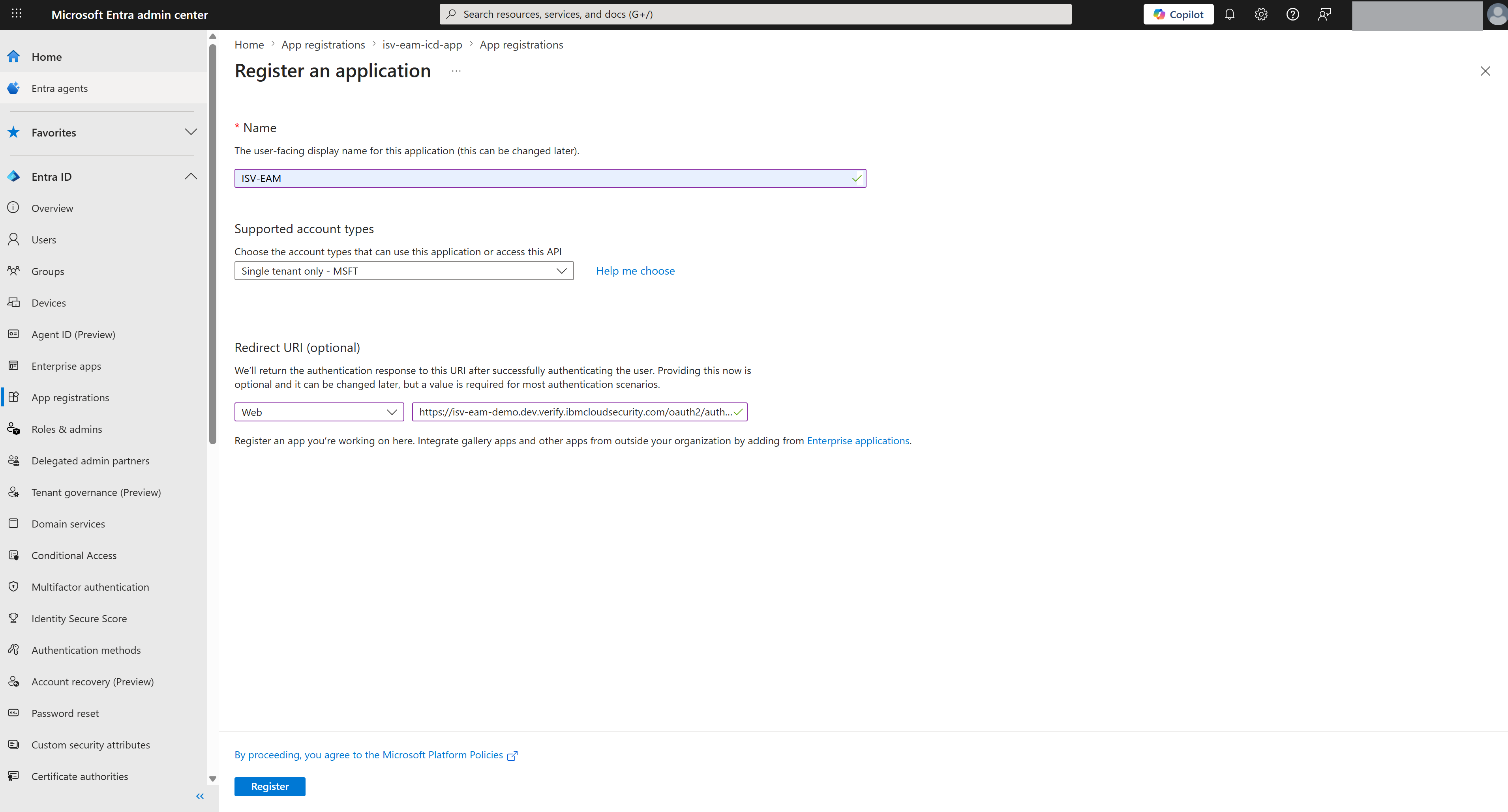
Use these values for the following fields
| Field | Value |
|---|---|
| Name | The app name |
| Supported account types | Select Single tenant only - MSFT |
| Redirect URI | Verify authorization endpoint For example: https://<isv-tenant-hostname>/oauth2/authorize |
| Select a platform | Web |
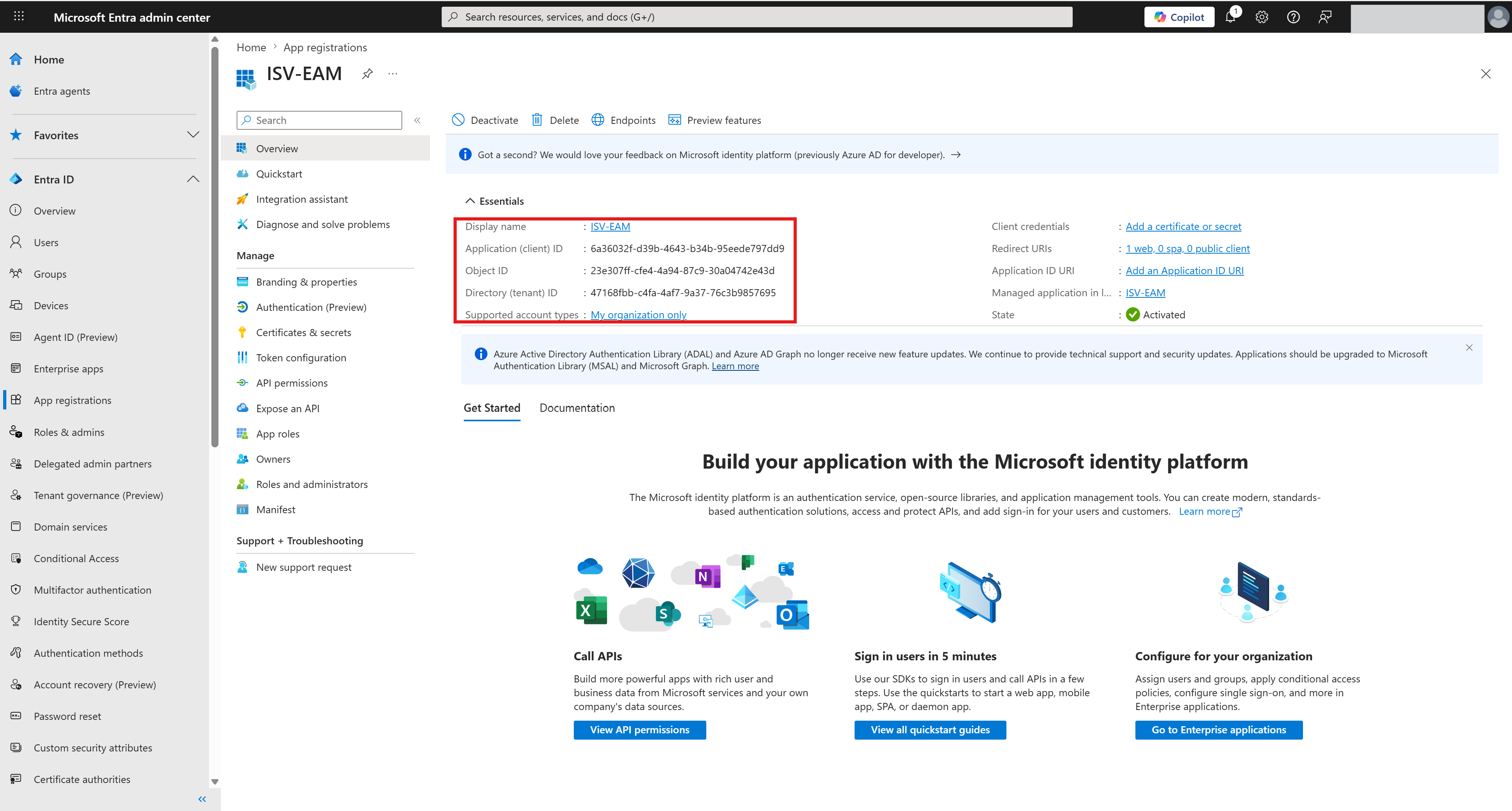
Note: The Application (client) ID of the application is used to create an external authentication method in later steps. The Directory (tenant) ID is used in the Custom Token Type section.
3. Configure API Permissions
3.1 Add Permissions
Configure the permissions to the API in the created application from API permissions -> Add a permission -> APIs my organization uses.
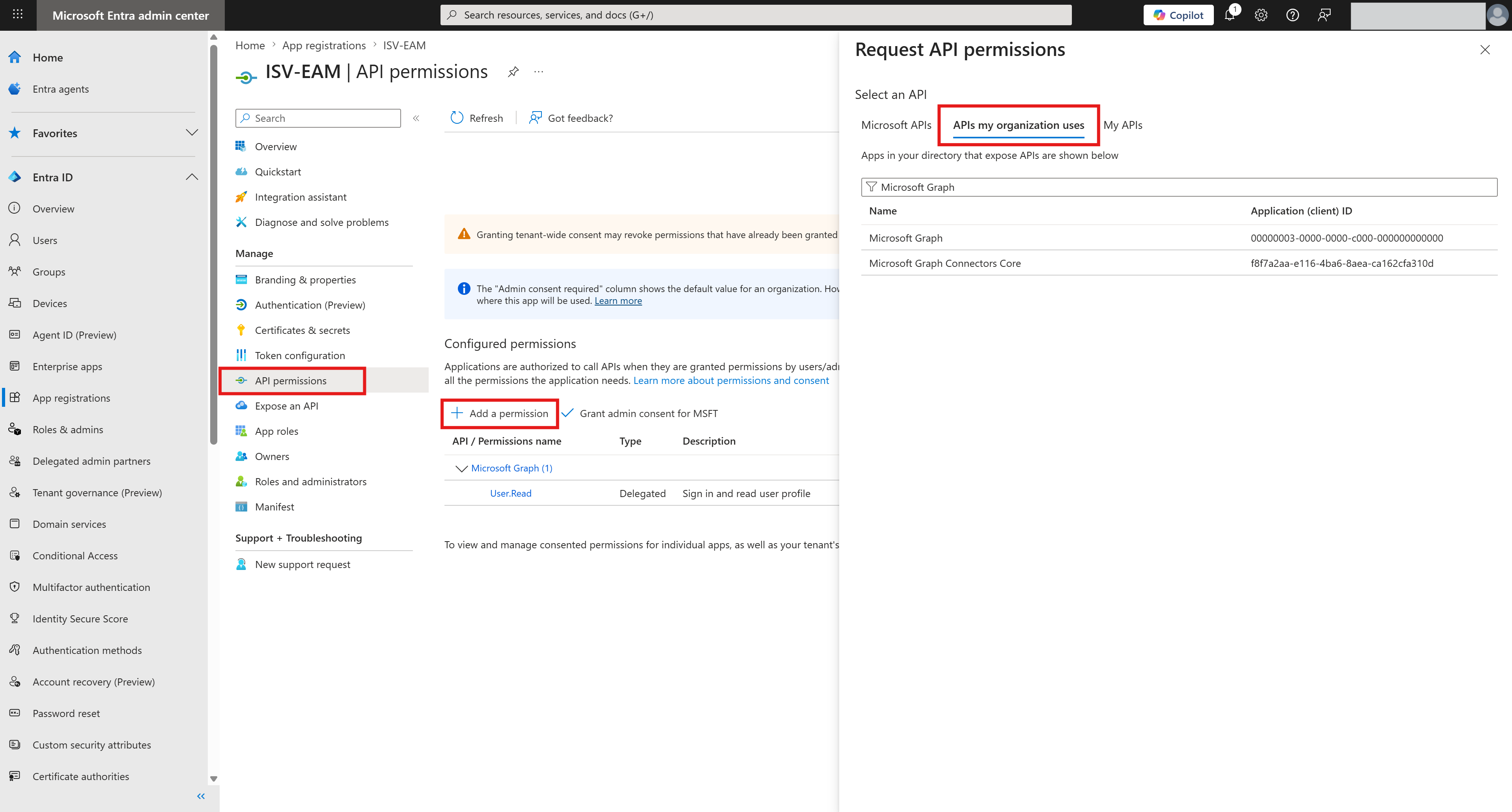
3.2 Add OpenID Permissions
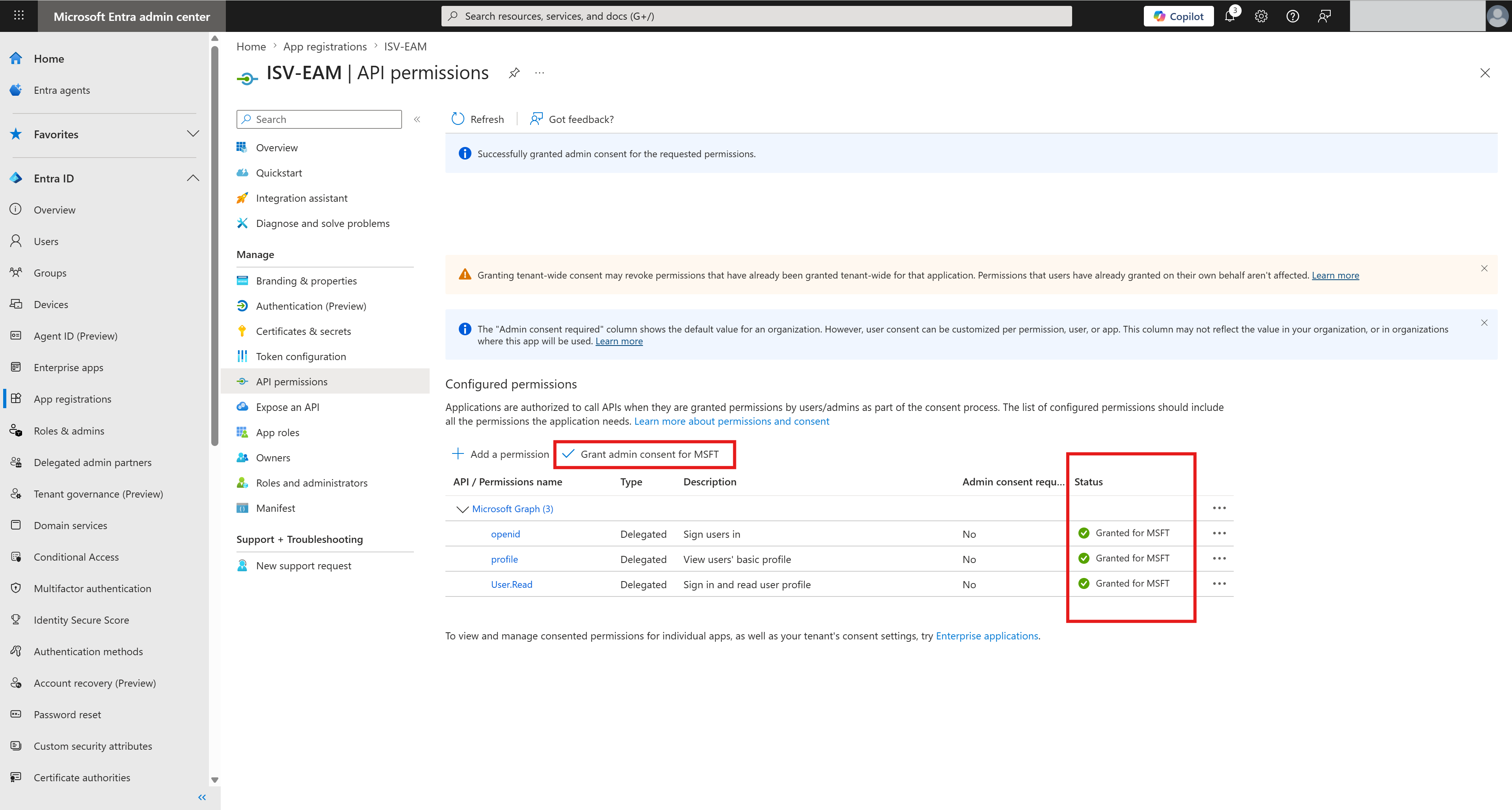
Then add the openid and profile permissions from the Microsoft Graph -> Delegated permissions -> OpenID permissions section.
3.3 Grant Admin Consent
Finally, Grant admin consent for .
4. Token Configuration
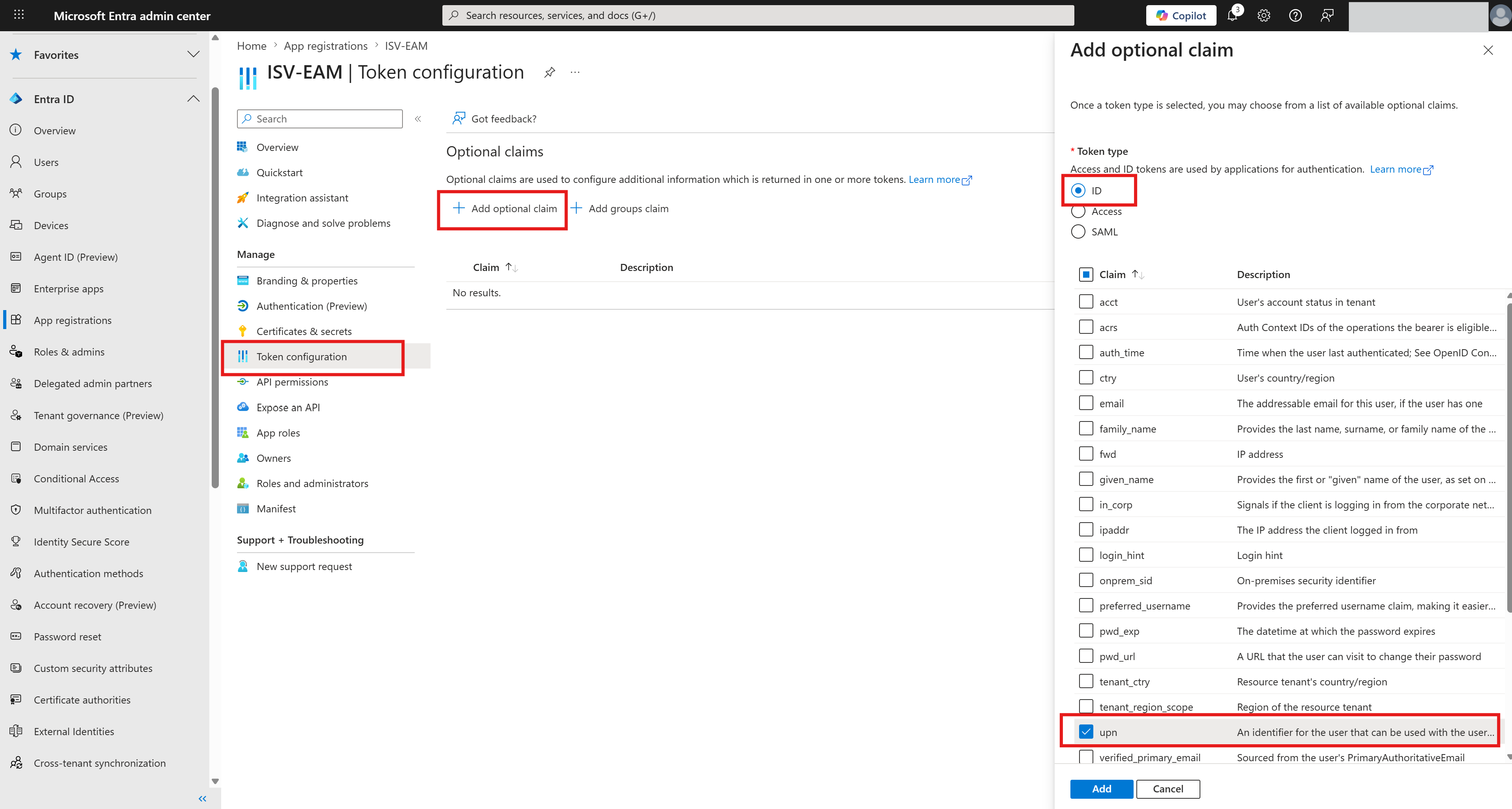
Add optional claim - upn in the Token configuration section. This claim is included in tokens generated by Entra ID and used by IBM Verify to identify and locate the corresponding user in the identity source.
Authentication Method in Microsoft Entra ID
1. Add Authentication Method
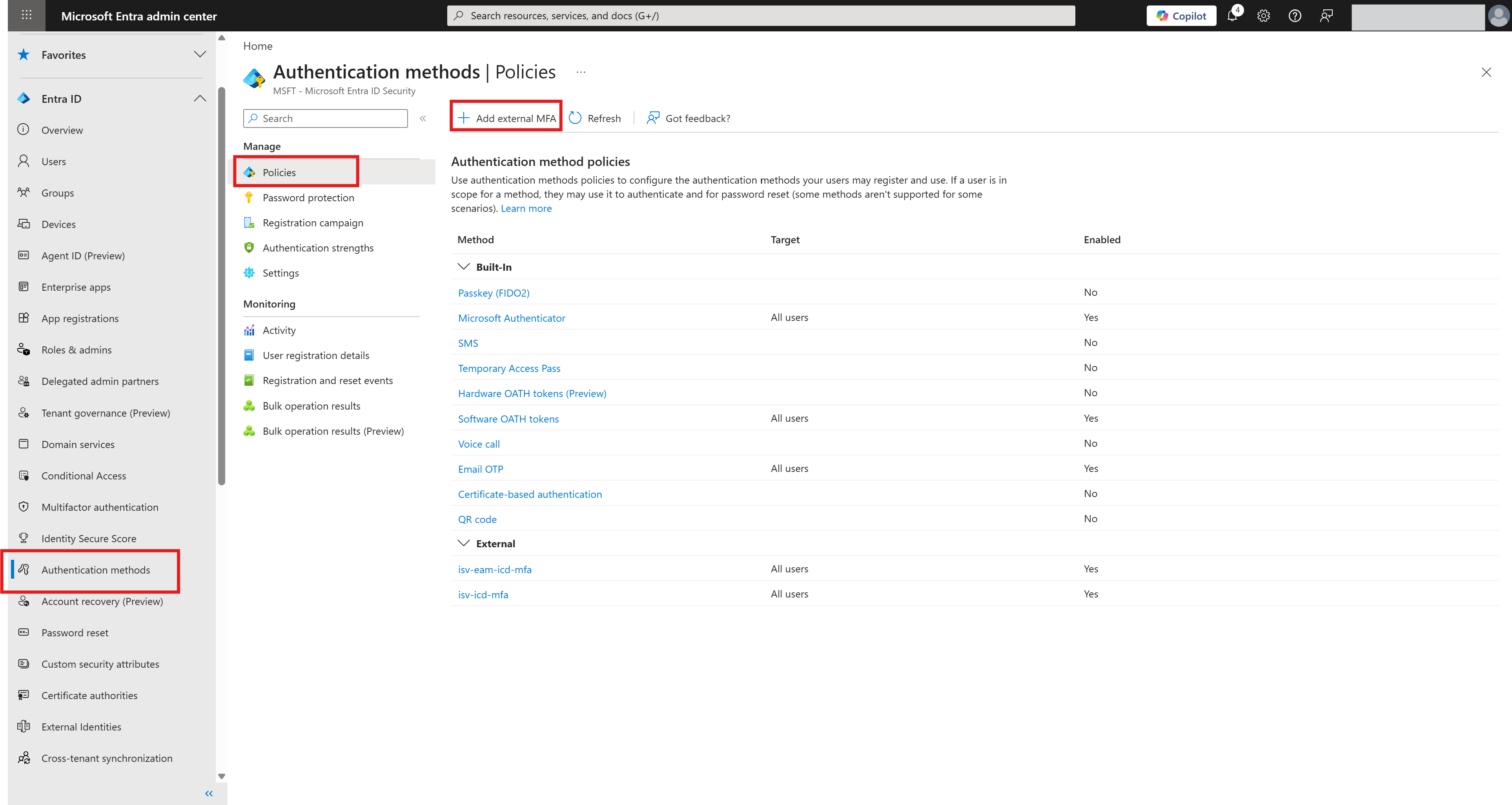
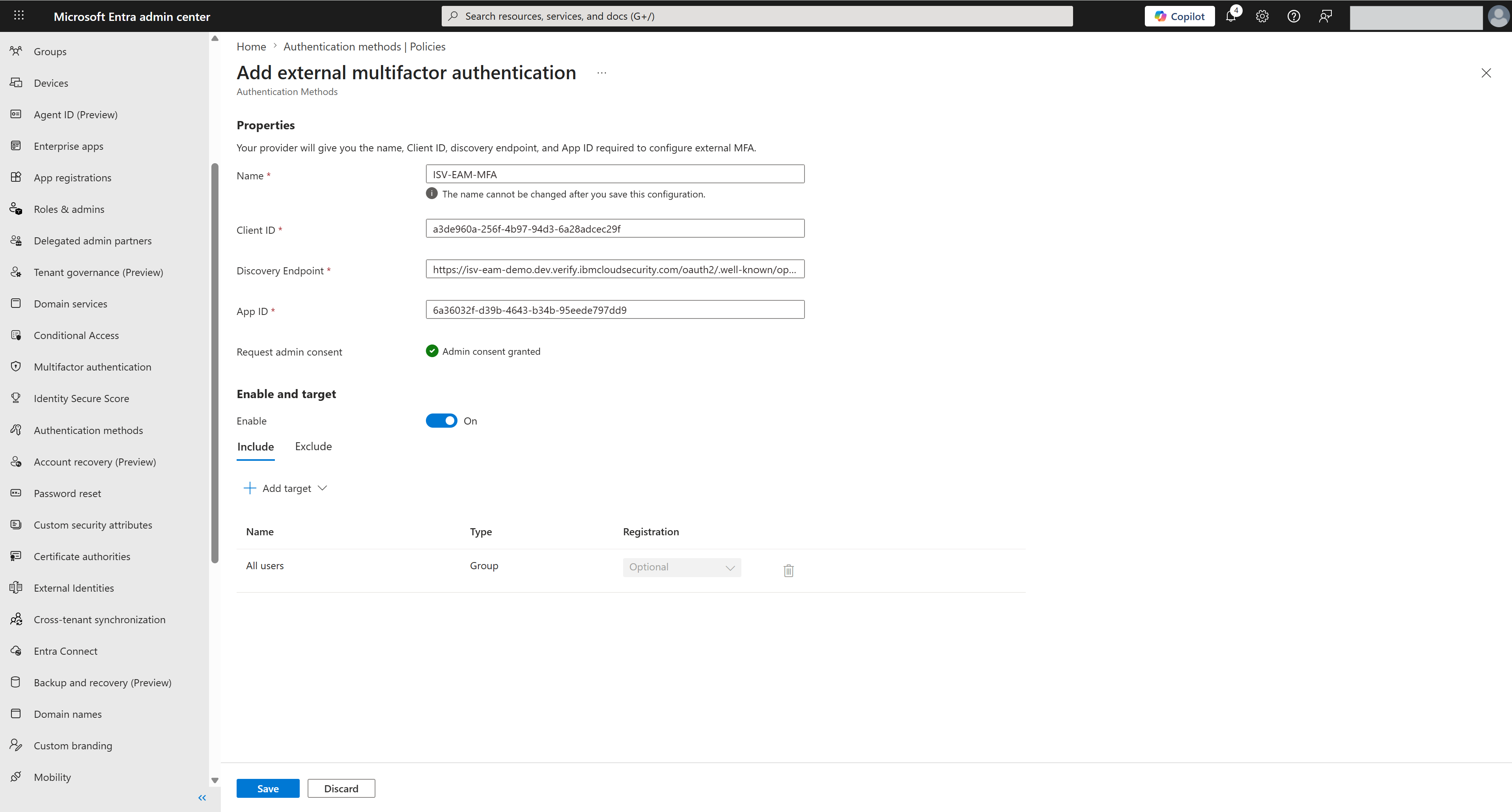
Navigate to the Microsoft Entra admin center and add a new authentication method from Entra ID -> Authentication methods -> Policies.
2. Configuration
Use these values for the following fields:
| Field | Value |
|---|---|
| Name | Name of the authentication method |
| Client ID | The Client ID of the Verify Microsoft Entra ID EAM application created in the IBM Verify EAM Application section |
| Discovery Endpoint | https://<isv-tenant-hostname>/oauth2/.well-known/openid-configuration |
| App ID | The Application (client) ID created in Entra ID in the Application in Microsoft Entra ID section |
| Enable | Enable external authentication methods |
Reference
Updated 4 months ago