
Integrating notification webhooks with custom applications
Receiving and processing fraudulent MFA reports from the IBM Verify mobile authenticator
This article will guide you through the setup of a notification webhook configured to listen for fraudulent MFA events and trigger a custom application in response. These events are generated when an end-user flags an MFA request in the IBM Verify mobile app as fraudulent.
By the end of this article a notification webhook will be configured to trigger a custom application that will perform the following actions:
- Revoke all active authentication sessions for the target user
- Initiate a password reset for the user
- Notify the user via email as to the actions taken
CautionThe actions that are implemented in this article when processing events were chosen to showcase a sample of possibilities available when responding to fraudulent MFA reports, and do not serve as recommendations regarding how these events should be handled from a security point-of-view. In a live environment users may accidentally mark the MFA request as fraudulent when it was in fact legitimate.
Prerequisites
Expectations & requirements for the documented scenario:
- Reader has administrator access to the IBM Verify instance where the notification webhook will be configured.
- The "IBM Verify authentication" factor type is enabled in the admin UI. (Authentication -> Authentication factors -> [✔️] IBM Verify authentication)
- Reader has sufficient access to configure & host an application that is resolvable over the internet by IBM Verify.
- Reader has an understanding of the process of configuring custom applications using express.js.
- Reader is able to configure API clients in IBM Verify and is familiar with API based authentication mechanisms when integrating with these (Create an API Client).
Terms used in the article
- IBM Verify mobile app: The IBM Verify mobile multi-factor authenticator app for iOS and Android. (IBM Verify User Guide)
- Administrator UI: The web-based admin UI of the IBM Verify instance.
- API client: A client application that is registered with IBM Verify and can be used to programmatically interact with IBM Verify APIs.
Understanding fraudulent MFA reports
A fraudulent MFA report is a type of security incident that occurs when a user marks an MFA request notification as suspicious or fraudulent through the IBM Verify mobile app. The option to mark an MFA attempt as fraudulent is presented to the user after denying an authentication request, in the form of a "Mark as suspicious" button alongside a "Changed my mind" option. When the user selects the "Mark as suspicious" option the MFA attempt is denied, marked as fraudulent, and the authentication flow that initiated the MFA is denied access. When viewing the MFA Activity report in the Administration UI, requests that have been denied in such a way will be indicated with a Result of Failure and a Reason of USER_FRAUDULENT.
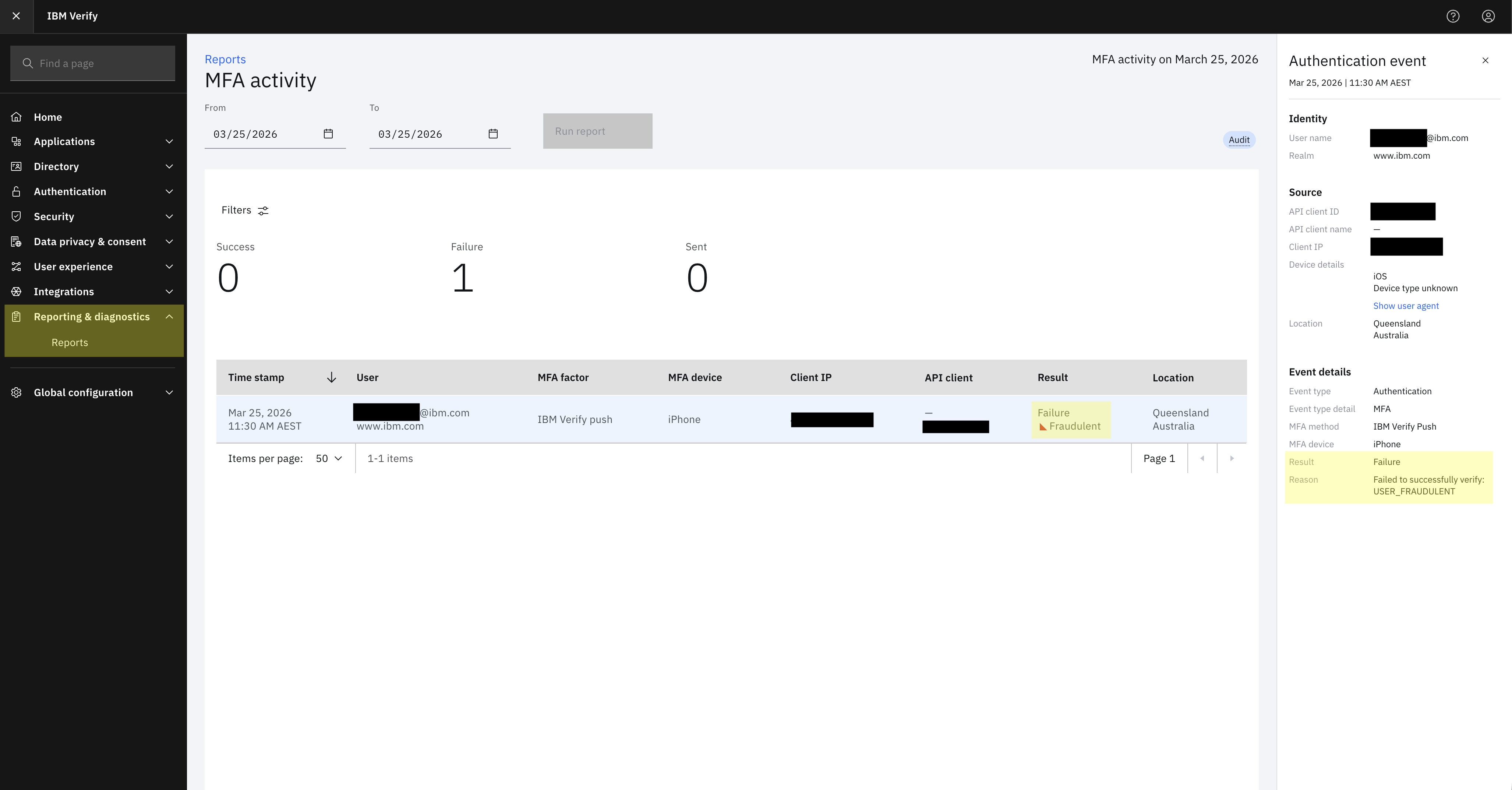
The goal of this article is to automate the handling of these events without without regular manual review of the reports UI and subsequent administrator remediation.
Architecture overview
A high-level overview of the architecture and how the relevant components will interact with each other can be viewed below. The high-level architecture diagram depicts the items configured in this article in green-highlight.
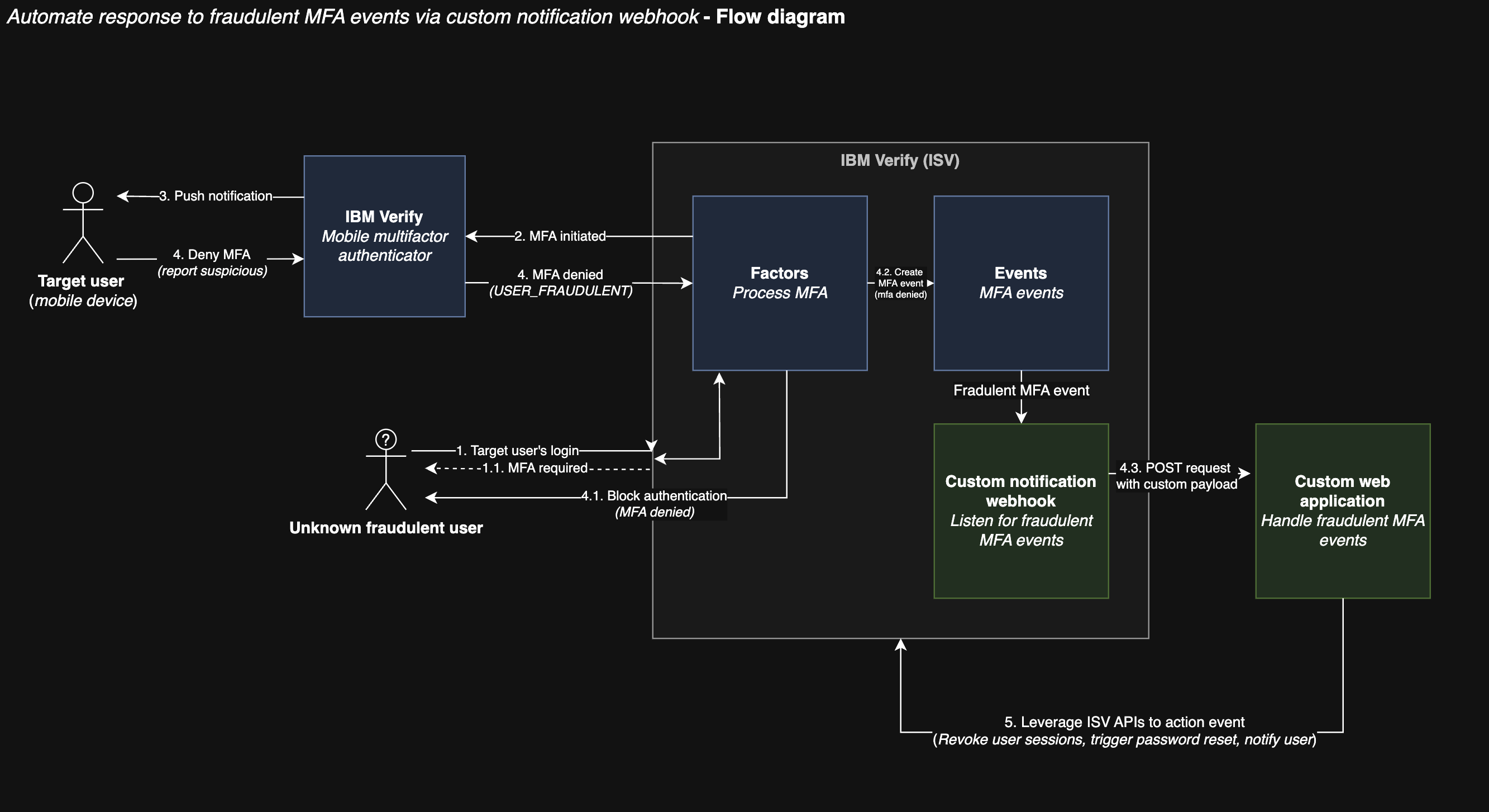
The solution will consist of two main components:
- A notification webhook configured to listen for failed MFA events produced by the service and, in the case that these are marked as
USER_FRAUDULENT, trigger an external application to handle these events. - A sample application that will receive POST requests from the webhook and perform actions such as revoking user sessions and triggering password resets based on the event information provided.
In order to ensure that the sample application can extract the relevant information from the request needed to make actions against the user's account, an expected payload format needs to be defined. The format of a notification webhook POST request is as follows:
{
  "correlationid": "CORR_ID-AKdf126121-d8b2-4cfa-a7ea-ad91a5249465",
  "data": {
    "api_grant_type": "refresh_token",
    "cause": "Failed to successfully verify: USER_FRAUDULENT",
    "devicetype": "Verify/2 CFNetwork/3860.400.51 Darwin/25.3.0",
    "intraservice": "false",
    "mfadevice": "iPhone",
    "mfamethod": "IBM Verify Push",
    "mfaresult": "USER_FRAUDULENT",
    "origin": "<IP_ADDRESS>",
    "performedby": "3630004RA2",
    "performedby_realm": "www.ibm.com",
    "performedby_username": "[email protected]",
    "realm": "www.ibm.com",
    "result": "failure",
    "sourcetype": "social",
    "subject": "3630004RA2",
    "subtype": "mfa",
    "targetid": "9dcb2d06-ceb0-49b7-adf7-5b4331478100",
    "username": "[email protected]"
  },
  "day": 25,
  "event_type": "authentication",
  "geoip": {...},
  "id": "b65ec53e-d0af-442e-931c-a967f5894bb3",
  "internal": {},
  "month": 3,
  "servicename": "factors",
  "tenantid": "68678f68-55ba-4bfd-b1d6-4791c2853d14",
  "tenantname": "example.verify.ibm.com",
  "time": 1774414598286,
  "year": 2026
}
These properties can all be read by the processing application & additional actions can be taken based on their values. For the purposes of this example, we are only interested in the following fields;
data.subjectdata.mfaresultevent_typedata.result
Configuring the notification webhook
Configure a notification webhook that subscribes to USER_FRAUDULENT events. This will automatically POST the JSON data of the event to the configured endpoint. For a more detailed outline, see Creating a notification webhook.
- Log in to the Administration UI of your Verify instance (e.g. https://example.verify.ibm.com/ui/admin).
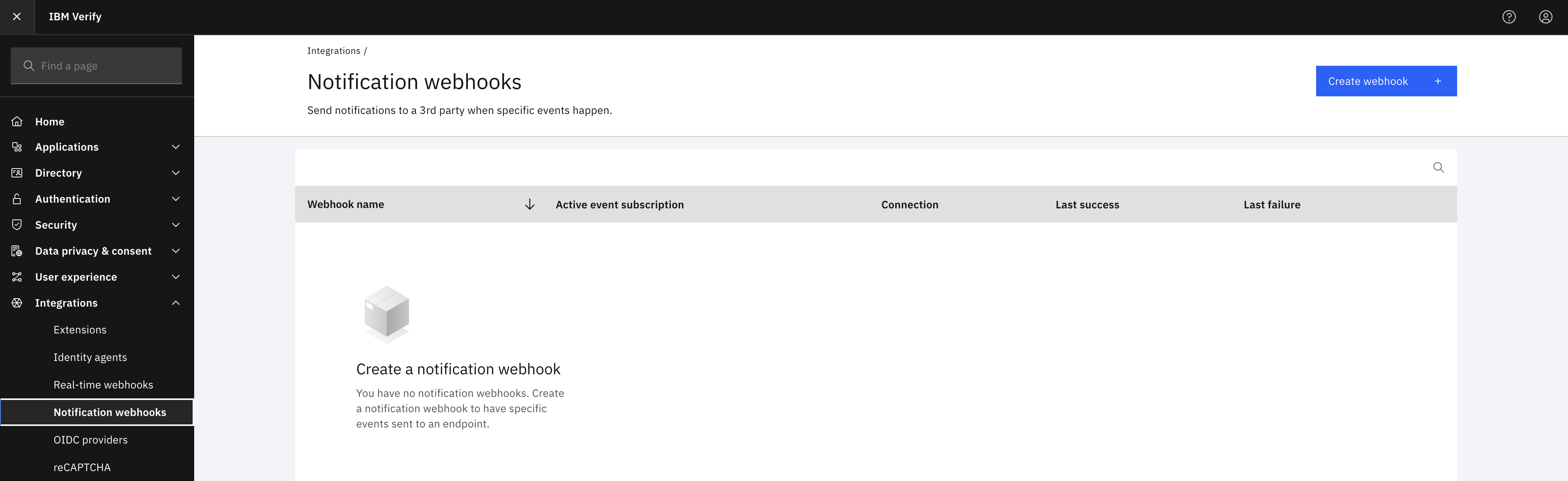
- Go to Integrations -> Notification Webhooks
- Click
Create Webhook.
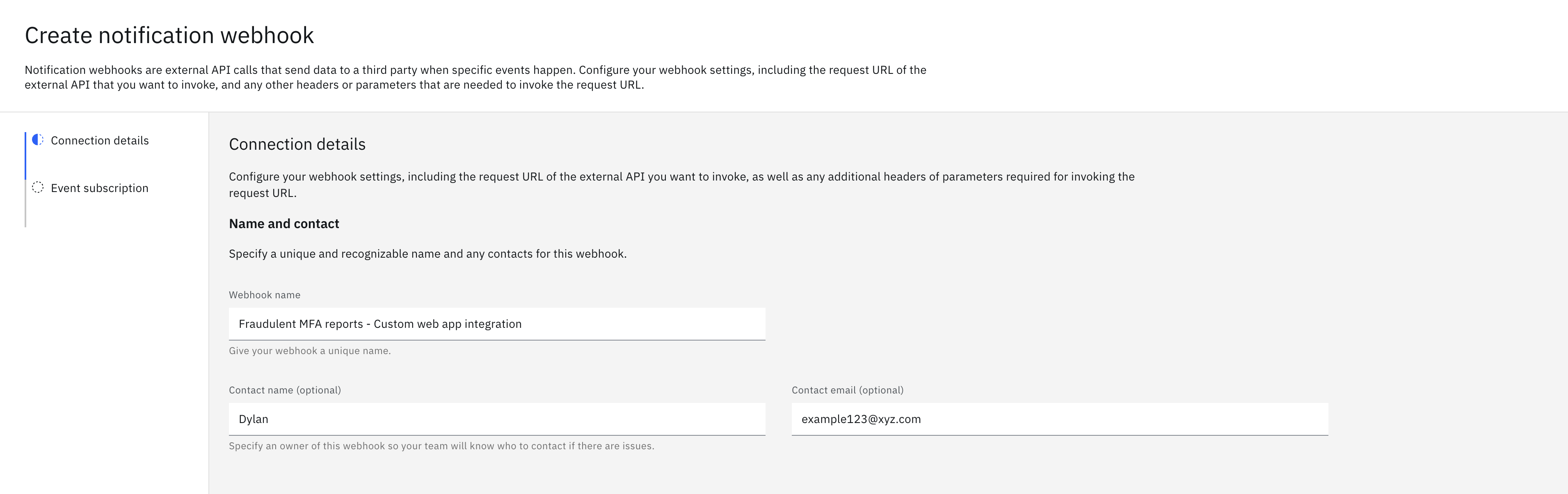
- Provide a name for the notification webhook and optionally fill out the contact details if desired.
-
Provide the public URL of the external endpoint that will receive & process the MFA events. Authentication for the endpoint should be configured to ensure that the request is being made from a valid source. For the case of this example, the authentication type of "Header" will be used with a header name of "Authorization" and a value of a shared secret between the application and the webhook. Once all the required configuration values for the first page have been provided, proceed via the "next" button.
-
Configure the subscribed events that the notification webhook will be listening for by pressing the "Add custom event +" button towards the bottom of the popup. Name this something descriptive, in this case "Fraudulent MFA events", and under "Interests" configure the type of events we are interested in. The relevant event fields for this webhook are the following:
data.result=failureonIncludeevent_type=authenticationonIncludedata.mfaresult=USER_FRAUDULENTonInclude
Once this has been created & enabled the webhook will now send a POST request to the configured endpoint whenever there is a fraudulent MFA event on the tenant, which will need to be intercepted by our sample application and processed to perform the actions previously outlined in this article.
Building the REST application
The main component for this flow is the creation of a sample application that will receive & process JSON payloads sent by the notification webhook, triggering specific actions based on the event.
The application in this example scenario will be created with express.js, with a single public endpoint that will receive the MFA event payload and - based on the information present - issue it's own requests to IBM Verify in order to action against the user's account. As a part of this event processing flow, the application will validate the authenticity of the request via the value of the Authorization header to ensure that the request was initiated by an approved source.
Setting up the application
Initialize a new node.js project in a dedicated directory (in this example, fraudulent-mfa-app) and install express.js as a dependency.
npm initWhich will intialise the project and create a package.json file as well as our index.js file that will handle the requests. This index.js file should be manually created if not done via the npm init command. For further assistance with node & express.js applications refer to Introduction to node.js and express.js hello world example.
We then install express as a dependency via the following command:
npm install express --saveNow in our index.js file we will define the basic structure of the application:
const express = require('express');
const app = express();

// Configuration
const PORT = process.env.PORT || 3000;
const AUTH_SECRET = process.env.AUTH_SECRET || 'your-secret-token-here';

const TENANT_URL = process.env.TENANT_URL || 'https://your-tenant.verify.ibm.com/';
const CLIENT_ID = process.env.CLIENT_ID || '<client ID>';
const CLIENT_SECRET = process.env.CLIENT_SECRET || 'your-client-secret-here';

// Parse JSON bodies
app.use(express.json());

// Function to process fraudulent MFA report
function processFraudulentReport(subject) {
  // TODO: Implement actions for fraudulent MFA report
  // - Revoke all active authentication sessions
  // - Trigger password reset
  // - Send notification email
}

// Webhook target endpoint to send notifications to
app.post('/notifications', (req, res) => {
    // processing goes here
    ...
    processFraudulentReport(subject);
    ...
});

// Start server
app.listen(PORT, () => {
  console.log(`Server running on port ${PORT}`);
  console.log(`Webhook endpoint: http://localhost:${PORT}/notifications`);
});
This application is now configured to receive POST requests on the /notifications endpoint.
Processing the notification payload
Validate that the requester has the authorization required to invoke the API. This application will implement authorization via a shared secret between the configured webhook and this application. The webhook will send the secret in the Authorization header, which will need to be extracted and compared to the applications local version of the auth secret.
// Webhook endpoint
app.post('/notifications', (req, res) => {
  // Check authentication
  const authHeader = req.headers['authorization'];

  if (!authHeader || authHeader !== AUTH_SECRET) {
    return res.status(401).json({ error: 'Unauthorized' });
  }
  ...
});
Then the payload can be parsed and the MFA events can be processed. Express provides a convenient way to parse the body of the request into a JSON object, which we will now utilise to read the values from the POST body. We don't do anything special with these values in this example except extracting the user ID for revoking authentication sessions later, but the code is included for demonstration purposes.
// Webhook endpoint
app.post('/notifications', async (req, res) => {
  // Check authentication
  const authHeader = req.headers['authorization'];

  if (!authHeader || authHeader !== AUTH_SECRET) {
    return res.status(401).json({ error: 'Unauthorized' });
  }

  const payload = req.body;
  const { event_type, data = {}, correlationid } = payload;
  const { subject, username, mfaresult, result } = data;

  // Validate fraudulent MFA event
  if (event_type === 'authentication' &&
      result === 'failure' &&
      mfaresult === 'USER_FRAUDULENT') {

    console.log('FRAUDULENT MFA REPORT:');
    console.log(`  User: $USERNAME`);
    console.log(`  Subject: ${subject}`);
    console.log(`  Correlation ID: ${correlationid}`);

    // Process the fraudulent report asynchronously
    processFraudulentReport(subject)
      .then(() => {
        console.log('Fraudulent report processing completed');
      })
      .catch((error) => {
        console.error('Failed to process fraudulent report:', error.message);
      });

    return res.status(200).json({
      message: 'Fraudulent MFA report received and processing',
      username
    });
  }

  res.status(200).json({ message: 'Event received but not processed' });
});
Now that we have received & read the payload from the webhook, the application needs to make it's own calls to IBM Verify APIs to perform administrative actions. We will be using Node.js's native fetch API to make the API requests from the application. The fetch API is built into Node.js 18+ and doesn't require any additional dependencies.
NoteThis example uses the native
fetchAPI available in Node.js 18 and later. If you're using an older version of Node.js, consider upgrading or using thehttpsmodule instead.
Authorizing the application with ISV
In order to authorize this application to make API requests against a user's account the application will need credentials for an API client configured on the IBM Verify instance with sufficient entitlements for the APIs that will be invoked. For the purposes of our example, and to allow calls to the password reset API and the session revocation API, the client will need to be configured with the entitlements:
revokeAllSessionsresetPasswordAnyUser.
The application will obtain authorization by providing the API credentials to the ISV token endpoint in return for an access token. In order to retrieve this access token, we will create a helper function in the application called getAccessToken. The CLIENT_ID & CLIENT_SECRET can be obtained from the API client configuration page and should be either configured as environment variables or defined within the application.
// Function to get access token from IBM Verify
async function getAccessToken() {
  try {
    const response = await fetch(
      `${TENANT_URL}/oauth2/token`,
      {
        method: 'POST',
        headers: {
          'Content-Type': 'application/x-www-form-urlencoded'
        },
        body: new URLSearchParams({
          client_id: CLIENT_ID,
          client_secret: CLIENT_SECRET,
          grant_type: 'client_credentials',
          scope: 'openid'
        })
      }
    );

    if (!response.ok) {
      const errorData = await response.text();
      throw new Error(`HTTP error! status: ${response.status}, body: ${errorData}`);
    }

    const data = await response.json();
    return data.access_token;
  } catch (error) {
    console.error('Error getting access token:', error.message);
    throw error;
  }
}
With this, the application is now authorized to access IBM Verify APIs requiring either the revokeAllSessions or resetPasswordAnyUser entitlements.
Perform actions against the user account
Revoke all user sessions
Now that we have a valid token we can configure the actions to be taken when a fraudulent MFA event is detected, starting with revoking all authentication sessions for the target user. For this we will invoke the /v1.0/auth/sessions/USERID endpoint in ISV (https://docs.verify.ibm.com/verify/reference/deleteallsessions).
// Function to revoke all user sessions
async function revokeUserSessions(subject, accessToken) {
  try {
    const response = await fetch(
      `${TENANT_URL}/v1.0/auth/sessions/${subject}`,
      {
        method: 'DELETE',
        headers: {
          'Authorization': `Bearer ${accessToken}`,
          'Content-Type': 'application/json'
        }
      }
    );

    if (!response.ok) {
      const errorData = await response.text();
      throw new Error(`HTTP error! status: ${response.status}, body: ${errorData}`);
    }

    console.log(`Successfully deleted all sessions for user ${subject}`);
    const data = await response.json();
    return data;
  } catch (error) {
    console.error('Error revoking user sessions:', error.message);
    throw error;
  }
}
This will now revoke all active authentication sessions for the user defined by 'subject' in the request payload.
Trigger password reset for the user
The next step is to trigger a password reset for the target user's account:
CautionThe behaviour of automatically triggering a password reset for the user on a fraudulent report is dangerous and should generally be avoided as it creates an easy opportunity for an end-user to temporarily lock themselves out of their account if an MFA request is mistakenly reported as fraudulent, increasing friction when authenticating. It is included here to show what is possible in response to these kinds of events, and should not be implemented as-is.
When triggered this will auto-generate a new password for the user & email them about the password reset, additionally satisfying the condition of alerting the user that action has been taken against their account. The documentation for the password reset API can be found here: https://docs.verify.ibm.com/verify/reference/resetuserpassword
// Function to trigger password reset for user
async function triggerPasswordReset(subject, accessToken) {
  try {
    const response = await fetch(
      `${TENANT_URL}/v2.0/Users/${subject}/passwordResetter`,
      {
        method: 'PATCH',
        headers: {
          'Authorization': `Bearer ${accessToken}`,
          'Accept': 'application/scim+json',
          'Content-Type': 'application/scim+json',
          'usershouldnotneedtoresetpassword': 'false'
        },
        body: JSON.stringify({
          schemas: ['urn:ietf:params:scim:api:messages:2.0:PatchOp'],
          Operations: [
            {
              op: 'replace',
              value: {
                password: 'auto-generate',
                'urn:ietf:params:scim:schemas:extension:ibm:2.0:Notification': {
                  notifyType: 'EMAIL',
                  notifyPassword: true,
                  notifyManager: false
                }
              }
            }
          ]
        })
      }
    );

    if (!response.ok) {
      const errorData = await response.text();
      throw new Error(`HTTP error! status: ${response.status}, body: ${errorData}`);
    }

    console.log(`Successfully triggered password reset for user ${subject}`);
    const data = await response.json();
    return data;
  } catch (error) {
    console.error('Error triggering password reset:', error.message);
    throw error;
  }
}
Now that these actions have been defined within their own helper functions, they simply need to be called in the processFraudulentReport function to enable functionality.
Bringing it together
// Function to process fraudulent MFA report
async function processFraudulentReport(subject) {
  try {
    console.log(`Processing fraudulent report for subject: ${subject}`);

    // Get access token
    const accessToken = await getAccessToken();
    console.log('Access token acquired');

    // Revoke all user sessions
    await revokeUserSessions(subject, accessToken);

    // Trigger password reset
    await triggerPasswordReset(subject, accessToken);

  } catch (error) {
    console.error('Error processing fraudulent report:', error.message);
    throw error;
  }
}
Once these steps have been completed the processFraudulentReport function will be called when a POST request is received from the notification service, automating the response to these types of events.
A full sample of the application's code can be seen below:
const express = require('express');
const app = express();

// Configuration
const PORT = process.env.PORT || 3000;
const AUTH_SECRET = process.env.AUTH_SECRET || 'your-secret-token-here';

const TENANT_URL = process.env.TENANT_URL || 'https://your-tenant.verify.ibm.com';
const CLIENT_ID = process.env.CLIENT_ID || '<client ID>';
const CLIENT_SECRET = process.env.CLIENT_SECRET || 'your-client-secret-here';

// Parse JSON bodies
app.use(express.json());

// Function to get access token from IBM Verify
async function getAccessToken() {
  try {
    const response = await fetch(
      `${TENANT_URL}/oauth2/token`,
      {
        method: 'POST',
        headers: {
          'Content-Type': 'application/x-www-form-urlencoded'
        },
        body: new URLSearchParams({
          client_id: CLIENT_ID,
          client_secret: CLIENT_SECRET,
          grant_type: 'client_credentials',
          scope: 'openid'
        })
      }
    );

    if (!response.ok) {
      const errorData = await response.text();
      throw new Error(`HTTP error! status: ${response.status}, body: ${errorData}`);
    }

    const data = await response.json();
    return data.access_token;
  } catch (error) {
    console.error('Error getting access token:', error.message);
    throw error;
  }
}

// Function to revoke all user sessions
async function revokeUserSessions(subject, accessToken) {
  try {
    const response = await fetch(
      `${TENANT_URL}/v1.0/auth/sessions/${subject}`,
      {
        method: 'DELETE',
        headers: {
          'Authorization': `Bearer ${accessToken}`,
          'Content-Type': 'application/json'
        }
      }
    );

    if (!response.ok) {
      const errorData = await response.text();
      throw new Error(`HTTP error! status: ${response.status}, body: ${errorData}`);
    }

    console.log(`Successfully deleted all sessions for user ${subject}`);
    const data = await response.json();
    return data;
  } catch (error) {
    console.error('Error revoking user sessions:', error.message);
    throw error;
  }
}

// Function to trigger password reset for user
async function triggerPasswordReset(subject, accessToken) {
  try {
    const response = await fetch(
      `${TENANT_URL}/v2.0/Users/${subject}/passwordResetter`,
      {
        method: 'PATCH',
        headers: {
          'Authorization': `Bearer ${accessToken}`,
          'Accept': 'application/scim+json',
          'Content-Type': 'application/scim+json',
          'usershouldnotneedtoresetpassword': 'false'
        },
        body: JSON.stringify({
          schemas: ['urn:ietf:params:scim:api:messages:2.0:PatchOp'],
          Operations: [
            {
              op: 'replace',
              value: {
                password: 'auto-generate',
                'urn:ietf:params:scim:schemas:extension:ibm:2.0:Notification': {
                  notifyType: 'EMAIL',
                  notifyPassword: true,
                  notifyManager: false
                }
              }
            }
          ]
        })
      }
    );

    if (!response.ok) {
      const errorData = await response.text();
      throw new Error(`HTTP error! status: ${response.status}, body: ${errorData}`);
    }

    console.log(`Successfully triggered password reset for user ${subject}`);
    const data = await response.json();
    return data;
  } catch (error) {
    console.error('Error triggering password reset:', error.message);
    throw error;
  }
}

// Function to process fraudulent MFA report
async function processFraudulentReport(subject) {
  try {
    console.log(`Processing fraudulent report for subject: ${subject}`);

    // Get access token
    const accessToken = await getAccessToken();
    console.log('Access token acquired');

    // Revoke all user sessions
    await revokeUserSessions(subject, accessToken);

    // Trigger password reset
    await triggerPasswordReset(subject, accessToken);

  } catch (error) {
    console.error('Error processing fraudulent report:', error.message);
    throw error;
  }
}

// Webhook endpoint
app.post('/notifications', async (req, res) => {
  // Check authentication
  const authHeader = req.headers['authorization'];

  if (!authHeader || authHeader !== AUTH_SECRET) {
    return res.status(401).json({ error: 'Unauthorized' });
  }

  const payload = req.body;
  const { event_type, data = {}, correlationid } = payload;
  const { subject, username, mfaresult, result } = data;

  // Validate fraudulent MFA event
  if (event_type === 'authentication' &&
      result === 'failure' &&
      mfaresult === 'USER_FRAUDULENT') {

    console.log('FRAUDULENT MFA REPORT:');
    console.log(`  User: $USERNAME`);
    console.log(`  Subject: ${subject}`);
    console.log(`  Correlation ID: ${correlationid}`);

    // Process the fraudulent report asynchronously
    processFraudulentReport(subject)
      .then(() => {
        console.log('Fraudulent report processing completed');
      })
      .catch((error) => {
        console.error('Failed to process fraudulent report:', error.message);
      });

    return res.status(200).json({
      message: 'Fraudulent MFA report received and processing',
      username
    });
  }

  res.status(200).json({ message: 'Event received but not processed' });
});

// Start server
app.listen(PORT, '0.0.0.0', () => {
  console.log(`Server running on port ${PORT}`);
  console.log(`Webhook endpoint: http://localhost:${PORT}/notifications`);
  console.log(`Tenant URL: ${TENANT_URL}`);
});
Once it is hosted on an endpoint that is resolvable over the internet by IBM Verify, the application is ready to receive and process MFA reports.
Testing the application
An initial test to confirm that the webhook & the application can communicate with each other is via the 'Test Connection' button in the "Integrations" -> "Notification webhooks" admin UI page, which should present a green 'success' message if the request is processed as expected.
To confirm the success of our integration in a 'real' scenario, we can test the application by simulating a user-denied MFA transaction. As a base step for this test flow, the following actions are required:
- Create a test user in the Administration UI (see: Managing users - Procedure)
- Configure the test account with an IBM Verify MFA authentication method (see: Managing your IBM Verify authenticators - Adding the IBM Verify app)
Once this has been done, we can test the flow from beginning to end and ensure the integration is working as expected.
Trigger the MFA request
To trigger the MFA request, we will log in to the test account and attempt to access the security tab, requiring an MFA authenticated session to access. This can be done via the USC dashboard -> Profile icon in the top right -> 'Profile & settings' -> 'Security'. Upon visiting this page, the user will automatically be redirected to the MFA authentication UI.
NoteTo retrigger this flow and reprompt for MFA, the user will need to log out and log back in before accessing the security settings page again.
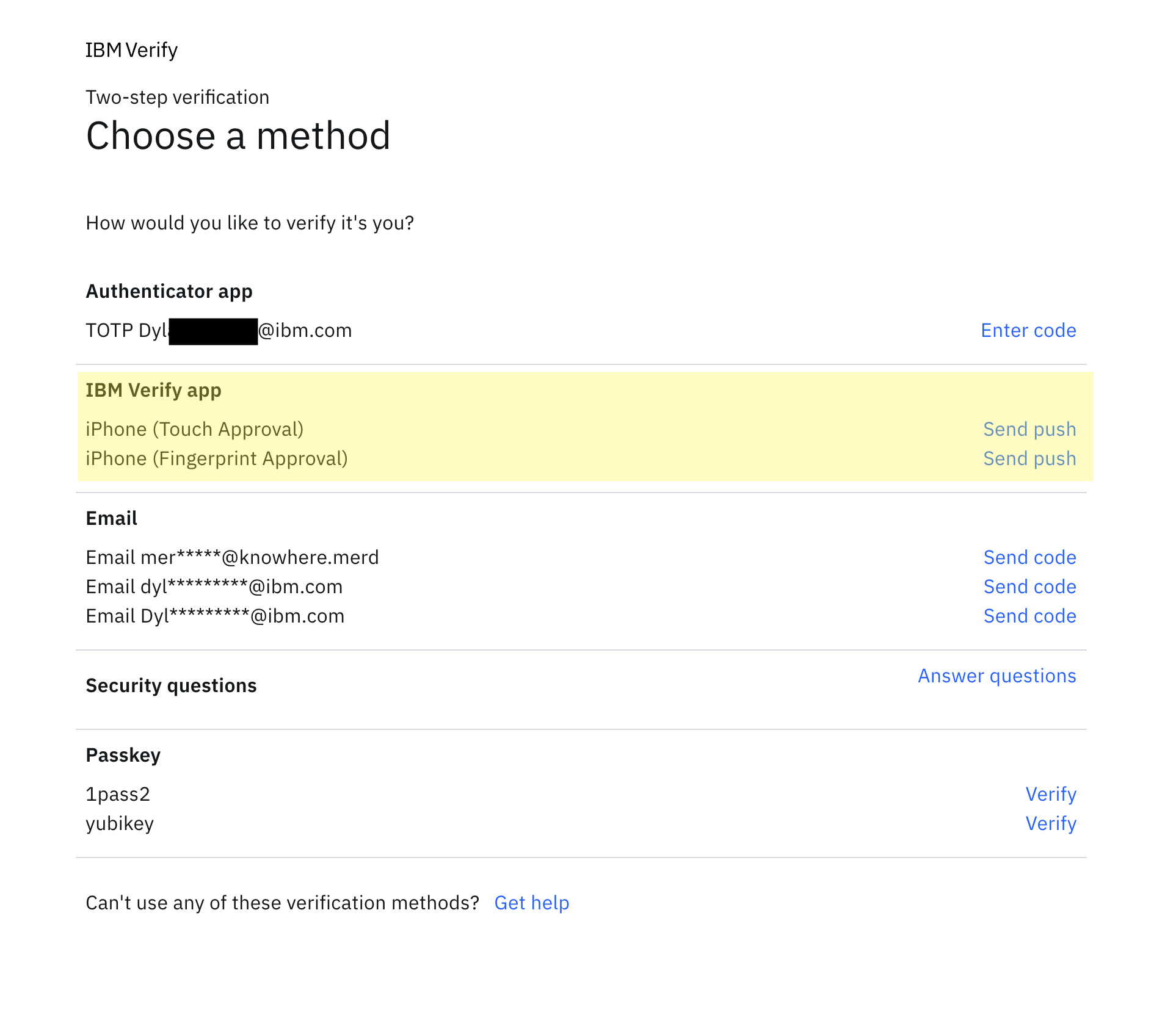
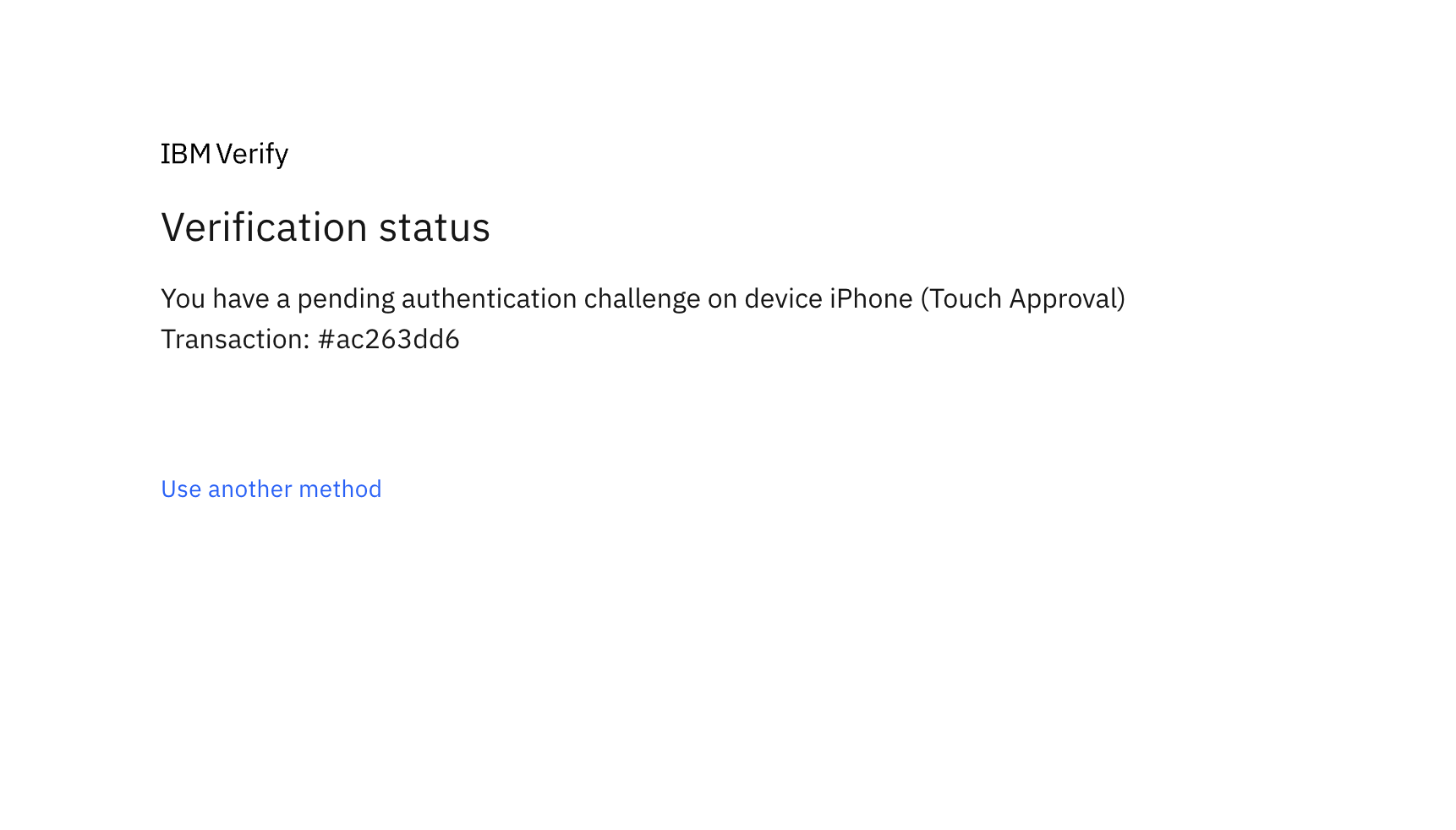
Once prompted, select the relevant authentication method (in this case, IBM Verify, shown as 'iPhone (Touch Approval)') and wait for a notification on the device.
Deny the MFA request
The user will now be prompted to address the MFA request by the IBM Verify mobile app, either via a push notification or opening the app and manually refreshing the page. In this example the iOS mobile application is used and is where the following screenshot are captured.
When prompted to approve or deny the transaction, select the deny option. The application will now provide two options for denying the request, "Mark as suspicious" and "Changed my mind", as well as the option to dismiss the deny action.
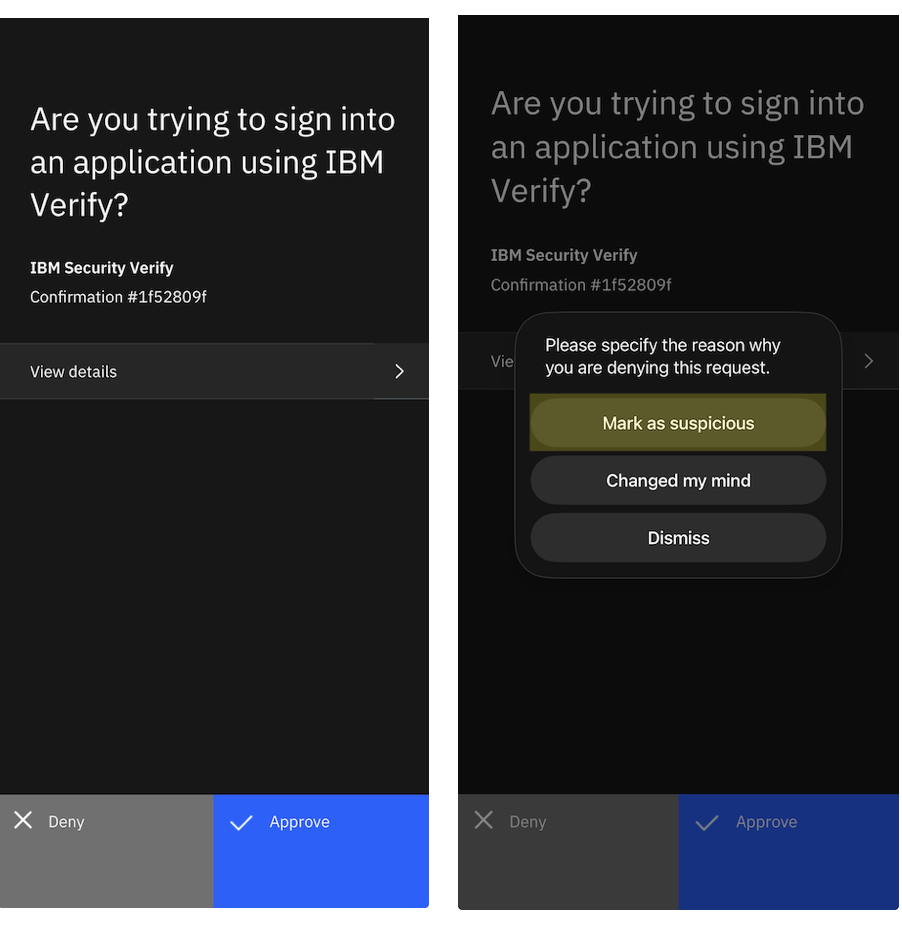
From this list, select "Mark as suspicious". This will deny the transaction & create a USER_FRAUDULENT event, initiating the automation flow configured in this scenario. The user should then receive an email indicating that a password reset has been initiated against their account, confirming the flow is functioning as expected.
Additionally when the user attempts to access any other page on the IBM Verify instance in the same browser session, they will automatically be redirected to the login page to reauthenticate due to the revocation of all active authentication sessions.
Conclusion
The article and notification webhook integration with the sample application demonstrate an automated remediation process to address user-reported suspicious MFA challenges against the IBM Verify mobile application. This is a way to customize the handling of these kind of events in a way that does not require the direct involvement of a human administrator checking the reporting UI to determine next best steps.
Additionally it highlights an example use-case of the USER_FRAUDULENT MFA event result type that can be produced when using the IBM Verify mobile application, how these can be processed, and what actions can be taken to address the reported suspicious activity. A highlight here is the ease of integrating custom applications to use IBM Verify APIs, utilizing the available authorization methods of both notification webhooks and API clients to create a secure end-to-end flow.
Updated 5 months ago