
Dynamic group management
Introduction
Dynamic groups dynamically evaluate dynamic group membership based on conditions defined for the dynamic group and user profile attributes.
Overview of steps
- Create dynamic group
- Review dynamic group
- Publish or discard dynamic group
- Update dynamic group
- Review updated dynamic group
- Publish or discard updated dynamic group
- Re-evaluate dynamic group membership
- Delete dynamic group
- Change in dynamic group membership based on user life cycle
- Re-evaluate user's dynamic groups
1. Create dynamic group
Navigate to Identities -> Users & groups -> Dynamic groups -> Create dynamic group
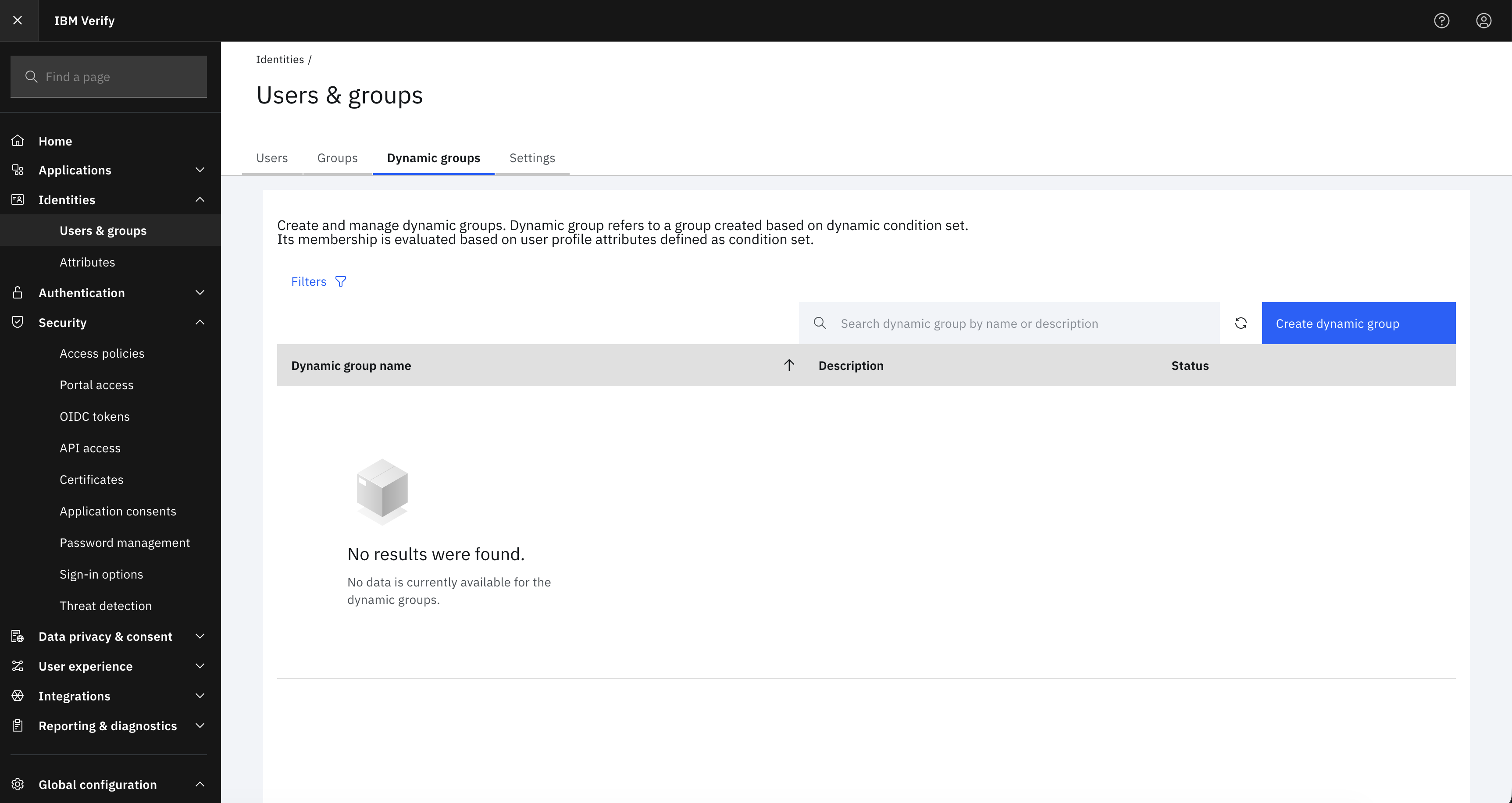
-
General setup
Specify dynamic group name, optionally add description of the dynamic group.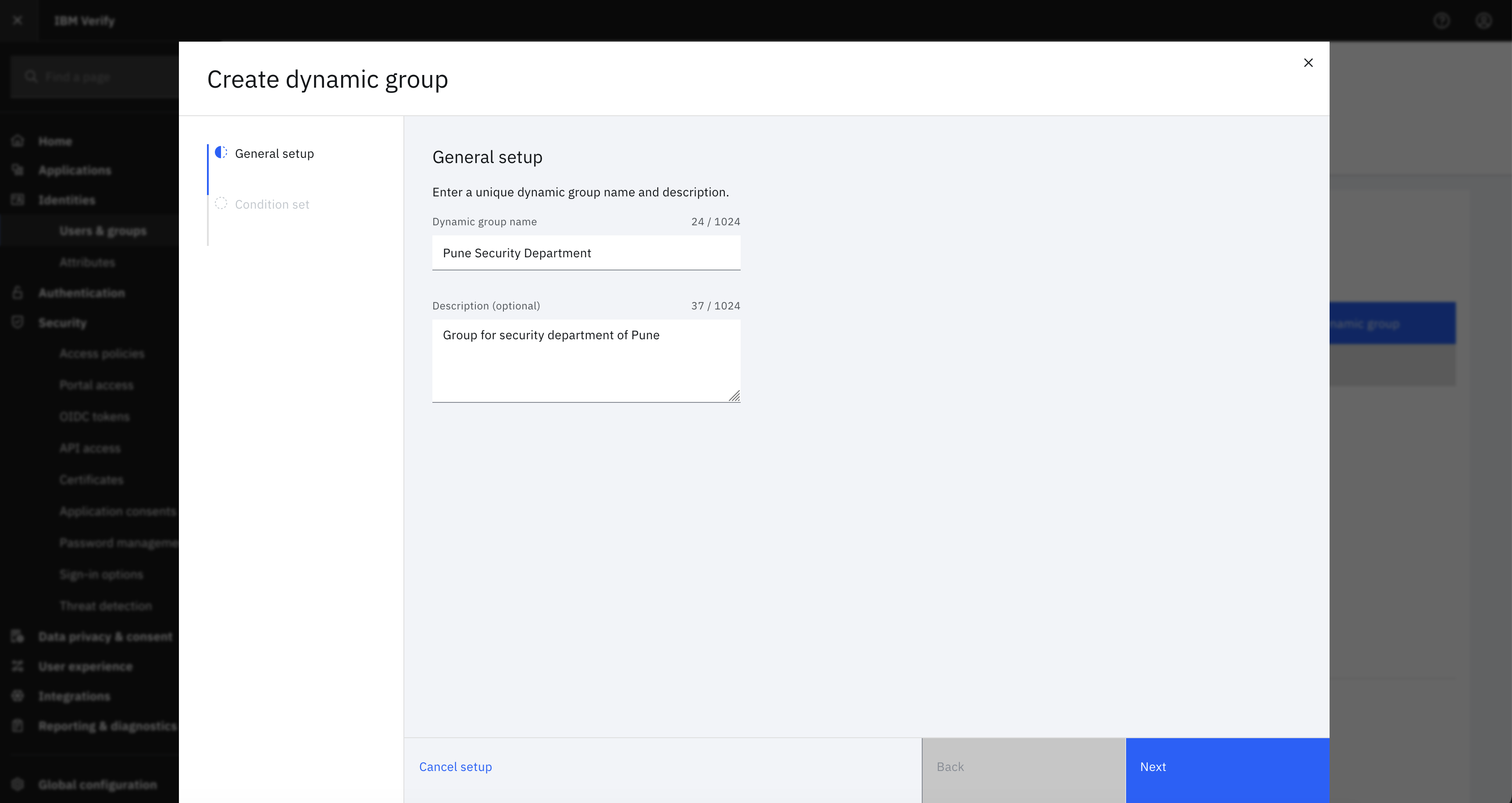
-
Dynamic group condition
Define dynamic group condition to dynamically evaluate membership. Select user profile attributes, appropriate operator and value for attribute to match with user profile.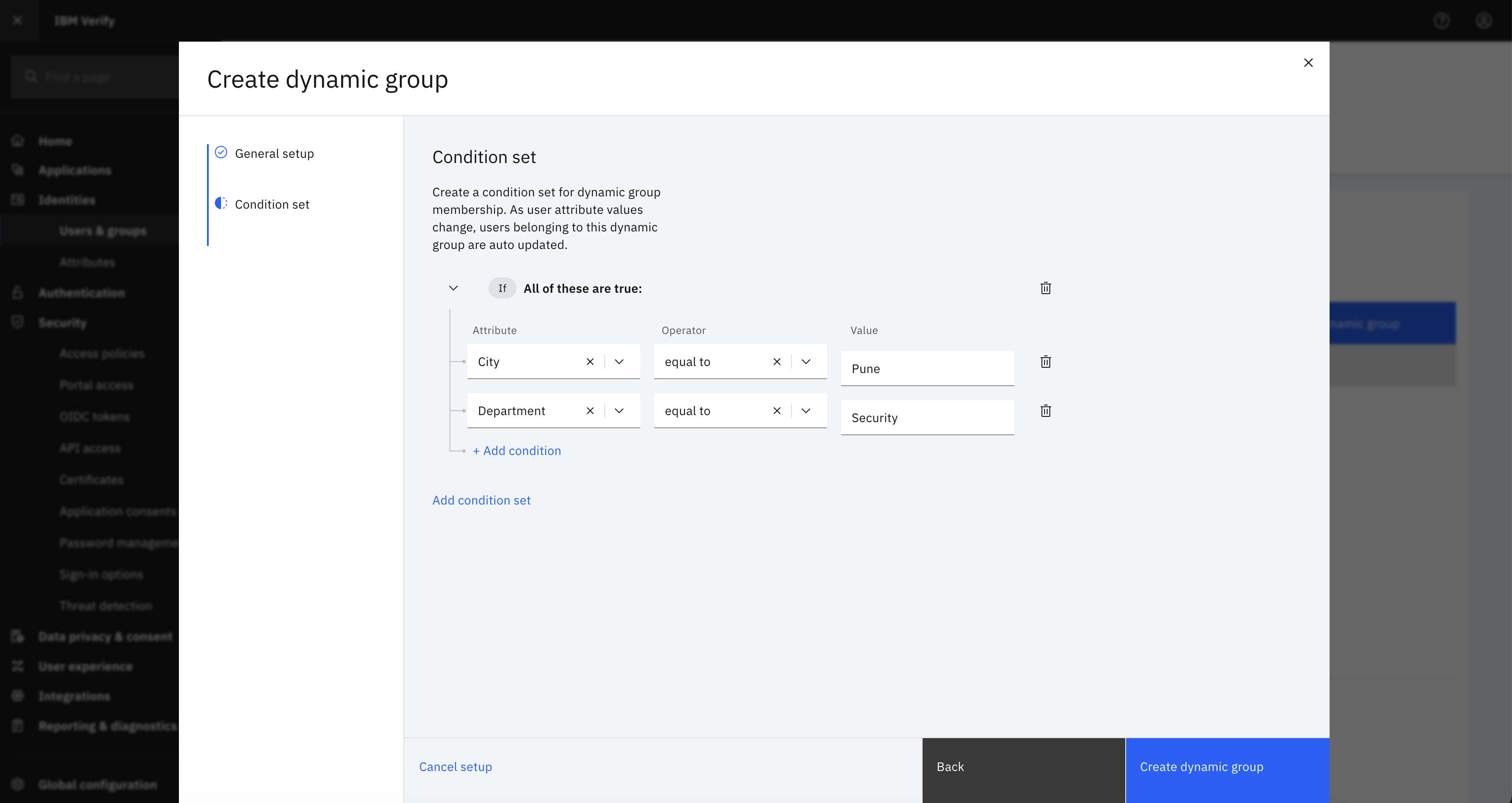
After the dynamic group is created, it waits in the queue to evaluate initial membership. As soon as the system starts evaluation of membership, dynamic group state changes to In progress and after the evaluation completes, dynamic group state changes to Review & publish.
2. Review dynamic group
Select the dynamic group from the list to view its details in the side panel:
- General setup: Dynamic group name, description, and status.
- Condition set: Click
View Detailsto review the configured attribute conditions. - Dynamic group membership: Total count of users in the dynamic group.
- Membership evaluation: Evaluation status, along with evaluation start and completion date and time.
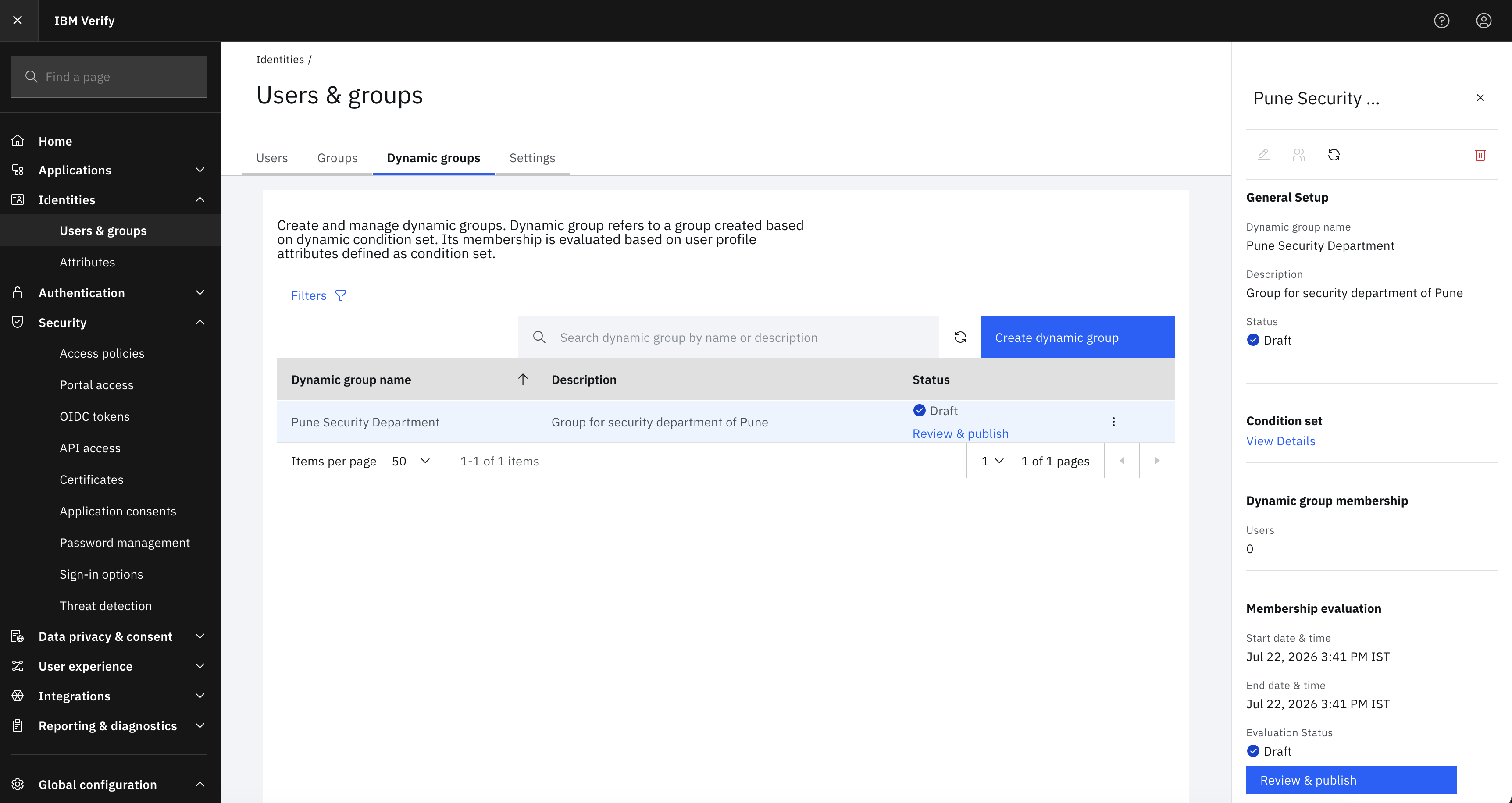
Click Review & publish (from the details side panel or directly from the dynamic groups list) to inspect the evaluated users:
-
User(s) added
View the list of users who get added to the dynamic group based on the defined conditions.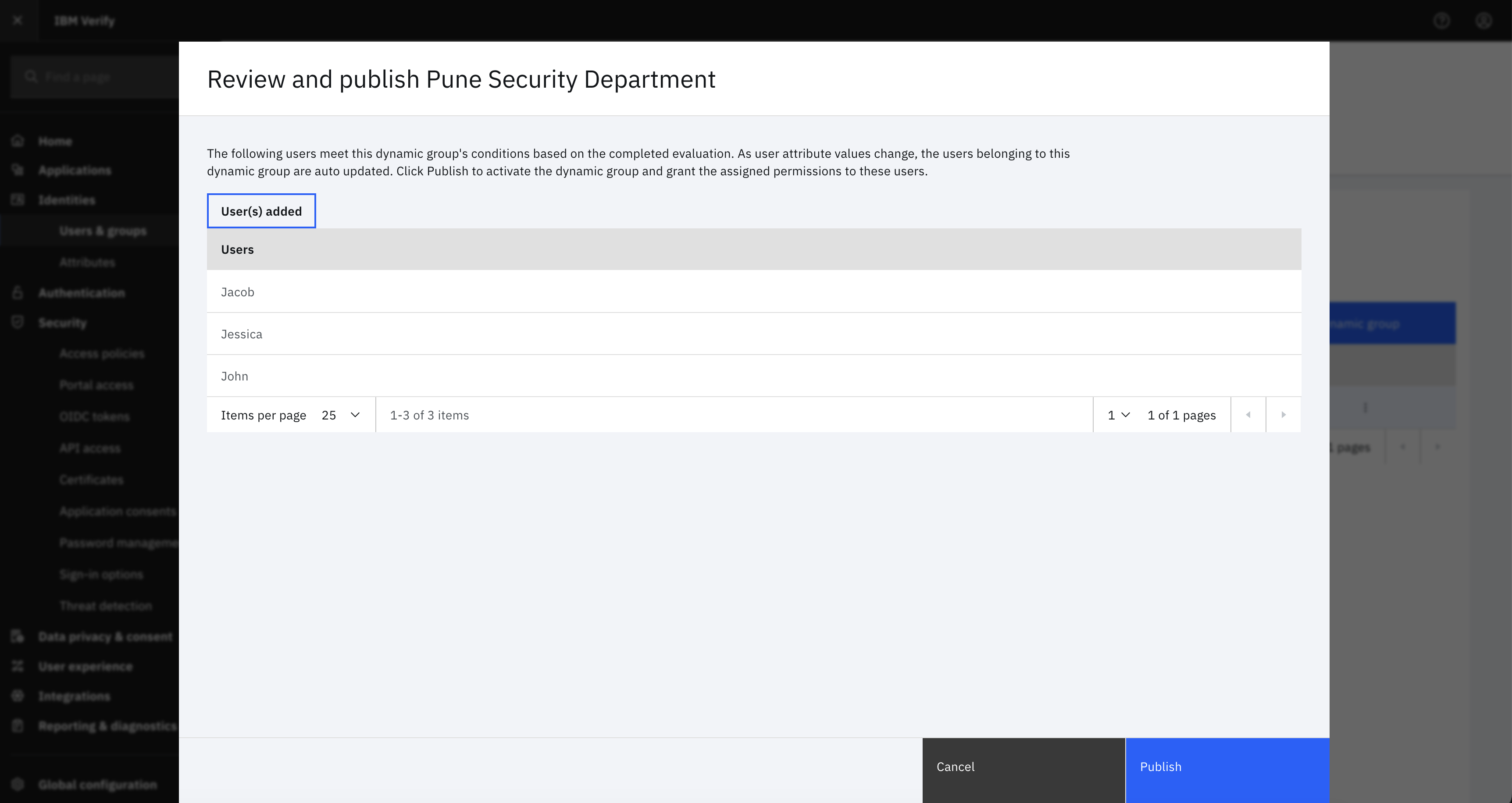
3. Publish or discard dynamic group
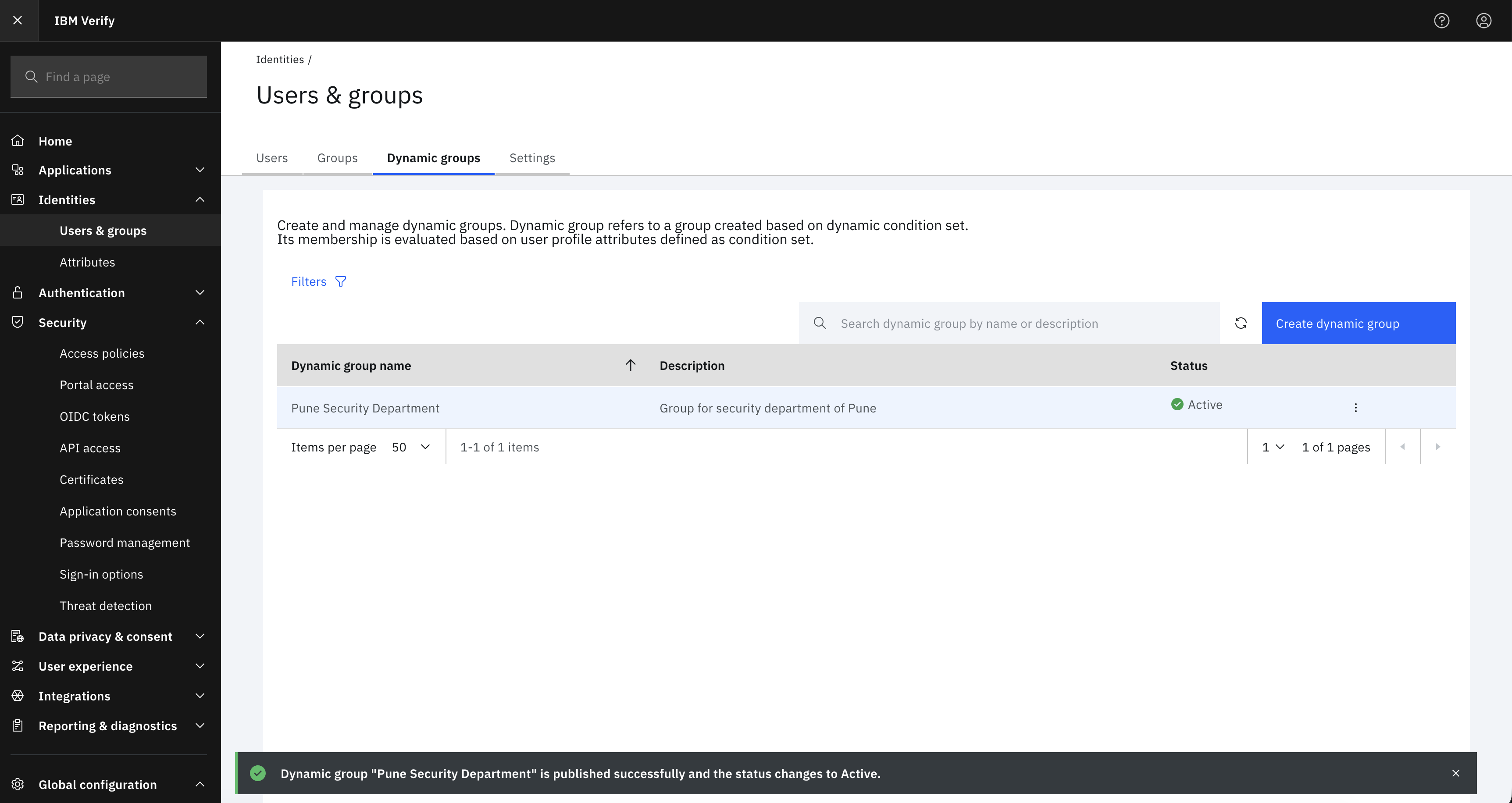
Click Publish to add the evaluated users to the dynamic group. After the dynamic group is published, the status changes to Active and can be associated across Verify flows.
4. Update dynamic group
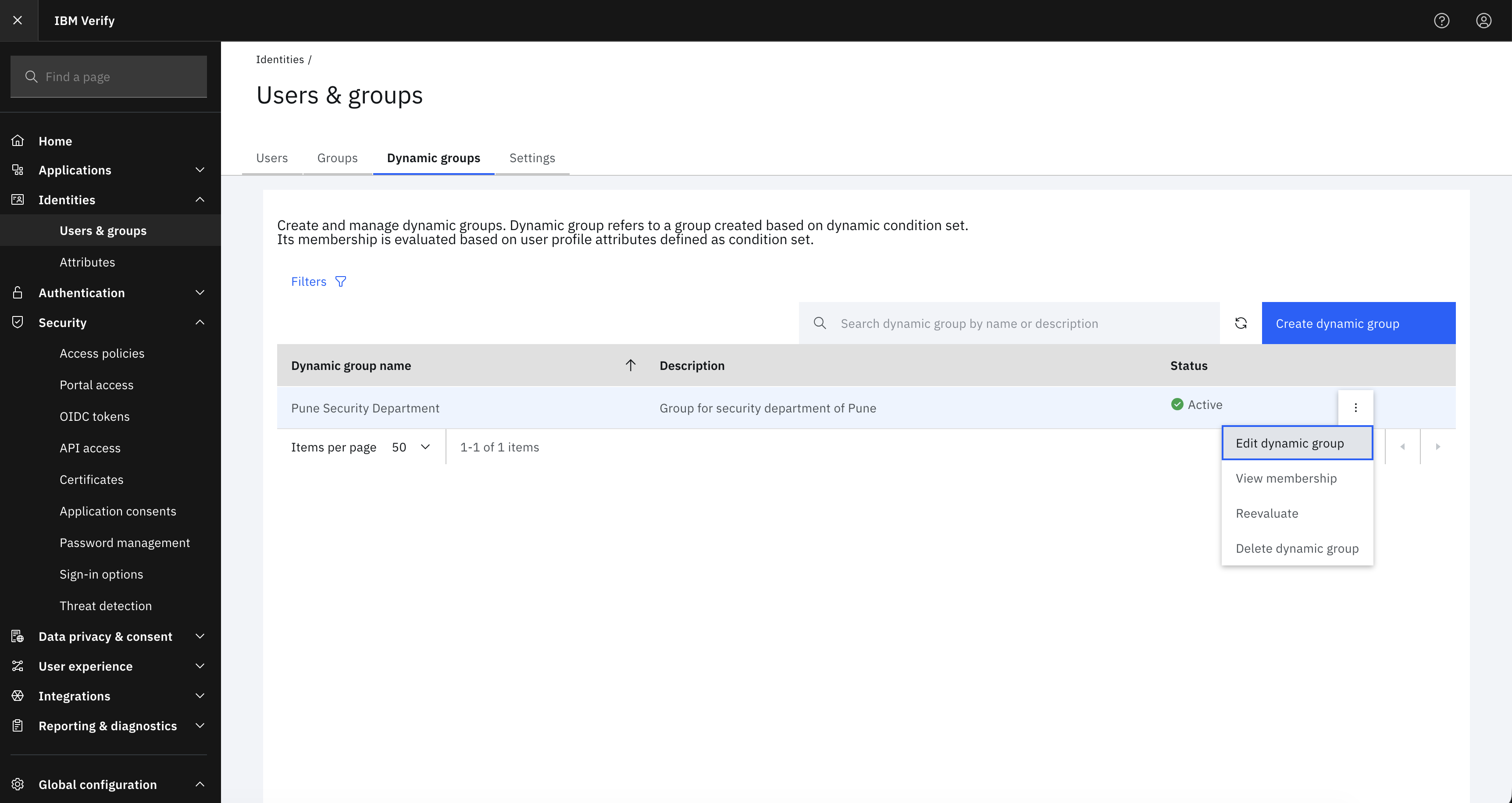
To update the general details or condition set of a dynamic group, click the Actions menu icon ( ⋮ ) from the Dynamic groups screen and select Edit dynamic group.
-
Name, description and condition set of the dynamic group can be updated.
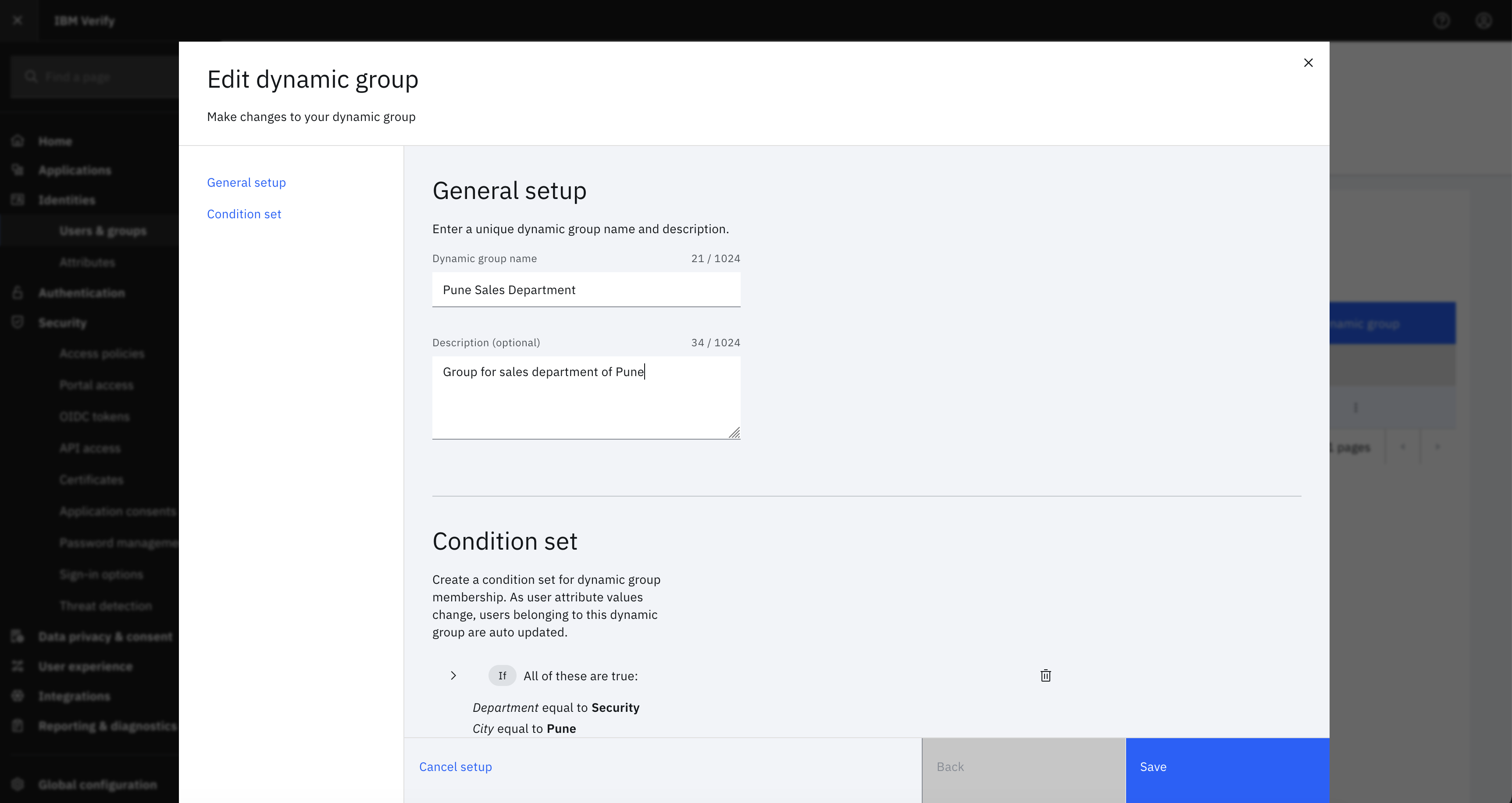
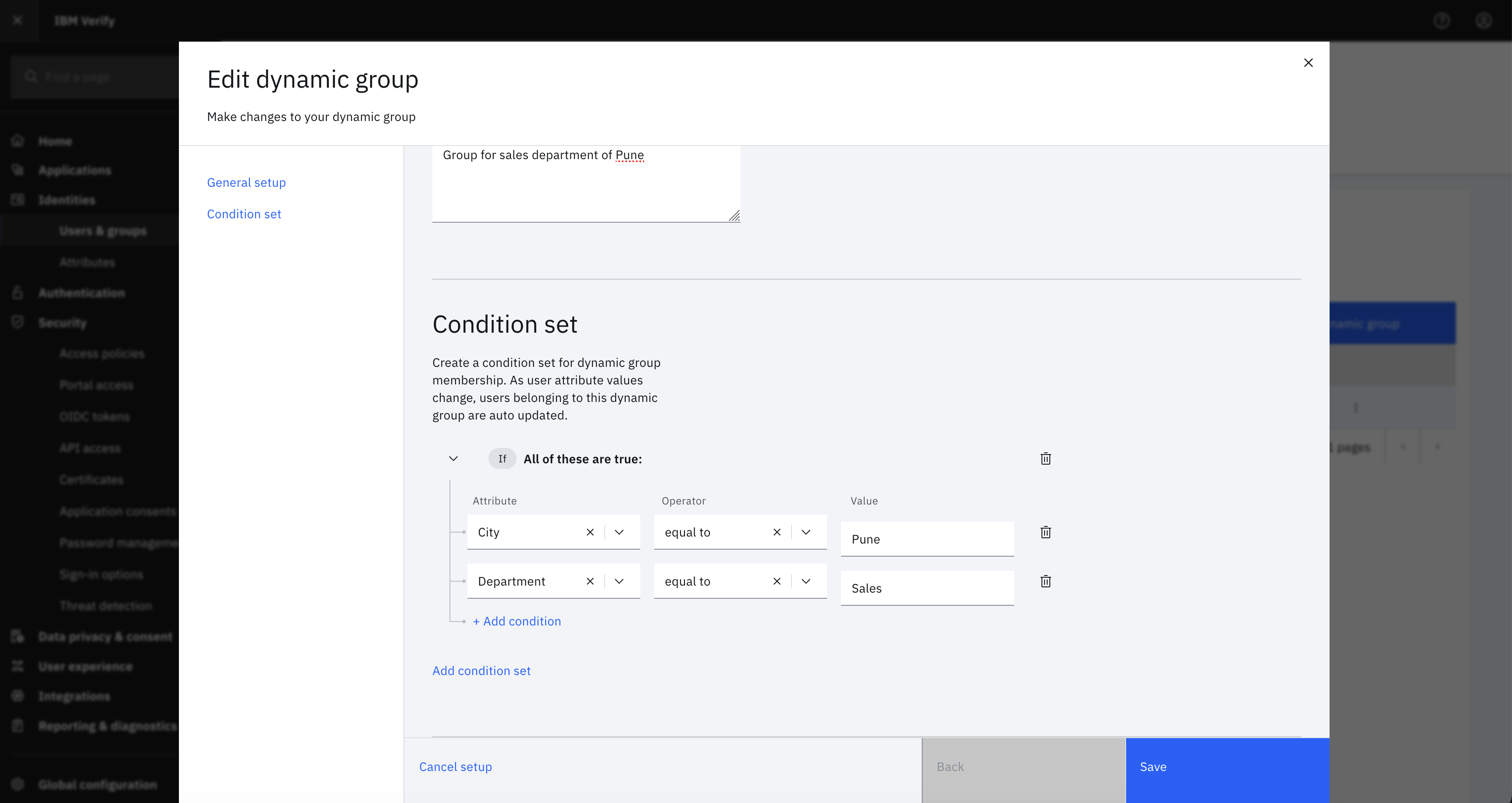
After the dynamic group condition is updated, it waits in the queue to re-evaluate membership of the dynamic group. When the system starts evaluating the membership, dynamic group state changes to In progress and after evaluation completes, dynamic group state changes to Review & publish.
NoteUntil the re-evaluation of the dynamic group is completed and published, its current membership is not affected.
5. Review updated dynamic group
Select the dynamic group from the list to view its updated details in the side panel:
- General setup: Dynamic group name, description, and status.
- Condition set: Click
View Detailsto review the updated attribute conditions. - Dynamic group membership: Shows the current active membership count before the evaluated updates are published.
- Membership evaluation: Evaluation status (
Updates ready to publish), along with evaluation start and completion date and time.
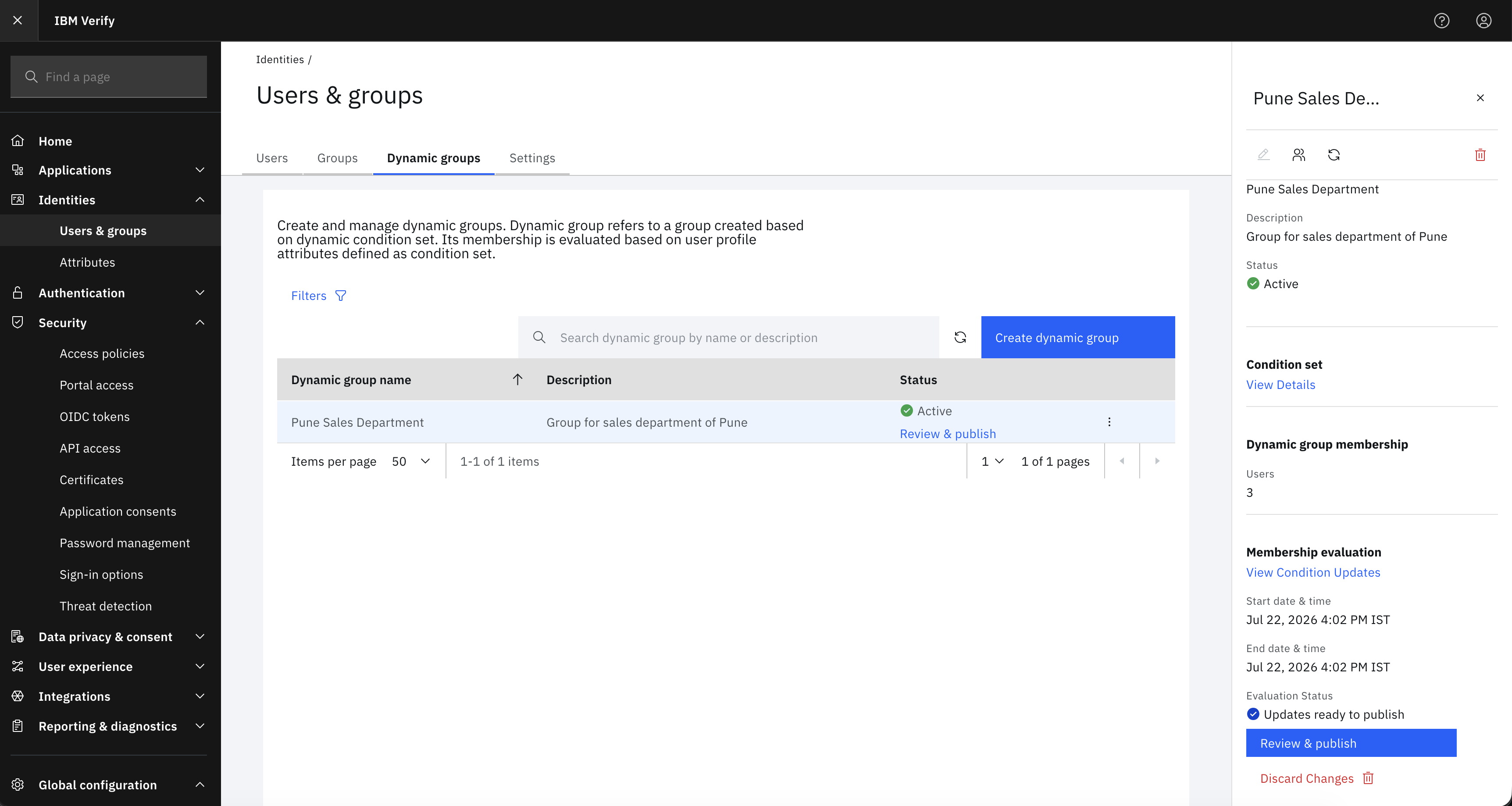
Click Review & publish (from the details side panel or directly from the dynamic groups list) to inspect the membership changes:
-
User(s) added
View the list of users who get added to the dynamic group.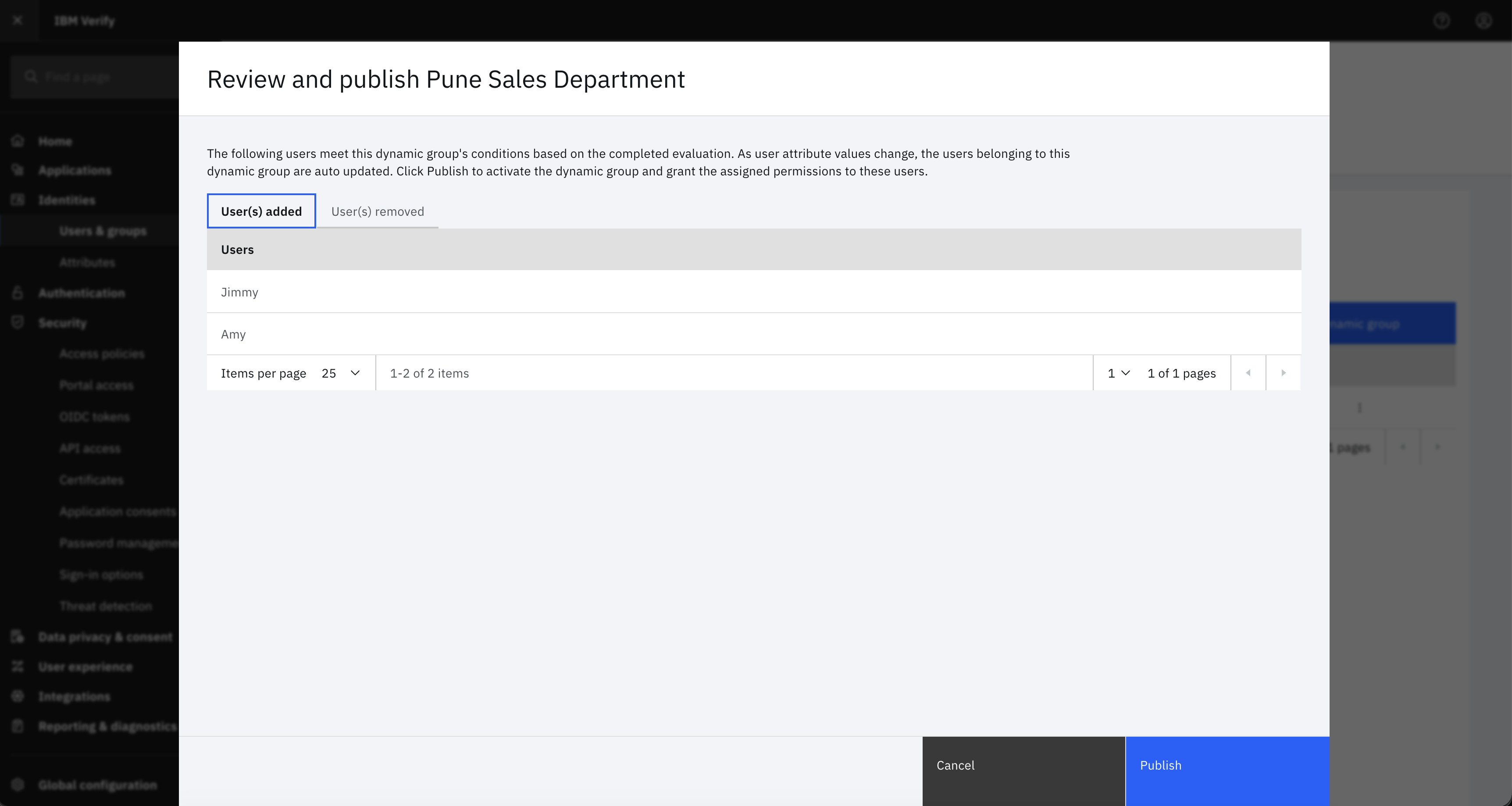
-
User(s) removed
View the list of users who get removed from the dynamic group.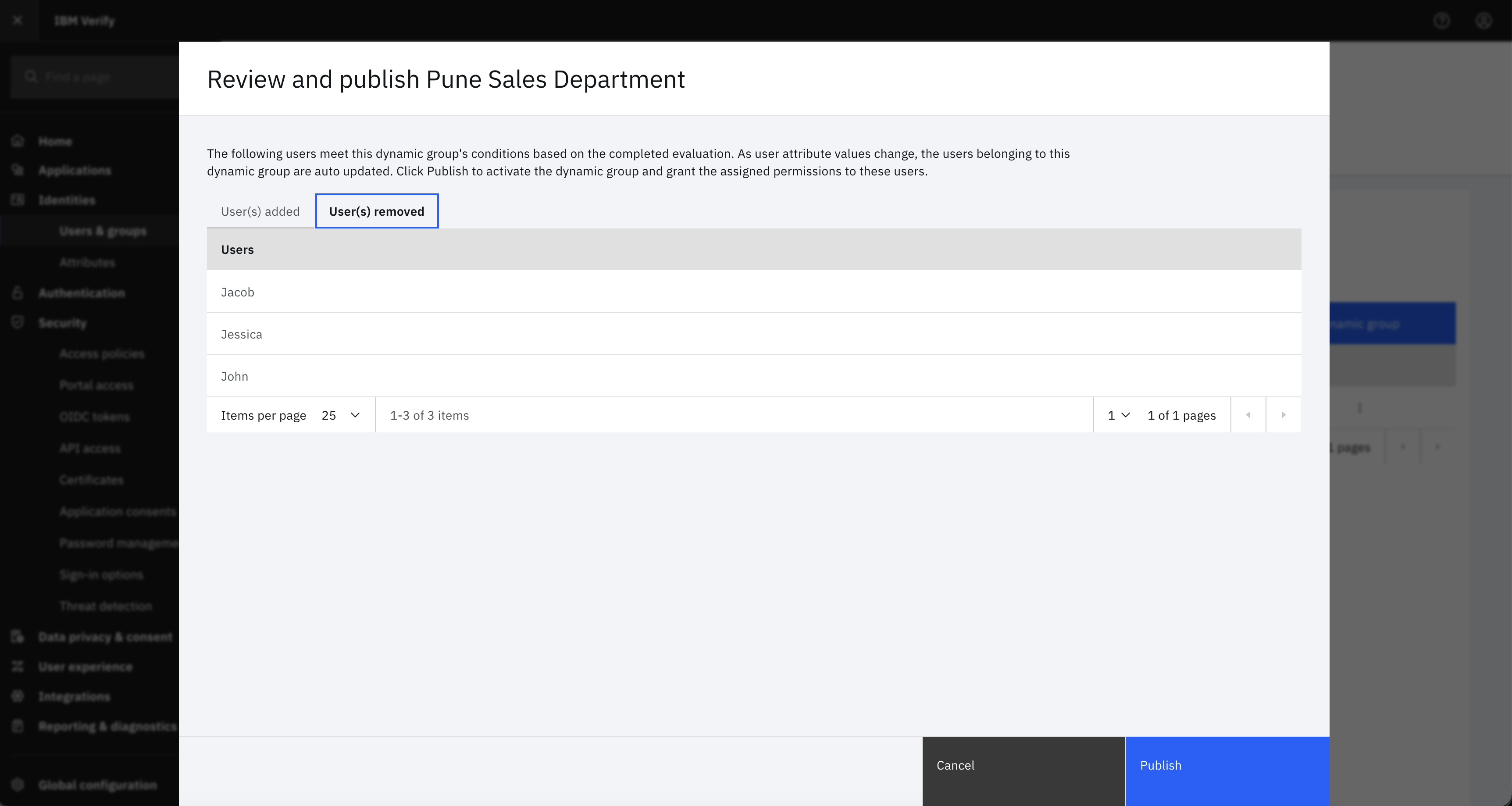
6. Publish or discard updated dynamic group
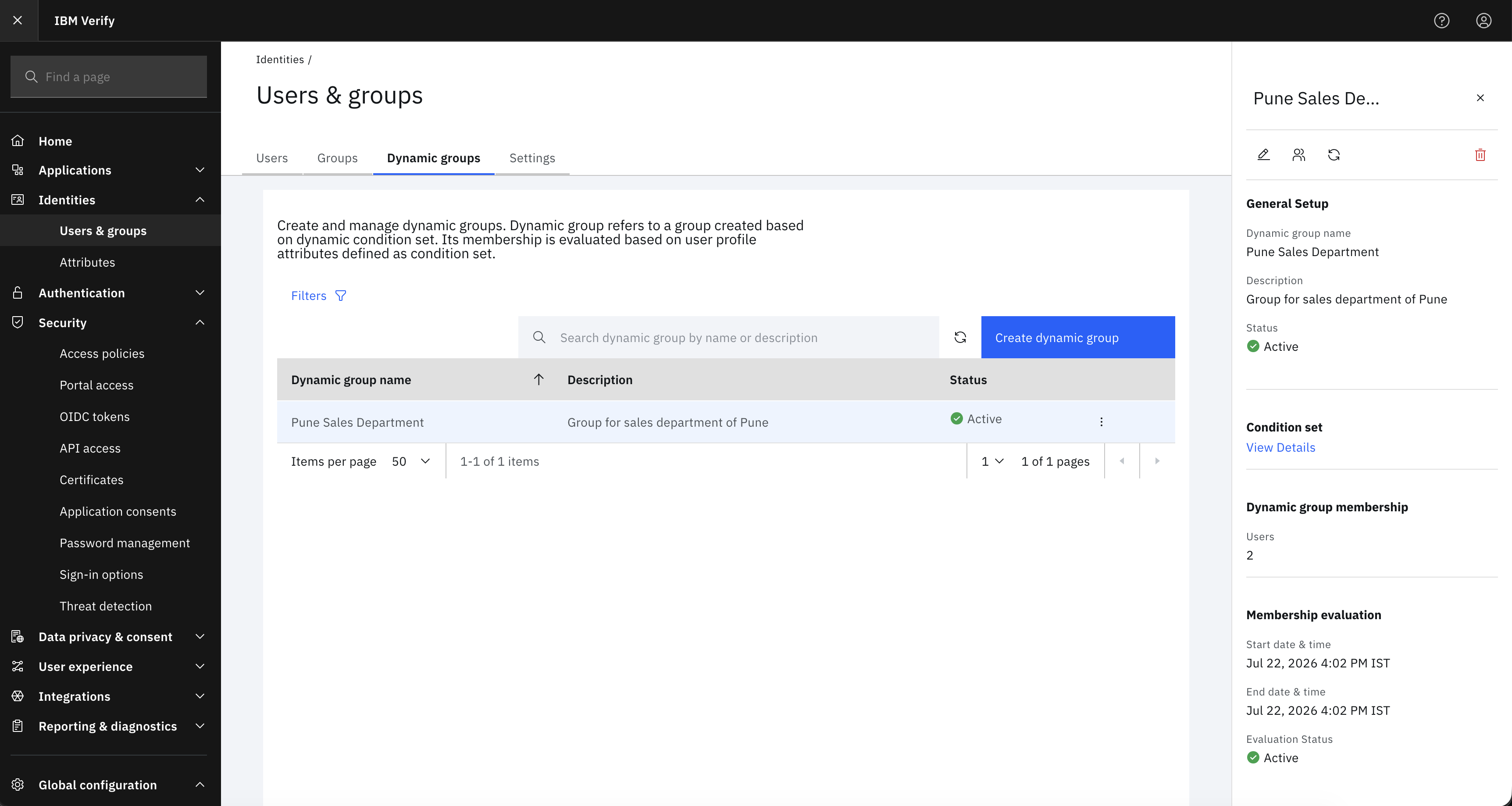
After reviewing the membership changes, choose to either publish or discard the updates:
-
Publish dynamic group
ClickPublishto apply the evaluated changes. The dynamic group status changes toActive, and the updated membership count is reflected in the side panel.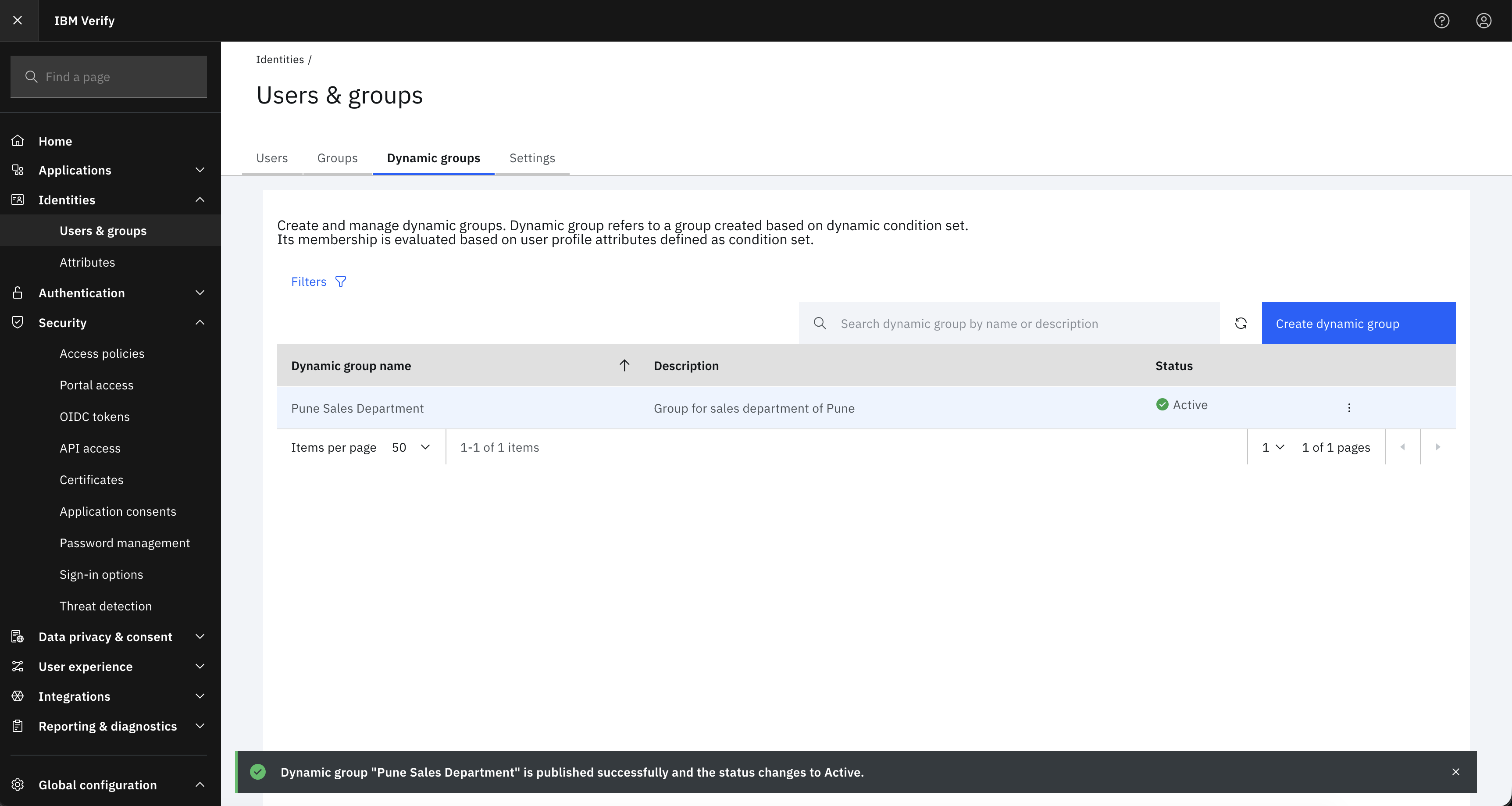
-
Discard changes
ClickDiscard Changesat the bottom of the details side panel, then selectDiscardin the confirmation prompt. The dynamic group reverts to its previous state and membership before the update.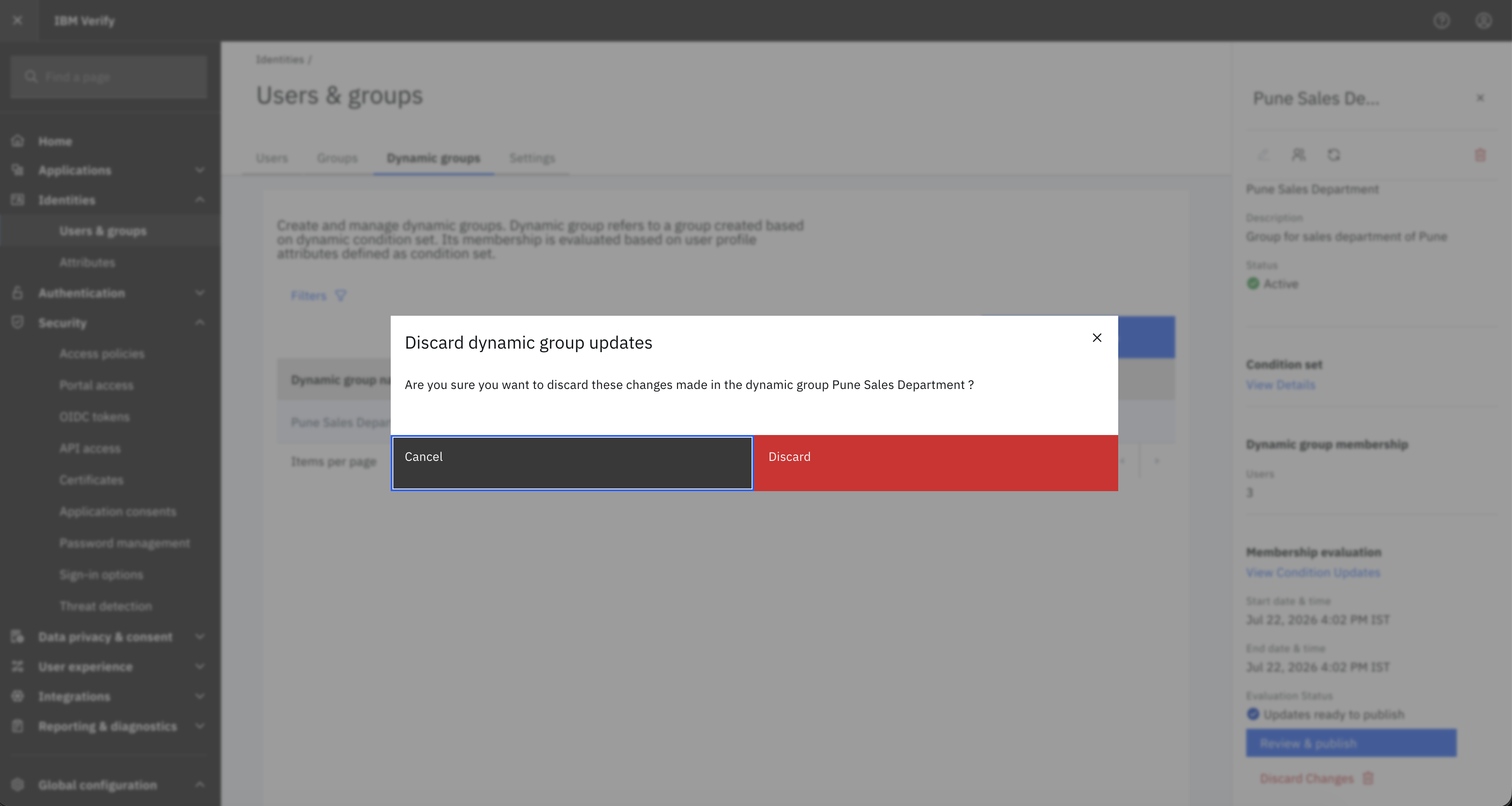
7. Re-evaluate dynamic group membership
Re-evaluate the dynamic group if a discrepancy is observed in membership evaluation due to system issues.
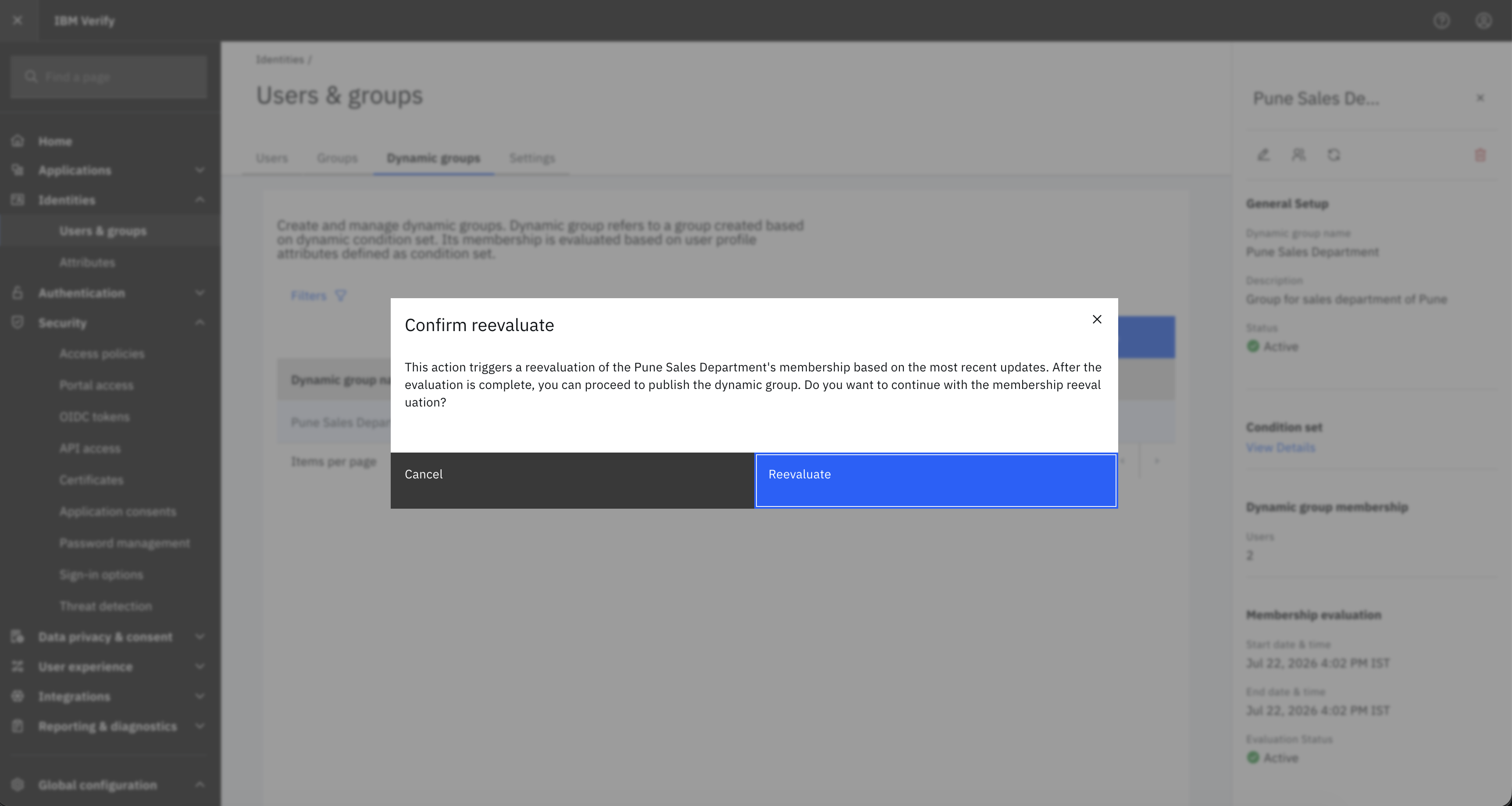
There are two ways to re-evaluate dynamic group membership from the UI:
-
From the main screen
Click the Actions menu icon ( ⋮ ) from theDynamic groupsscreen and selectReevaluate.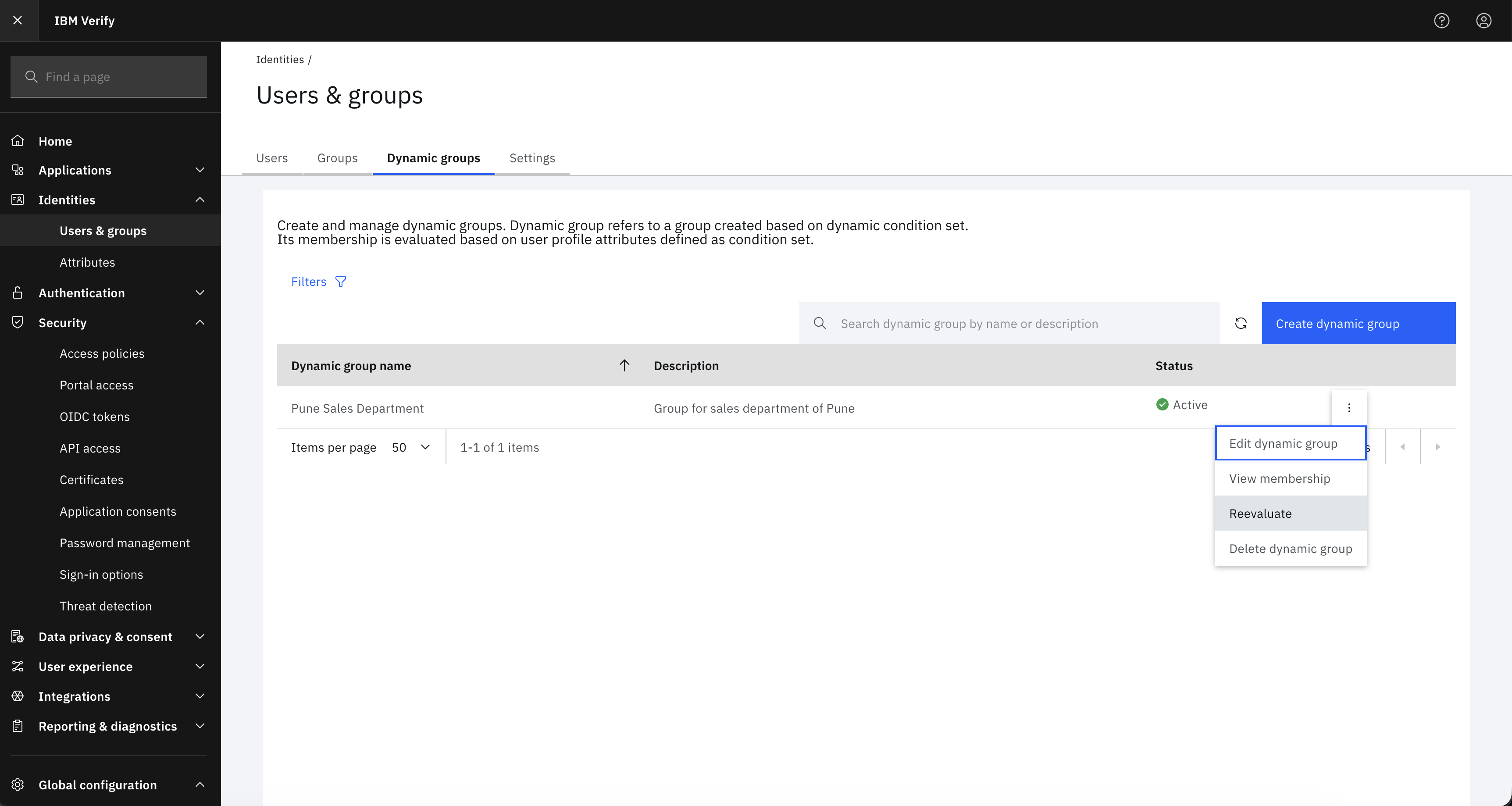
-
From the side panel
Click the specific dynamic group record from theDynamic groupsscreen. From the opened side-panel, click theReevaluateicon.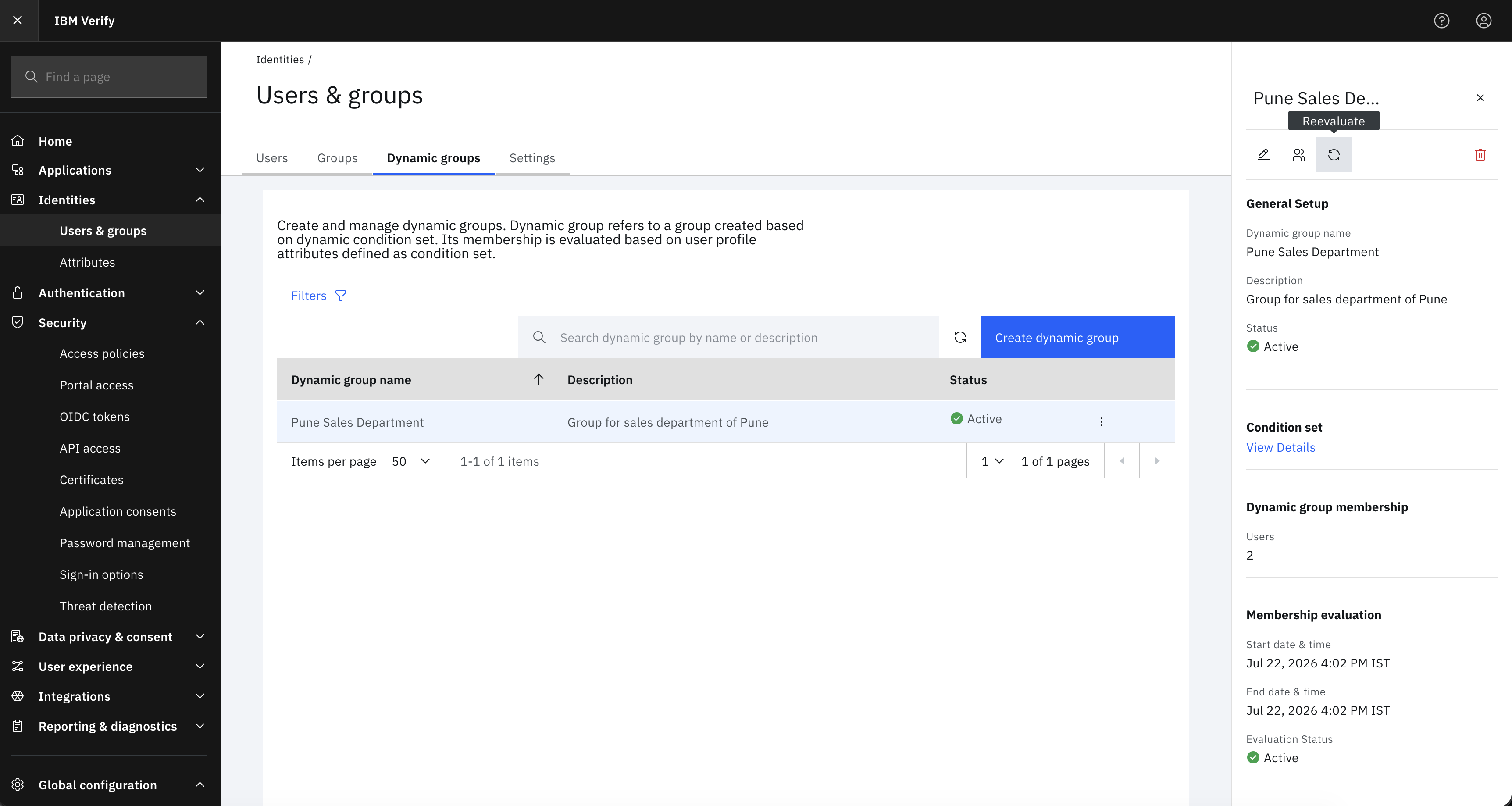
Re-evaluation is allowed only if the dynamic group status is one of the following:
- Draft
- Failed
- Active
- Active & Draft
- Active & Failed
After re-evaluation is triggered, the system re-computes the membership based on current user attributes and dynamic group conditions. After re-evaluation completes, review the dynamic group membership changes and then publish or discard the updates as needed.
8. Delete dynamic group
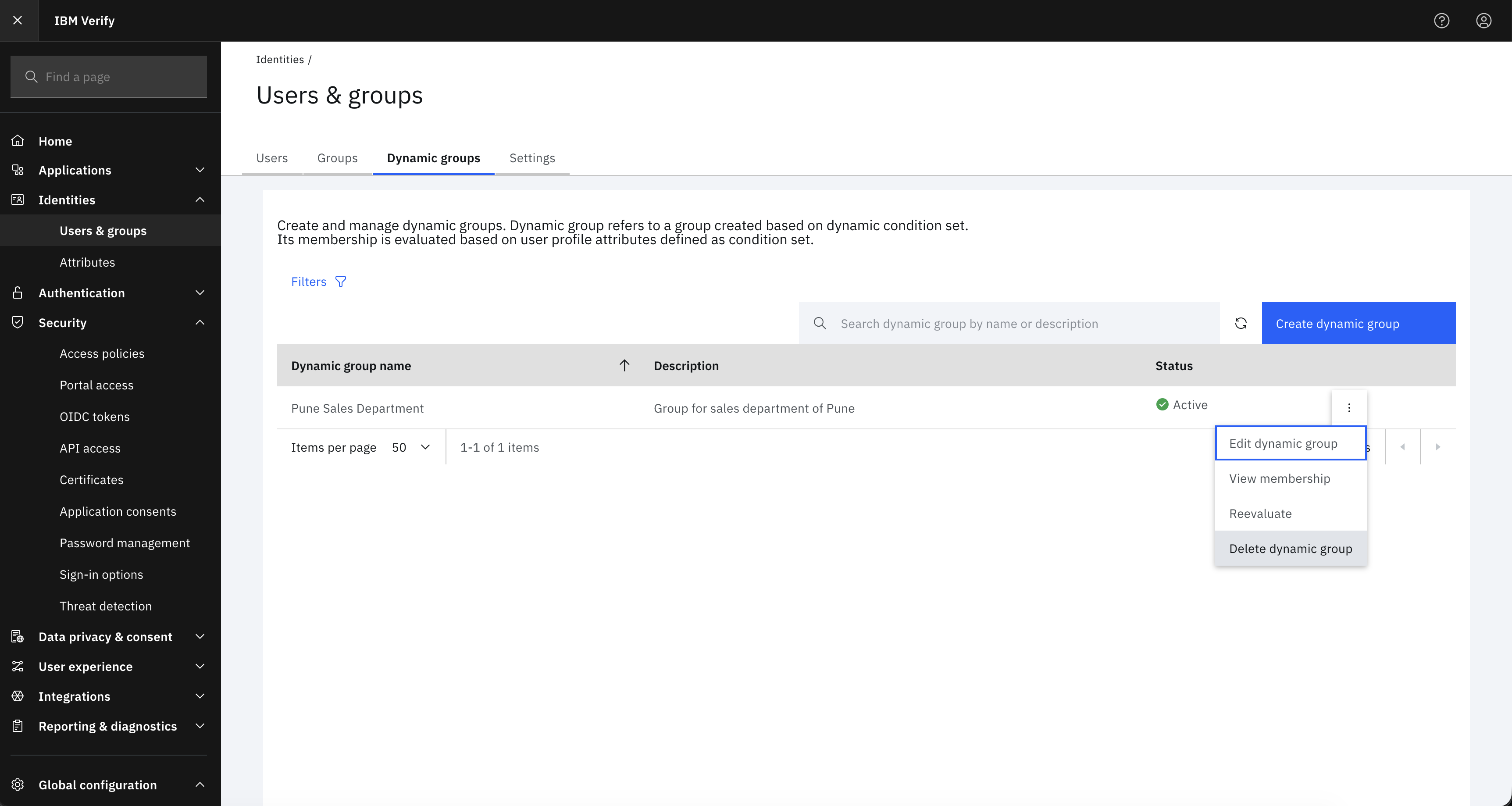
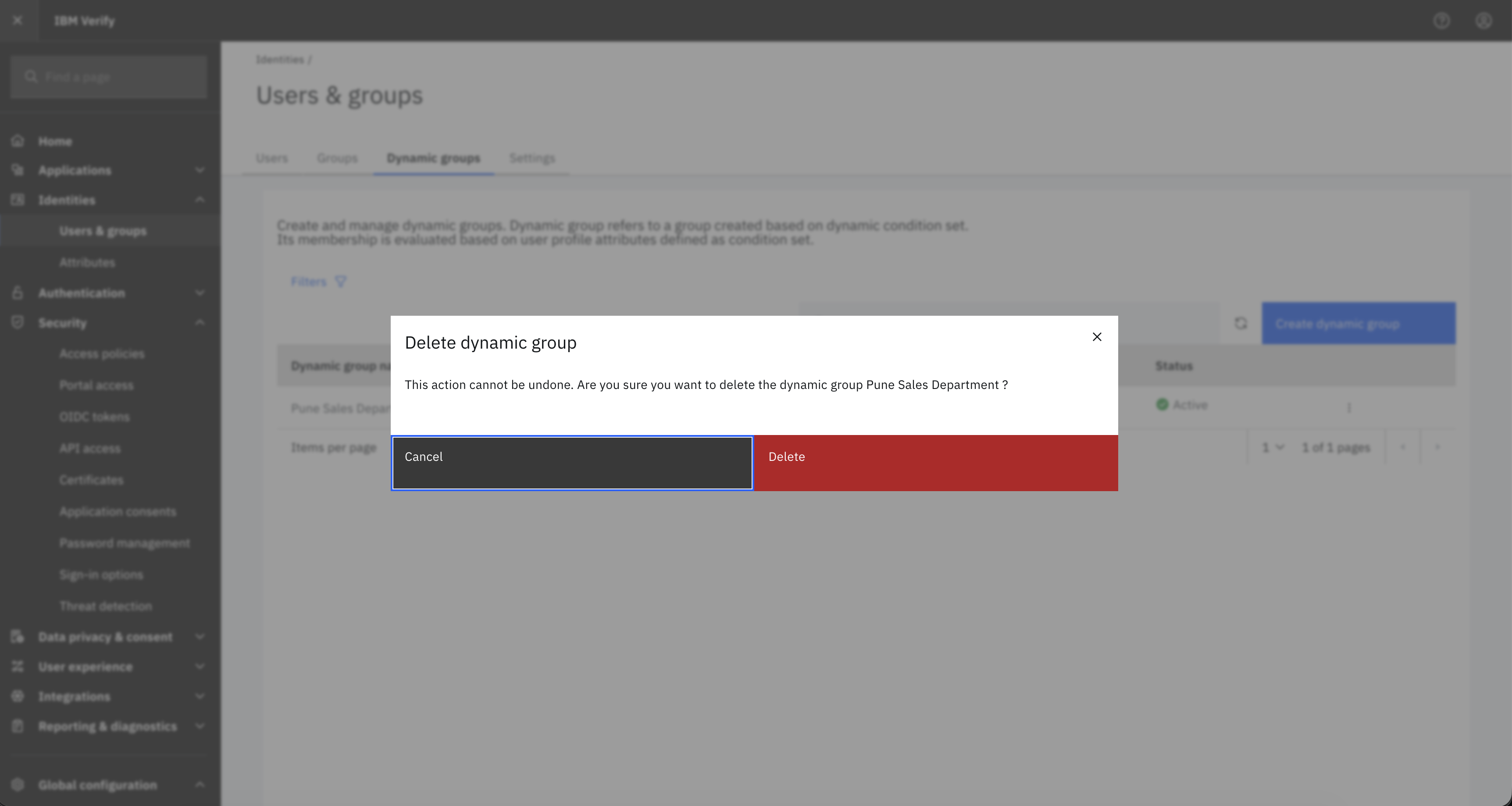
Click the Actions menu icon ( ⋮ ) from the Dynamic groups screen and select Delete dynamic group. Deletion is supported across all statuses, including Waiting, In progress, Review & publish, and Active.
9. Change in dynamic group membership based on user life cycle
-
User on-boarding in IBM Verify
User membership is evaluated based on conditions defined for the dynamic group and user profile attributes, and the user is added to applicable dynamic groups. -
Change in user profile
User membership is re-evaluated based on updated user profile attributes against defined dynamic group conditions. The user is added to applicable dynamic groups, and removed from dynamic groups whose conditions are no longer met. -
User off-boarding from IBM Verify
User is removed from all dynamic groups as part of user off-boarding. -
User profile view
Navigate toIdentities->Users & groups->Users-> Select a user -> ClickView full profile-> LocateDynamic Groupssection to view the assigned dynamic groups.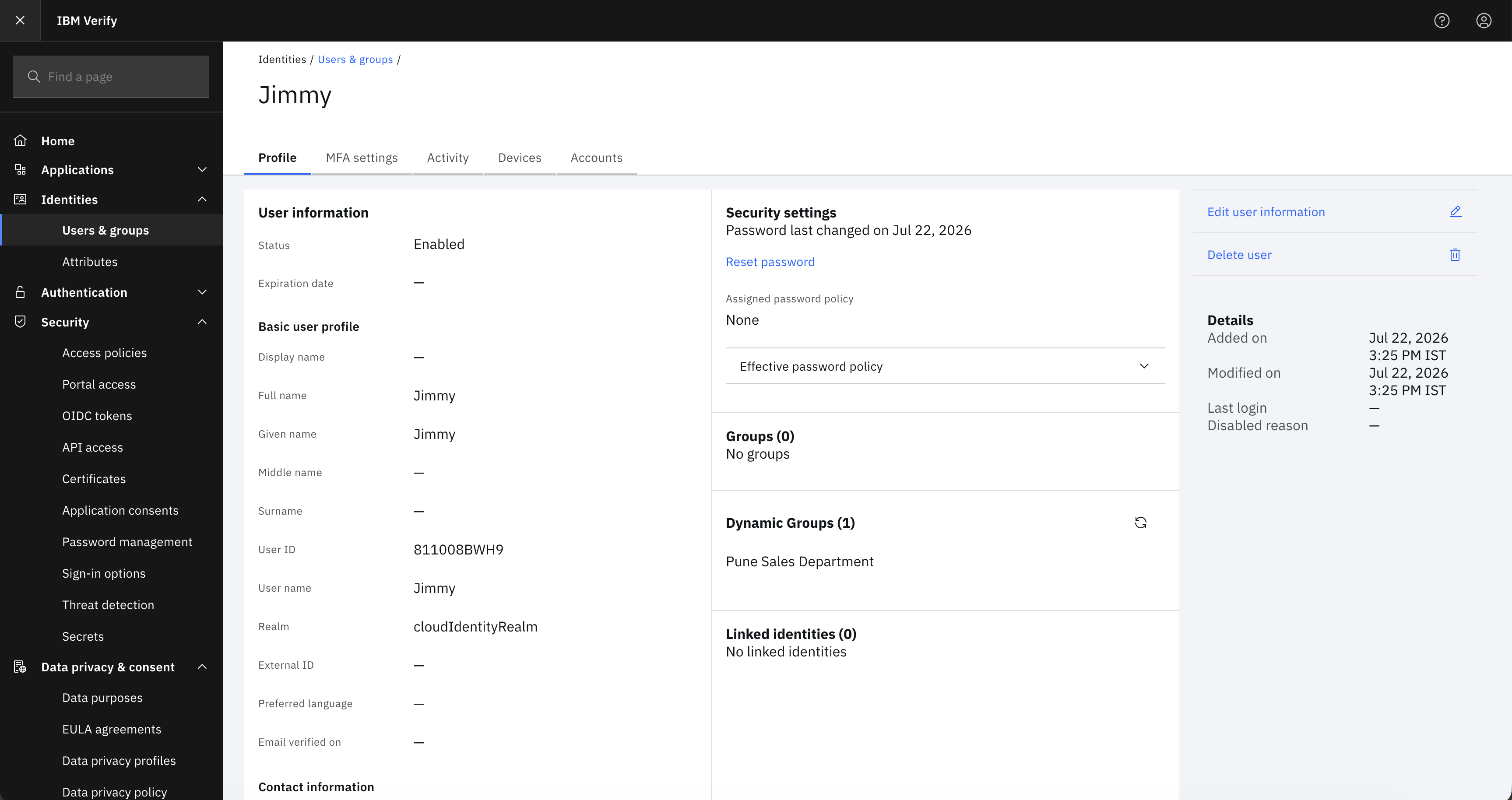
10. Re-evaluate user's dynamic groups
Re-evaluate a user's dynamic groups if a discrepancy is observed in their assigned dynamic groups due to system issues.
Navigate to Identities -> Users & groups -> Users -> Select a user -> Click View full profile -> Locate Dynamic Groups section -> Click the Reevaluate icon.
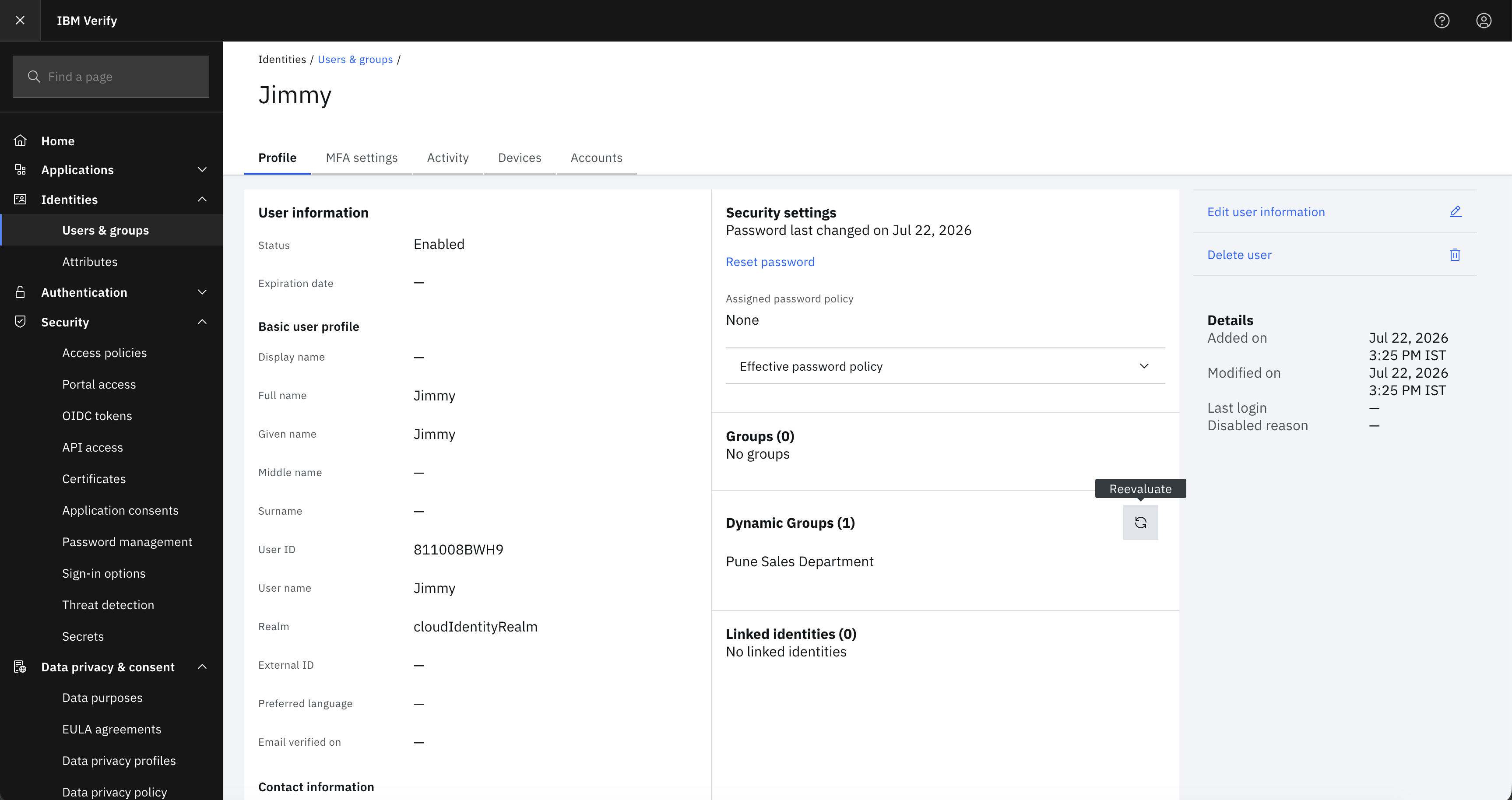
After re-evaluation is triggered, the system re-evaluates all dynamic group conditions against the user's current profile attributes. Any additions or removals are directly updated and reflected in the user profile.
Ayushi Dewangan, IBM Security
Updated about 9 hours ago