
Client-Initiated Backchannel Authentication
Client-Initiated Backchannel Authentication (CIBA)
Introduction
Client-Initiated Backchannel Authentication (CIBA) is an authentication flow defined in the OpenID Connect CIBA specification that enables a client (Consumption Device) to initiate an authentication flow for a user without requiring them to interact directly with that device. Instead, the user authenticates and provides consent on a separate Authentication Device they control.
This article provides guidance for configuring and using Client-Initiated Backchannel Authentication (CIBA) in IBM Verify, enabling secure out-of-band user authentication. CIBA allows users to verify and approve authentication requests on a separate trusted device. This decoupled authentication experience is ideal for autonomous AI agents, IoT devices, command-line tools, and scenarios where the Consumption Device differs from the Authentication Device.
Autonomous agent use case example: An AI Agent performing tasks on behalf of a user may need explicit consent before executing sensitive operations. CIBA lets the agent securely request user authorization through a push notification to their personal device, without interrupting the agent's workflow.
IBM Verify currently only supports Poll mode token delivery mode. User authentication is performed through:
- Push notifications to IBM Verify app
- Email containing verification URL link for user to authenticate or authorize
Key concepts
Consumption Device (CD)
The device or application where the client resides and where the user ultimately wants to access resources. This device initiates the authentication request but does not handle user interaction.
Authentication Device (AD)
A separate device that the user controls and trusts, such as a smartphone or tablet, where the user authenticates and authorizes the request. This device receives notifications about pending authentication requests.
Backchannel authentication endpoint (backchannel_authentication_endpoint)
An authorization server endpoint that accepts authentication requests from clients (Consumption Devices). The client provides a user identifier (login hint) and the server handles the user authentication out-of-band.
Authentication request ID (auth_req_id)
A unique identifier returned by the backchannel authentication endpoint that the client uses to poll for or receive the authentication result.
Overview of the flow
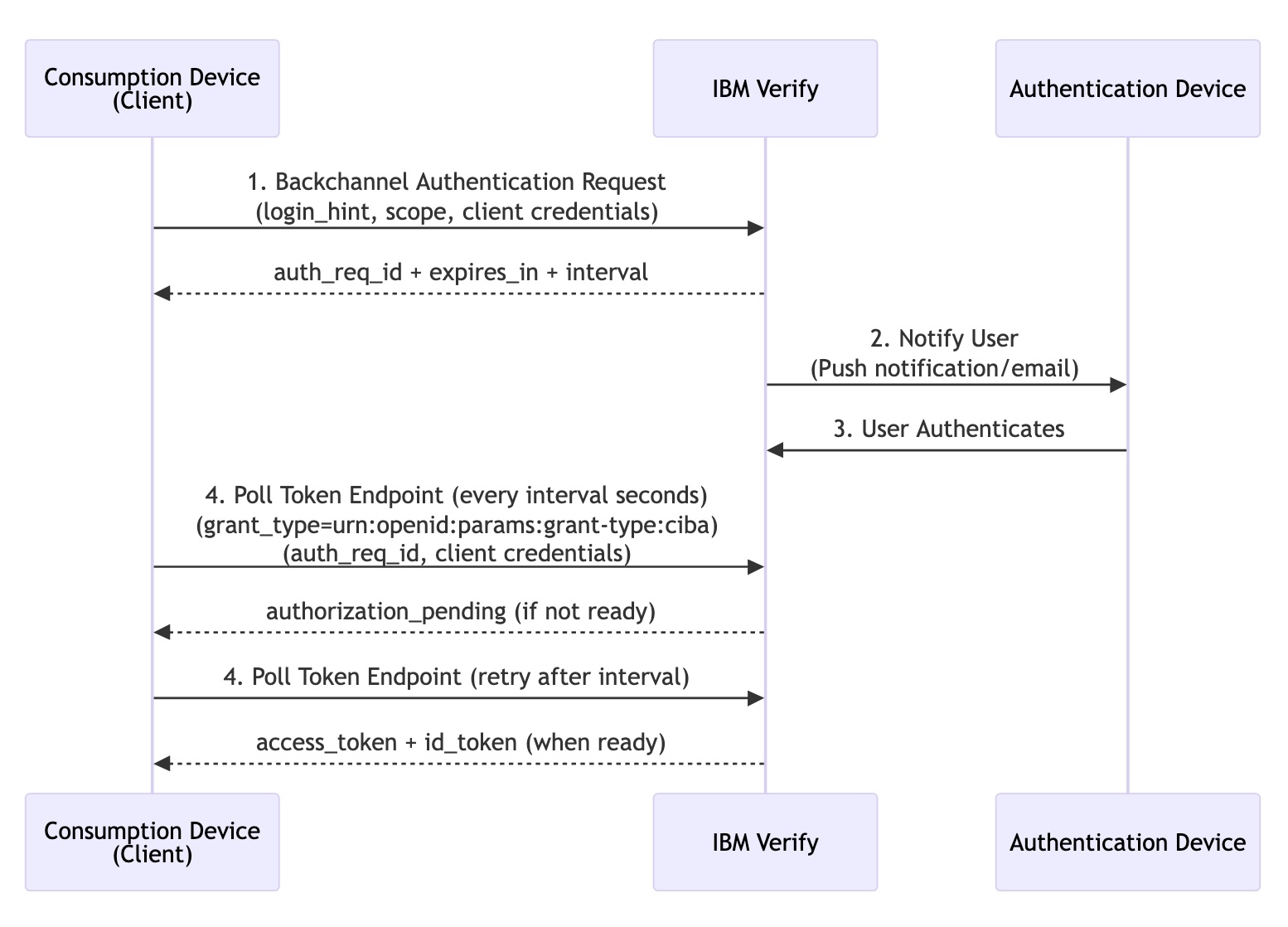
- The initiation: The client (CD) sends an authentication request to IBM Verify by making a direct HTTP POST request to the
backchannel_authentication_endpoint. The request includes a user identifier (login hint) so IBM Verify knows who to authenticate and it returns anauth_req_id. - The out-of-band challenge: IBM Verify sends a push notification directly to the user's IBM Verify app (AD) or sends an email with verification URL link for user to authenticate with browser (AD). These user authentication channels can be configured when on-boarding the OIDC application.
- The approval: The user opens the IBM Verify app (AD) and approves the authentication request or the user opens the verification URL link sent to the email and authenticates from browser (AD).
- The token delivery: After approval, the client (CD) retrieves the token by using one of the supported delivery modes: Poll mode and Ping mode (planned for next release).
1. Poll mode (currently the only mode supported)
The client periodically polls the token endpoint by using the auth_req_id to check if the user has completed authentication. This mode is suitable for clients that cannot receive callbacks.
2. Ping mode (planned for next release)
IBM Verify sends a notification to the client when authentication is complete, prompting the client to retrieve tokens. This reduces unnecessary polling but requires the client to expose a callback endpoint.
Use cases
CIBA is particularly well-suited for the following scenarios:
Autonomous AI agents
AI agents performing tasks on behalf of users can request explicit consent for sensitive operations through push notifications. For example:
- An AI assistant scheduling a financial transaction requests user approval before execution
- A chatbot accessing sensitive customer data requests real-time authorization
- An automated workflow system escalating authorization for high-risk operations
- Agentic AI systems requiring human-in-the-loop approval for critical decisions
Call center and customer service
Service representatives can initiate authentication on behalf of customers, replacing traditional security questions with push notifications to the customer's personal device for secure identity verification.
Open banking and financial services
Financial institutions can use CIBA for secure transaction authorization, where the banking system initiates authentication and the customer approves on their mobile device.
IoT and smart devices
Devices with limited input capabilities (smart TVs, voice assistants, IoT sensors) can initiate authentication while users approve on their smartphones.
Command-line tools and scripts
Developers can authenticate CLI tools and automation scripts without interrupting their workflow, approving requests on a mobile device.
Point-of-sale and kiosk systems
Retail systems can request authentication while customers approve transactions on their personal devices, reducing PCI compliance scope.
Cross-device workflows
Applications can seamlessly delegate authentication to trusted devices, enabling secure workflows across multiple devices.
Configuration
Configuring CIBA requires specific settings on both IBM Verify and the client (Consumption Device) to successfully establish the decoupled backend handshake. The following sections describe the configuration steps for Poll mode token delivery.
Persona
- Admin that onboards the OIDC application with the CIBA grant type and configures appropriate settings.
- Client (Agent/Application) that initiates an authentication request and uses the generated token to access resources.
- User that authenticates and authorizes the authentication request.
Prerequisites
- IBM Verify tenant
- Users must have IBM Verify app installed for push notifications or access to email for verification URL links.
Discovery and metadata
CIBA support is advertised through OpenID Connect Discovery metadata at /oauth2/.well-known/openid-configuration:
{
  "backchannel_authentication_endpoint": "https://{tenant}/oauth2/ciba",
  "backchannel_token_delivery_modes_supported": ["poll"],
  "backchannel_authentication_request_signing_alg_values_supported": [
    "RS256", "RS384", "RS512", "PS256", "PS384", "PS512", "ES256", "ES384", "ES512"
  ]
}
IBM Verify configuration
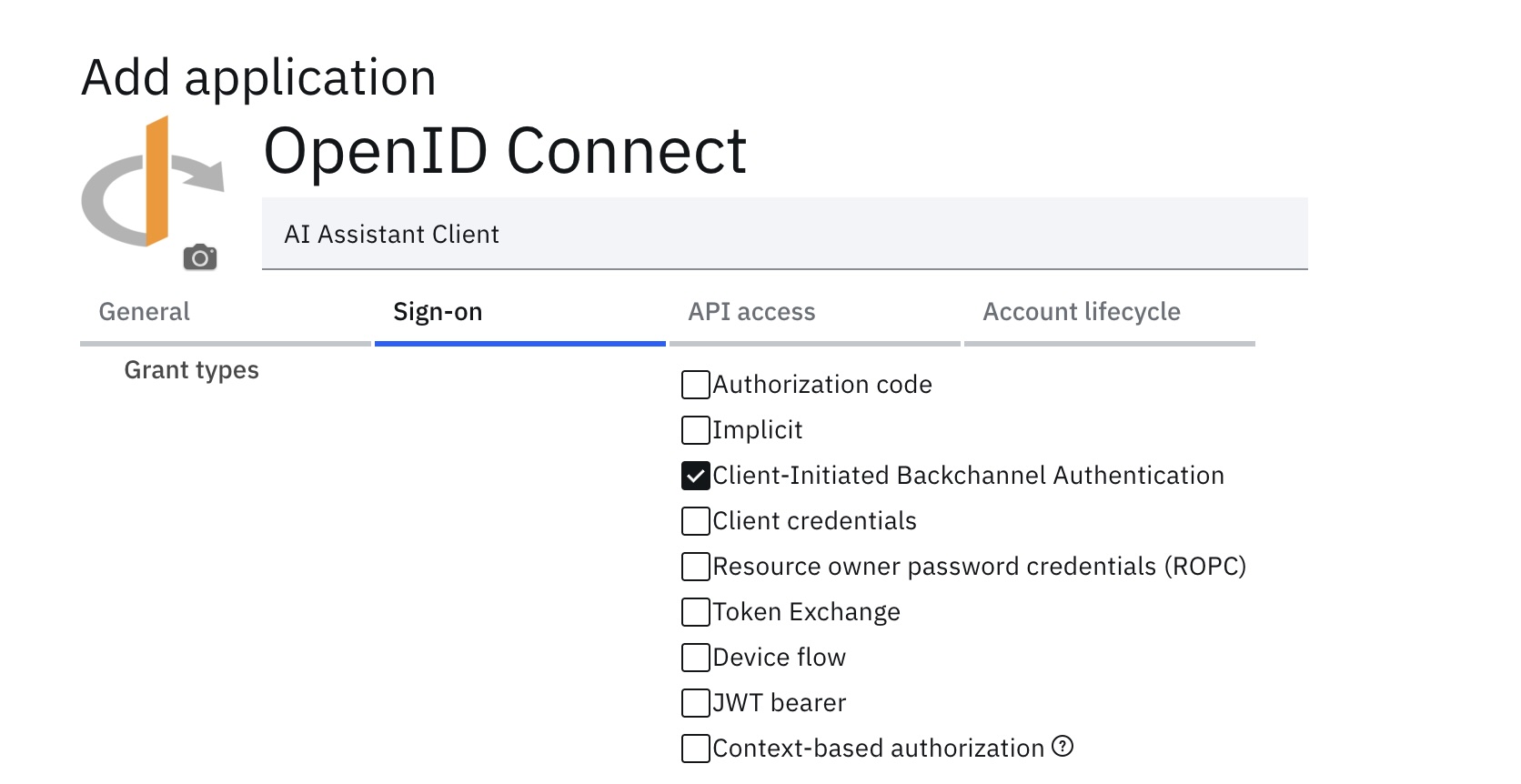
1. Creating OIDC application enabled with CIBA grant type
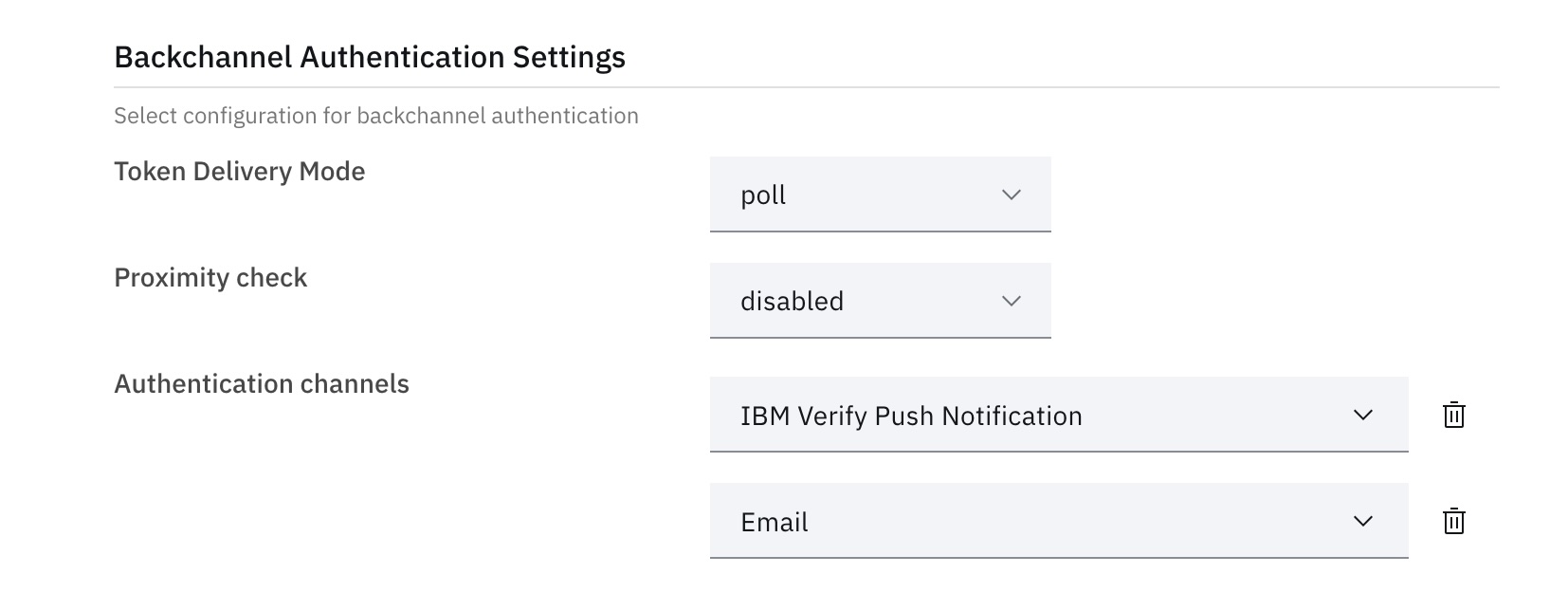
Admin creates a new OIDC application for the client residing in the Consumption Device by enabling CIBA grant type and configuring CIBA backchannel settings.
The following shows only the CIBA grant type and related properties for creating OIDC application. For the complete list of required fields, see OpenID Connect applications in IBM Verify.
Applications UI
Applications API
POST https://{tenant}/v1.0/applications
Content-Type: application/json

"providers": {
    "... other application fields ...": "...",

    "oidc": {
        "properties": {
            "... other oidc properties ...": "...",

            "additionalConfig": {
                "backchannelSettings": {
                    "deliveryMode": "poll",
                    "supportUserCode": false,
                    "proximityCheck": "disabled",
                    "userAuthChannels": [
                        "push",
                        "email"
                    ]
                }
            },
            "grantTypes": {
                "ciba": "true"
            }
        }
    }
}
CIBA grant type must be enabled and admin can configure additional CIBA backchannel settings.
| Backchannel settings | Supported values | Default | Notes |
|---|---|---|---|
| Delivery mode | "poll" | "poll" | Only poll token delivery mode is supported. |
| Support user code | false | false | User code is not yet supported. |
| Proximity check | "disabled", "country", "state", "city" | "disabled" | Option to verify that the Consumption Device and the Authentication Device are in the same location based on the selected granularity value. |
| User authentication channels | "push", "email" | "email" | Order matters if multiple channels specified - defines priority for notification delivery. IBM Verify attempts first channel, then second if first fails. If all channels fail, returns invalid_request error immediately on the backchannel authentication request. |
After the OIDC application with CIBA grant type is created, the client which resides in the Consumption Device can use the client credentials, such as client_id and client_secret, to initiate backchannel authentication requests and poll tokens.
2. Configuring polling interval (optional)
The polling interval is the minimum time interval the client should poll for the token endpoint. By default, the polling interval is set to 5 seconds which is the recommended value.
The polling interval for CIBA shares the same property with device flow grant type. If admin needs to configure a different polling interval, admin can do so by configuring the device flow polling interval:
- In IBM Verify admin console, go to Applications, click Application Settings, select OIDC general settings.
- In the Device flow polling interval (seconds) field, enter the desired polling interval.
- Click Save changes.
NoteChanges to this polling interval property affect both CIBA and device flow grant types.
Client implementation
1. Initiating the backchannel authentication
The client application must issue an HTTP POST request directly to IBM Verify backchannel_authentication_endpoint. It passes a user hint identifying the target user.
Example of an authentication request:
POST https://{tenant}/oauth2/ciba
Content-Type: application/x-www-form-urlencoded

[email protected]
&scope=openid%20example-scope
&client_id={client_id}
&client_secret={client_secret}
&binding_message=AI%20Assistant%20requests%20approval%20to%20transfer%20%24500%20to%20Bob
The backchannel authentication endpoint accepts the following request parameters:
| Parameter | Description | Required |
|---|---|---|
| login_hint | A hint to IBM Verify regarding the user for whom authentication is being requested. | No * |
| id_token_hint | An ID Token previously issued to the client by IBM Verify. | No * |
| authorization_details | Fine-grained scope of the access request. | No |
| scope | Scope of the access request. | No |
| binding_message | A human-readable message intended to be displayed on both the Consumption Device and the Authentication Device. | No |
| requested_expiry | Requested expiry time of backchannel authentication request in seconds. | No |
Note(*) Only one of login_hint or id_token_hint is required.
User hint
The login_hint parameter accepts two formats:
- Simple string format containing IBM Verify username.
- JSON object format containing
usernameandrealmproperties. The JSON object should be URL-encoded when passed as parameter value.
{
  "username": "[email protected]",
  "realm": "www.ibm.com"
}
The id_token_hint parameter is used to pass an ID Token previously issued to the same client by IBM Verify.
Only one of the suggested hint types must be provided in the backchannel authentication request.
Binding message
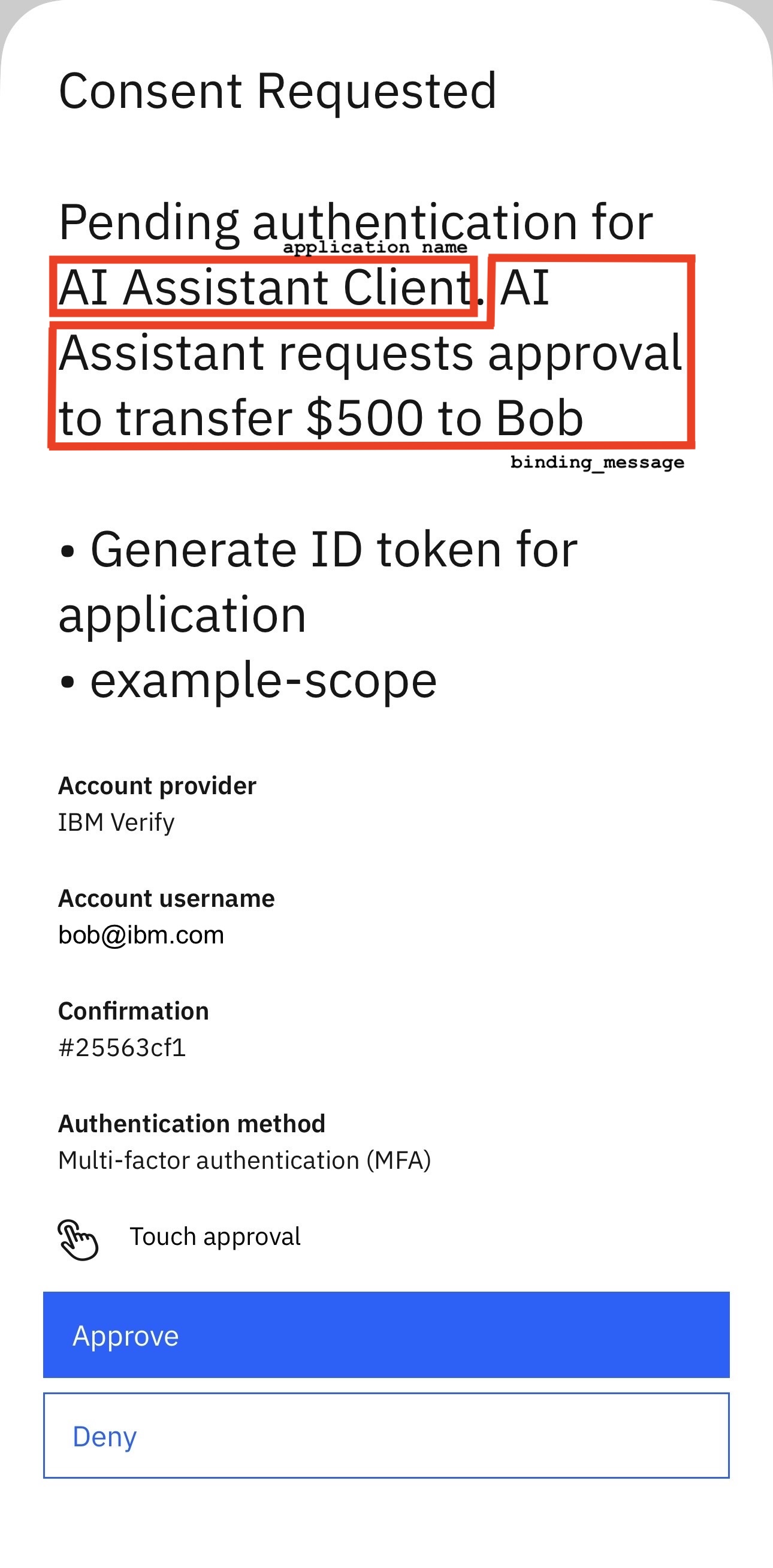
The binding_message parameter allows clients to include a short, human-readable message displayed to the user during authentication. This message helps prevent cross-device threats such as phishing and ensures the user approves the correct request. It also provides context about the requested operation.
Example: "AI Assistant requests approval to transfer $500 to Bob"
The binding message is included in push notifications and email, and attached to SSO audit events.
Backchannel authentication request expiration
The requested_expiry parameter can be provided to use shorter expiry value of a backchannel authentication request. By default, IBM Verify uses the default expiry value of 600 seconds (10 minutes) for Push notifications and 1800 seconds (30 minutes) for email notifications.
2. Processing the IBM Verify acknowledgement
IBM Verify responds immediately with an auth_req_id to be used to poll token endpoint, expires_in to indicate the authentication request expiry in seconds, and interval for polling interval in seconds.
Example of an authentication request response:
HTTP/1.1 200 OK
Content-Type: application/json

{
    "auth_req_id": "xxxxxxxxxxxxxxxxxxxxxxxxxxxxxxxxxxxx",
    "expires_in": 600,
    "interval": 5
}
Some of the common errors that the client should be aware of when requesting backchannel authentication requests:
| IBM Verify response status | Error | Causes |
|---|---|---|
| HTTP 400 | unknown_user_id | IBM Verify is unable to identify user from the provided hint. |
| HTTP 400 | unauthorized_client | CIBA grant type is not enabled for the OIDC application. |
| HTTP 400 | invalid_request | The error_description message provides clues for this error, for example, missing required parameters, duplicate login hint, user authentication channel delivery failure. |
| HTTP 400 | invalid_binding_message | The binding_message length exceeds the maximum allowed characters. |
| HTTP 401 | invalid_client | Client authentication failed, for example, invalid client credentials, unknown client. |
3. Polling for the tokens
The client backend must poll IBM Verify /oauth2/token endpoint by using the auth_req_id, respecting the interval value returned in the previous authentication request response.
Example of the polling request:
POST https://{tenant}/oauth2/token
Content-Type: application/x-www-form-urlencoded

grant_type=urn%3Aopenid%3Aparams%3Agrant-type%3Aciba
&auth_req_id={auth_req_id}
&client_id={client_id}
&client_secret={client_secret}
4. Handling the polling responses
If the user has not approved the push notification or authenticated by using the verification URL sent in the email, IBM Verify returns an HTTP 400 Bad Request with an authorization_pending error code. If the user has approved the authentication request, IBM Verify returns an HTTP 200 OK with the access_token and id_token.
Example of a token response:
HTTP/1.1 200 OK
Content-Type: application/json

{
    "access_token": "xxxxxxxxxxxxxxxxxxxxxxxxxxxxxxxxxxxx",
    "expires_in": 3600,
    "grant_id": "xxxxxxxx-xxxx-xxxx-xxxx-xxxxxxxxxxxx",
    "id_token": "xxxxxxxxxxxxxxxxxxxxxxxxxxxxxxxxxxxx",
    "scope": "openid example-scope",
    "token_type": "bearer"
}
The following are the possible IBM Verify responses that the client should handle when polling tokens:
| IBM Verify response status | Error / Body content | Action |
|---|---|---|
| HTTP 400 | authorization_pending | Wait for the number of seconds specified by interval in the authentication request response, then try again. |
| HTTP 400 | slow_down | Polling too fast, increase the polling interval to be longer than the interval value in the authentication request response. |
| HTTP 400 | expired_token | Stop polling, the request has expired. Client may make a new authentication request. |
| HTTP 400 | access_denied | Stop polling, user has denied the authentication request. |
| HTTP 200 | contains access_token and id_token | Complete token retrieval, user has successfully approved the authentication request. |
User action on Authentication Device
User is notified for pending authentication request on the Authentication Device. The notification is delivered based on the user authentication channels configured in the OIDC application.
IBM Verify app
User receives a push notification on their mobile device with the binding_message if any. User can approve or deny the authentication request.
Example of push notification preview:

Example of push notification:
Email
User receives an email containing the verification URL link and the binding_message if any.
Example of the verification URL link:
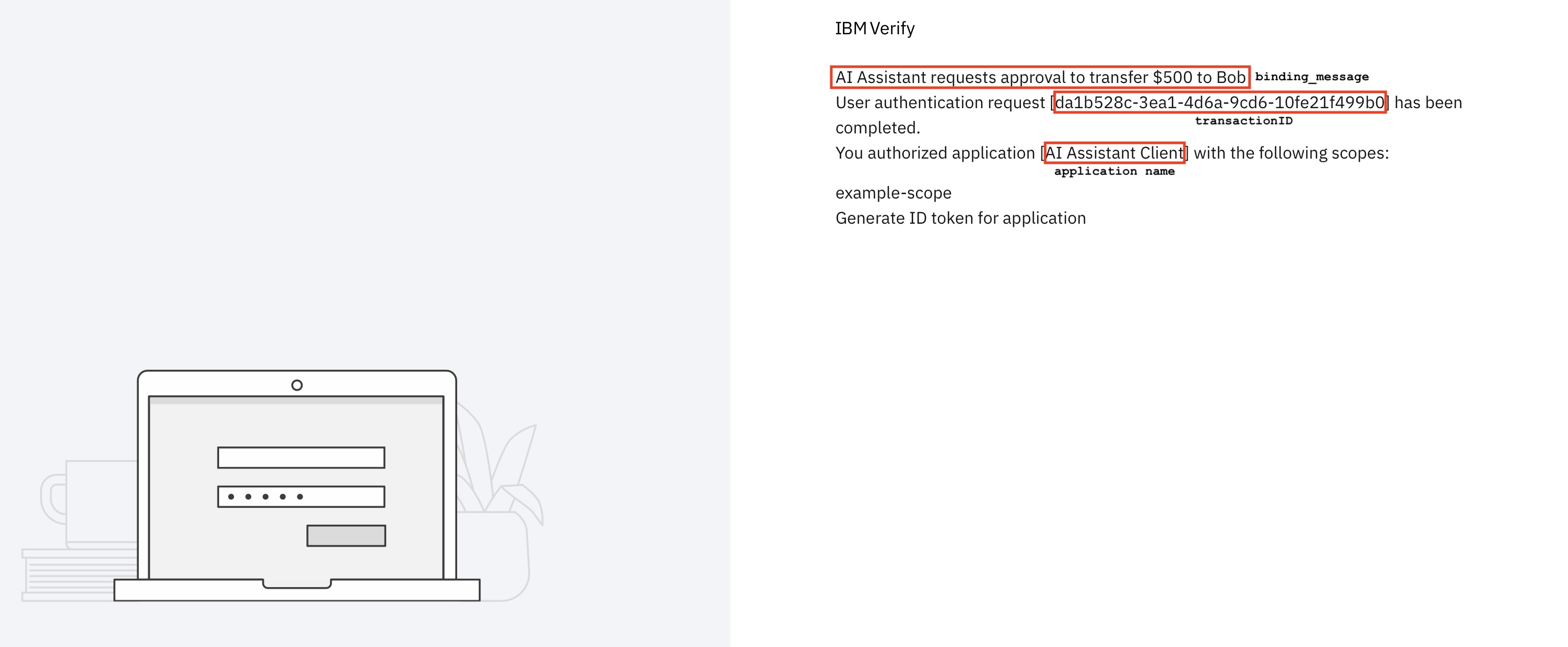
https://{tenant}/oauth2/ciba_user_authorize/{transactionID}Example of email subject:

Example of email body:

User opens the verification URL link in browser, completes the IBM Verify authentication flow and provides consent when prompted to approve the authentication request.
Example of the user authorization result page after user successfully approves the request:
Branding and notifications
IBM Verify supports two categories of customization for the CIBA flow:
- User authorization result pages — HTML pages displayed to the user after they open the verification URL in a browser and complete the authorization flow.
- Notification content — Text labels that control the content of the push notification and email sent to the user's Authentication Device.
Both are customized through IBM Verify's themes by modifying HTML template files and the template_labels.properties labels file.
User authorization result pages
The three CIBA user authorization result pages are located at templates/authentication/oidc/ciba_flow/default/ within the theme package:
| Page | File | Condition |
|---|---|---|
| Permitted | ciba_user_authorize_permitted.html | User successfully approved the request. |
| Denied | ciba_user_authorize_denied.html | User denied the request. |
| Error | ciba_user_authorize_error.html | An error occurred during the flow. |
These pages support macros (wrapped in @ signs) substituted at runtime and text labels (wrapped in $ signs) defined in template_labels.properties. This file is located at templates/common/labels/default/ within the theme package.
CIBA related macros
| Macro | Description |
|---|---|
@OAUTH_CLIENT_NAME@ | The application name (client) that initiates the request. |
@OAUTH_TRXID@ | The transactionID of the CIBA authentication flow. |
@OAUTH_MESSAGE@ | The binding_message value from the backchannel authentication request. |
Result page labels
| Label | Page | Default example |
|---|---|---|
$OIDC_TITLE_CIBA_USERAUTH_RESULT$ | All result pages | User Authentication Result |
$OIDC_TEXT_CIBA_USERAUTH_COMPLETE$ | Permitted, Denied | @OAUTH_MESSAGE@<br/>User authentication request [@OAUTH_TRXID@] has been completed. |
$OIDC_TEXT_CIBA_USERAUTH_PERMITTED$ | Permitted | You authorized application [@OAUTH_CLIENT_NAME@] with the following scopes: |
$OIDC_TEXT_CIBA_USERAUTH_DENIED$ | Denied | Authorization for the application [@OAUTH_CLIENT_NAME@] was denied. |
$OIDC_TEXT_CIBA_USERAUTH_ERROR$ | Error | @OAUTH_MESSAGE@<br/>User authentication request [@OAUTH_TRXID@] failed with the following error: |
For the full macro and label list per page, see Modify CIBA pages.
Notification content
In addition to the result pages, the content of the email and push notifications sent to the Authentication Device can also be customized by using labels in template_labels.properties.
CIBA related macros
| Macro | Description |
|---|---|
@OAUTH_CLIENT_NAME@ | The application name (client) that initiates the request. |
@OAUTH_TRXID@ | The transactionID of the CIBA authentication flow. |
@OAUTH_MESSAGE@ | The binding_message value from the backchannel authentication request. |
@OAUTH_AUTH_URL@ | The verification URL for user to complete the authentication request. |
@CONSENT_LABELS@ | The consent labels requested for the authentication request. |
Email notification labels
| Label | Default example |
|---|---|
$OIDC_CIBA_EMAIL_NOTIFICATION_SUBJECT$ | Authentication Request [@OAUTH_TRXID@] |
$OIDC_CIBA_EMAIL_NOTIFICATION_CONTENT$ | @OAUTH_MESSAGE@ <br> You have received an authentication request from the application @OAUTH_CLIENT_NAME@. <br> See @OAUTH_AUTH_URL@. |
Push notification labels
| Label | Default example |
|---|---|
$OIDC_CIBA_PUSH_NOTIFICATION_TITLE$ | Authentication request |
$OIDC_CIBA_PUSH_NOTIFICATION_PREVIEW$ | Pending authentication for @OAUTH_CLIENT_NAME@ |
$OIDC_CIBA_PUSH_NOTIFICATION_CONTENT$ | Consent Requested\n\nPending authentication for @OAUTH_CLIENT_NAME@. @OAUTH_MESSAGE@\n\n@CONSENT_LABELS@ |
For the full macro and label list per notification, see Customize CIBA notifications.
Example: Creating a theme and customizing CIBA page and notification label
The following example creates a new theme, customizes the CIBA permitted page, updates the email notification label, and assigns the theme to the OIDC application. For better concept illustration, IBM Verify admin console is used in this example.
1. Duplicate the default theme and open
Admin can create a new theme by duplicating the default theme:
- In IBM Verify admin console, go to User experience, click Branding, locate and click the three vertical buttons (Options) on the Default Theme, and select Duplicate.
- On the Duplicate an existing theme window, enter the desired Theme name. Checkmark Navigate to duplicated theme to automatically open this theme after duplicating it.
- Click Duplicate.
2. Customize the CIBA permitted page
On the newly created theme:
- Navigate to the CIBA page directory Template files > authentication > oidc > ciba_flow.
- Locate and click the three vertical buttons (Options) on
ciba_user_authorize_permitted.htmlfile and click Edit. - Edit the file content, for example, add more information by inserting the following text on the page:
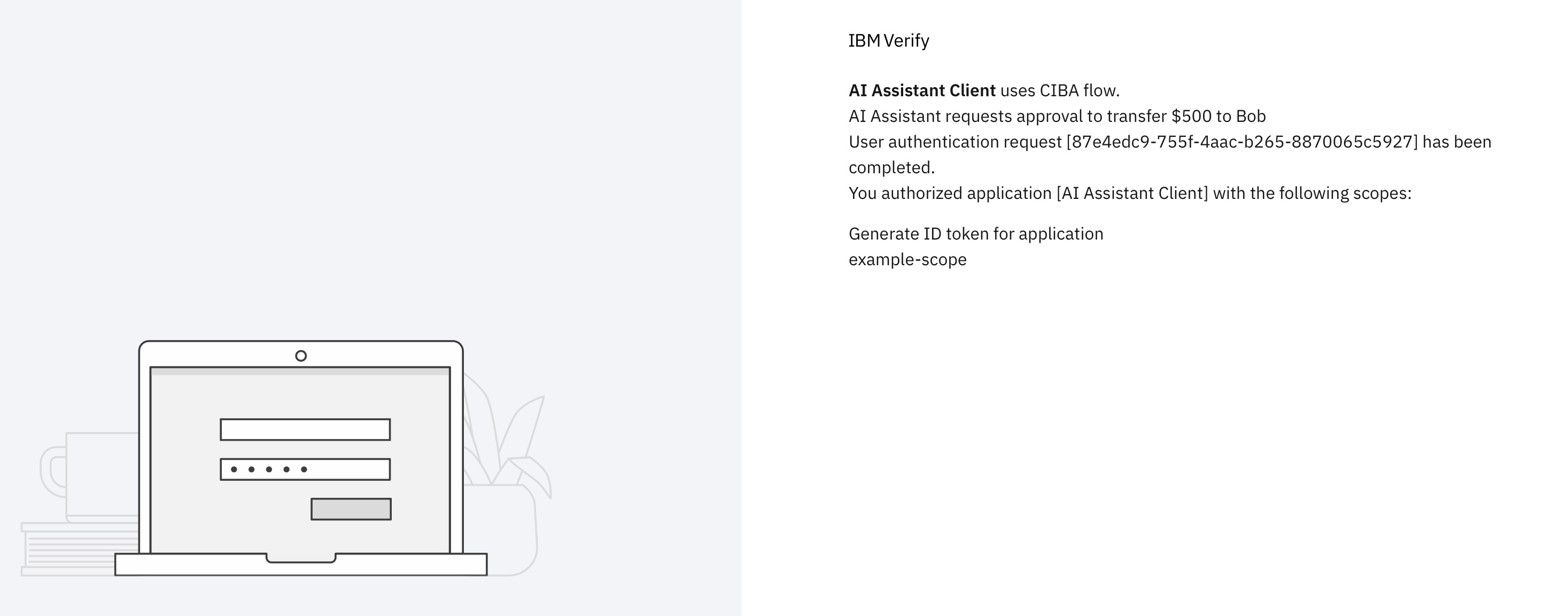
<p><strong>@OAUTH_CLIENT_NAME@</strong> uses CIBA flow.</p>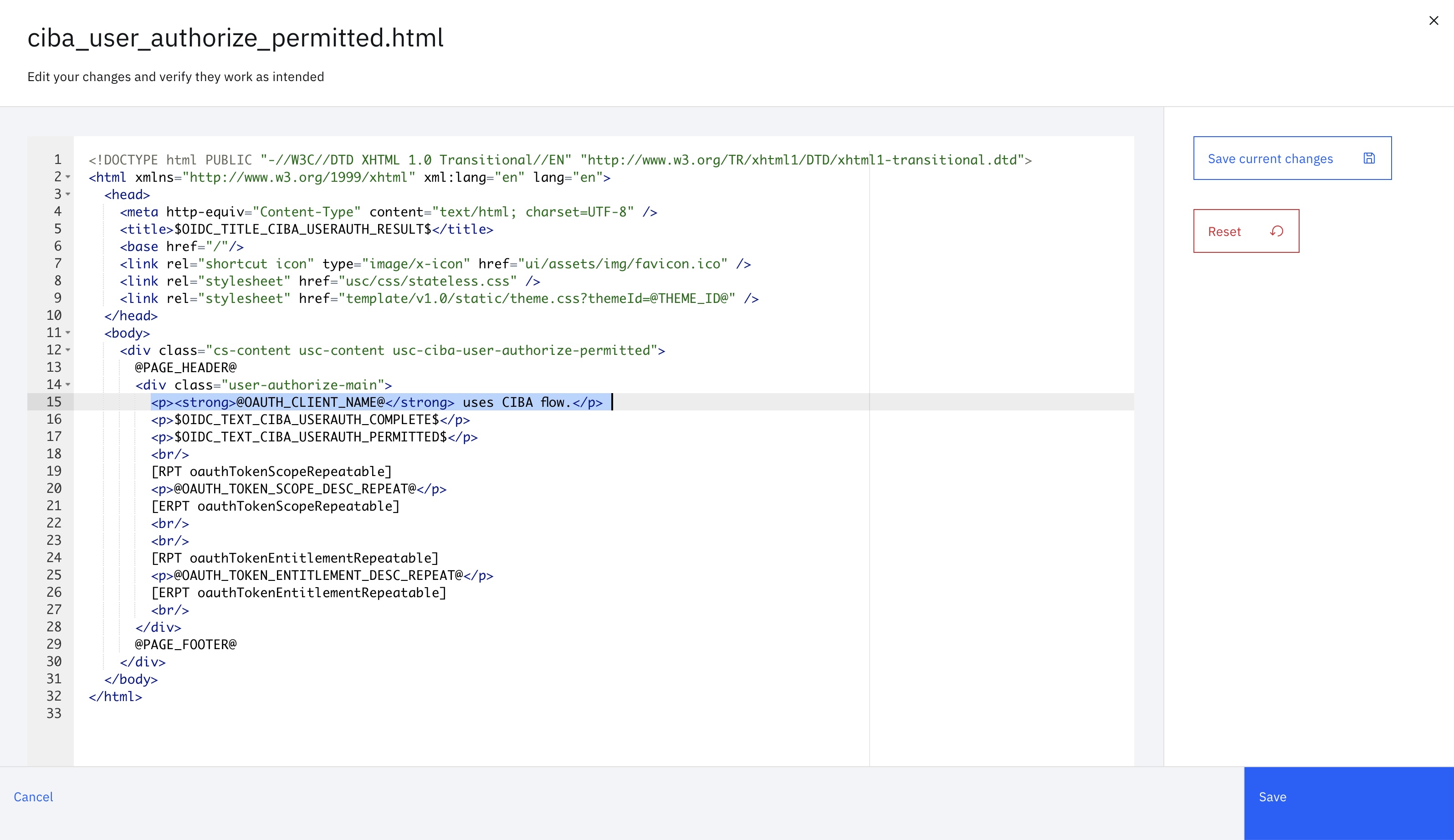
- Click Save.
3. Update labels
On the newly created theme:
- Navigate to the CIBA label directory Template files > common > labels.
- Locate and click the three vertical buttons (Options) on
template_labels.propertiesfile and click Edit. - Search for the labels to update (or add the label if it is not present). For example, customize the email notification label as follows to add the application name in the subject and to remind user to validate the
binding_message:
$OIDC_CIBA_EMAIL_NOTIFICATION_SUBJECT$=Authentication Request [@OAUTH_TRXID@] from @OAUTH_CLIENT_NAME@

$OIDC_CIBA_EMAIL_NOTIFICATION_CONTENT$=Validate this message: @OAUTH_MESSAGE@ <br> You have received an authentication request from the application @OAUTH_CLIENT_NAME@. <br> See @OAUTH_AUTH_URL@.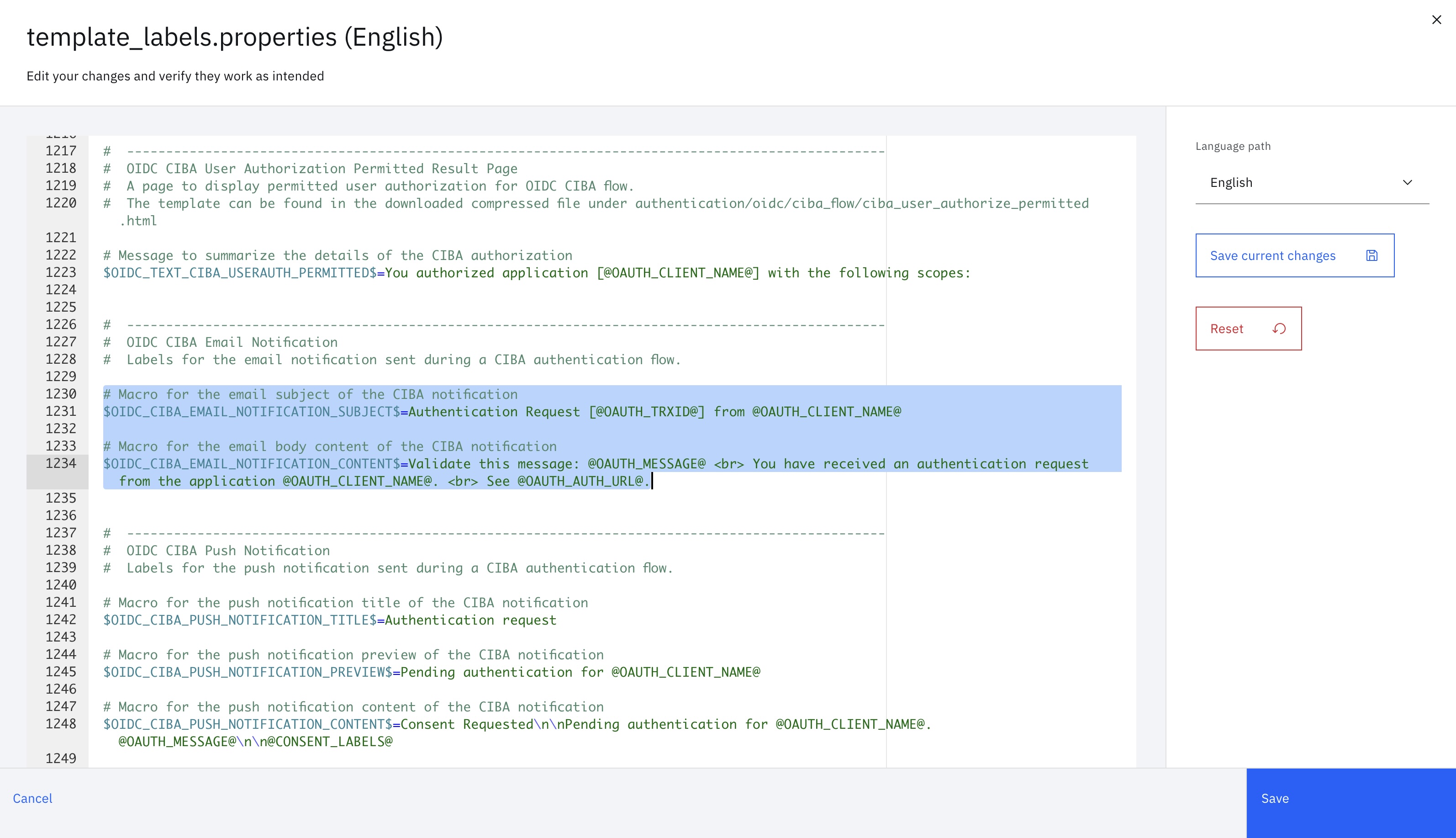
- Click Save.
4. Assign the theme to the OIDC application
In IBM Verify admin console, open the OIDC application configured with the CIBA grant type. On the General tab, select the new custom theme from the Theme selector and save the application.
Result
When the user receives the email notification, the email subject and body shows the customized content:


When the user opens the verification URL in a browser and approves the request, the user authorization result page is displayed with the customized content:
For more details on managing themes and templates, see: Managing branding
Related documentation
Specification references
The wrap
This guide has demonstrated how a client can implement CIBA with IBM Verify to perform secure out-of-band user authentication. Although the examples used client secret POST for client authentication, you can choose any supported authentication method that meets your security requirements. Additionally, CIBA can be combined with Rich Authorization Requests (RAR) to enable advanced use cases, such as AI agents requesting complex, fine-grained permissions with enhanced security and flexibility.
Cindy Kurniawan, IBM Security
Updated about 1 hour ago